Ah, the emoji. Despite first arriving on phones back in 1997, it wasn’t until their addition to iOS in 2011 that they really began to take off. Android followed two years later, and the rest is history.
You’ve probably been using emoji ever since, whether it’s laughing at a funny joke, expressing your love for something or just adding more meaning to a conversation. More recently, you’ve been able to use them to react to specific messages and even emails – on Outlook anyway.
But while your emoji use may be almost exclusive to phones and tablets, it doesn’t need to be that way. Both Windows 10 and Windows 11 let you access built-in emojis, even if not all apps support them. Here’s how to get started.
How to use emoji on Windows
We’re using Windows 11 for the purposes of this tutorial. It looks slightly different on Windows 10, but the method is almost identical.
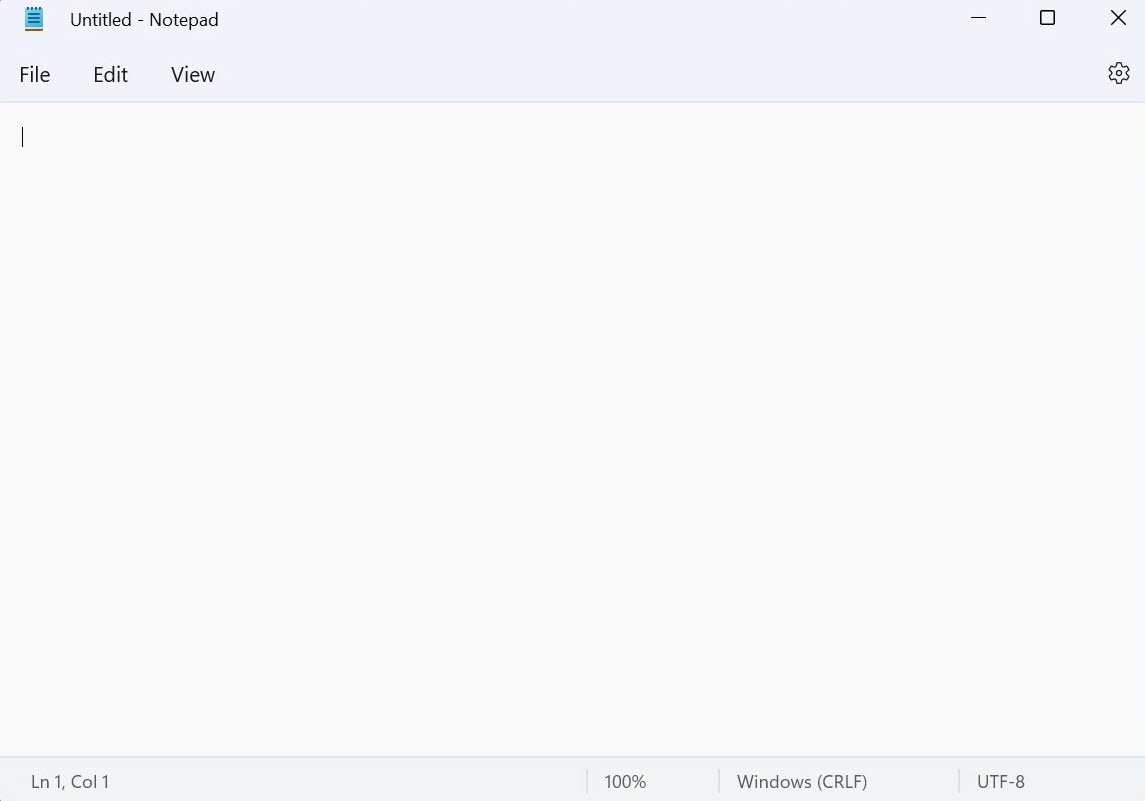
Open any app which supports emojis
Anyron Copeman / Foundry
The pre-installed Notepad (shown above), Sticky Notes and many sites in Microsoft Edge (or any web browser) do. Try out the steps in this article if you’re not sure.
Launch the emoji panel
Anyron Copeman / Foundry
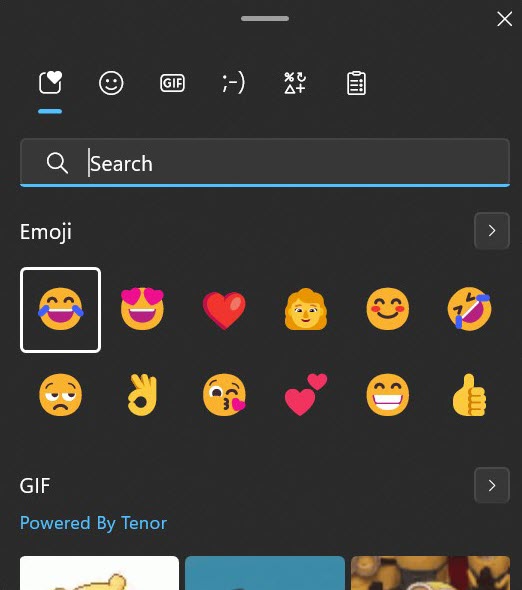
Click anywhere you can type (and would like to add an emoji), then use either Windows Key + semicolon or Windows Key + full stop to launch the emoji panel. Click any of the 12 you see to add them immediately.
Find your emoji/s
Anyron Copeman / Foundry
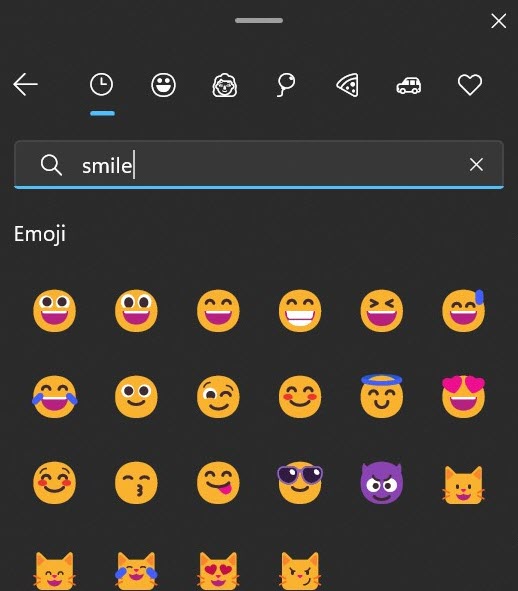
For more emojis, click the smiley face icon at the top of the panel. You’ll then be presented with a screen like the above, allowing you to choose a specific category or search for something specific. Simply click any you’d like to add.
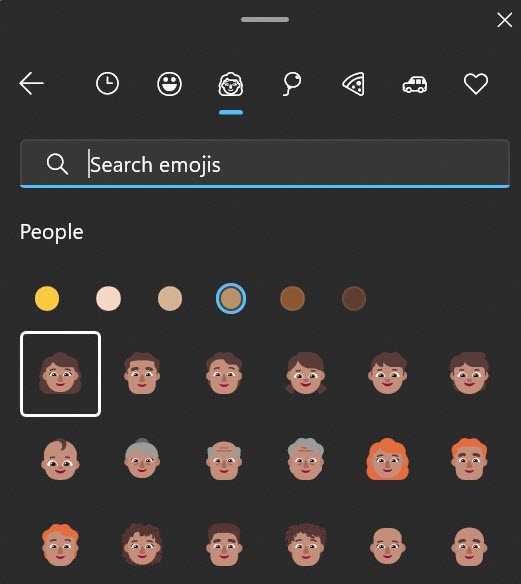
Within the people category, you’ll find six different skin tones to choose from.
Anyron Copeman / Foundry
On Windows 11, you can also add GIFs from the same panel. Just click the GIF icon rather than the emoji one, then search for anything from the Tenor GIF keyboard.

Anyron Copeman / Foundry
However, these aren’t supported in as many places as emojis, and are only available via third-party apps on Windows 10.
To make things even quicker, most apps turn a few keyboard shortcuts into specific emojis. Colon and closed bracket for a smiley face, colon and open bracket for a sad face and colon and capital P for a face with its tongue out are the most common, but there may be more on the apps you’re using.
- How to use Windows 11’s best multitasking features
- How to improve Windows 11 gaming performance
- 12 hidden Windows 11 features that are actually worth using
Author: Anyron Copeman, Mobile Editor, Tech Advisor

Anyron is Mobile Editor at Tech Advisor, where he’s been a mainstay of the editorial team since 2019. In his current role, Anyron is responsible for all smartphone, tablet and mobile network coverage on the site. A BA Journalism graduate, he has experience with a wide range of consumer tech products and services, including smartphones, tablets, foldables, wearables and more.
Recent stories by Anyron Copeman:
- Windows 11 23H2 update: Everything you need to know
- Windows 12: Everything we know so far
- How to get the Google Play Store on Windows 11
