With the launch of iOS 16, Apple added support for passkeys. That means any iPhone running on the latest software can use them and authenticate the logging process by Touch ID or Face ID. They are then stored in iCloud Keychain and synced across all of your Apple devices.
Passkeys are a more secure way of keeping your accounts safe . They’re not exclusive to Apple and Keychain, so you can use passkeys on any account that supports them on other devices too. And other password managers are starting to support passkeys too.
Here, though, is how to use passkeys using Apple’s built-in support on its own devices.
Enable iCloud Keychain
Artur Tomala / Foundry
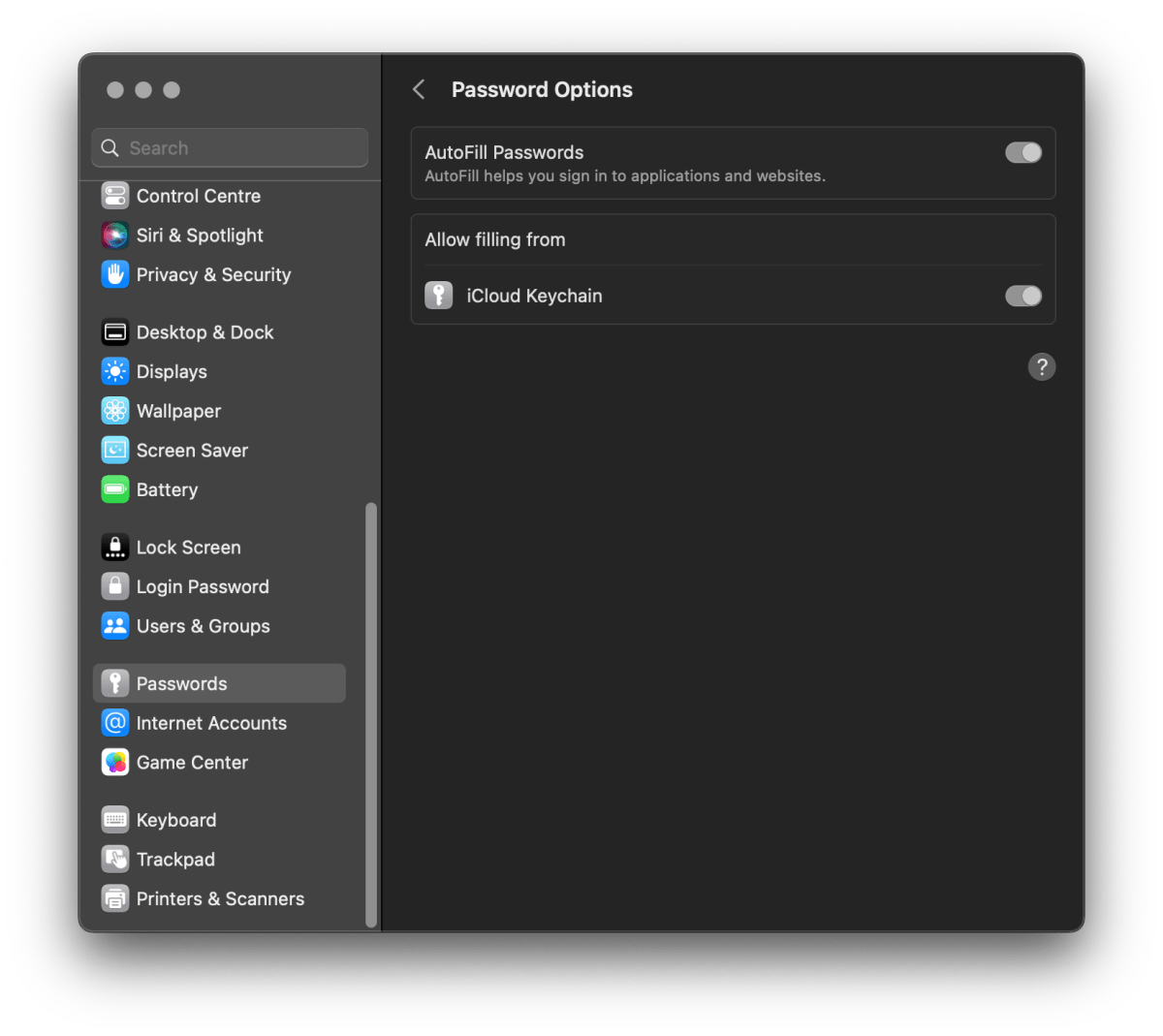
To start using passkeys you first need to make sure you’re saving your account details to iCloud Keychain.
To do this on iPhone, iPad or Mac open settings and scroll down to ‘Passwords’ and tap on it. Then, in ‘Passwords Options’, make sure ‘AutoFill Passwords’ is enabled and allow filling from iCloud Keychain.
If you’re planning on moving away from a password manager such as Dashlane or Bitwarden to start using iCloud Keychain then make sure they are also enabled. This will allow you to log in to your account using your passwords manager and save your logins into iCloud Keychain.
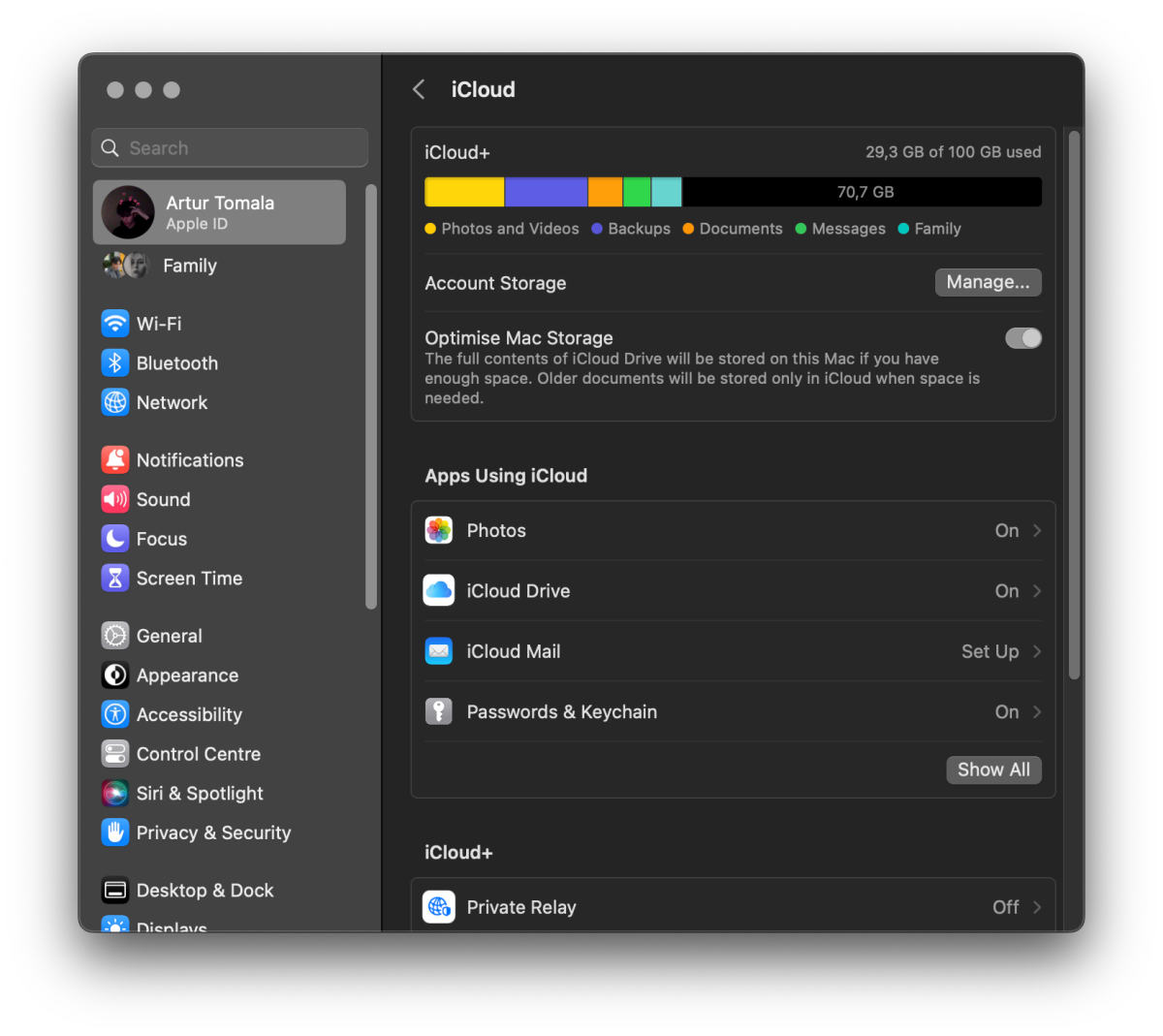
Turn on iCloud sync
Artur Tomala / Foundry
Also make sure that you’re using iCloud to sync logins in Keychain across all of your Apple devices. To do that simply go to your profile in the settings, tap on the ‘iCloud’ tab and turn ‘Passwords and Keychain’ option on.
Create a passkey for a new account
Artur Tomala / Foundry
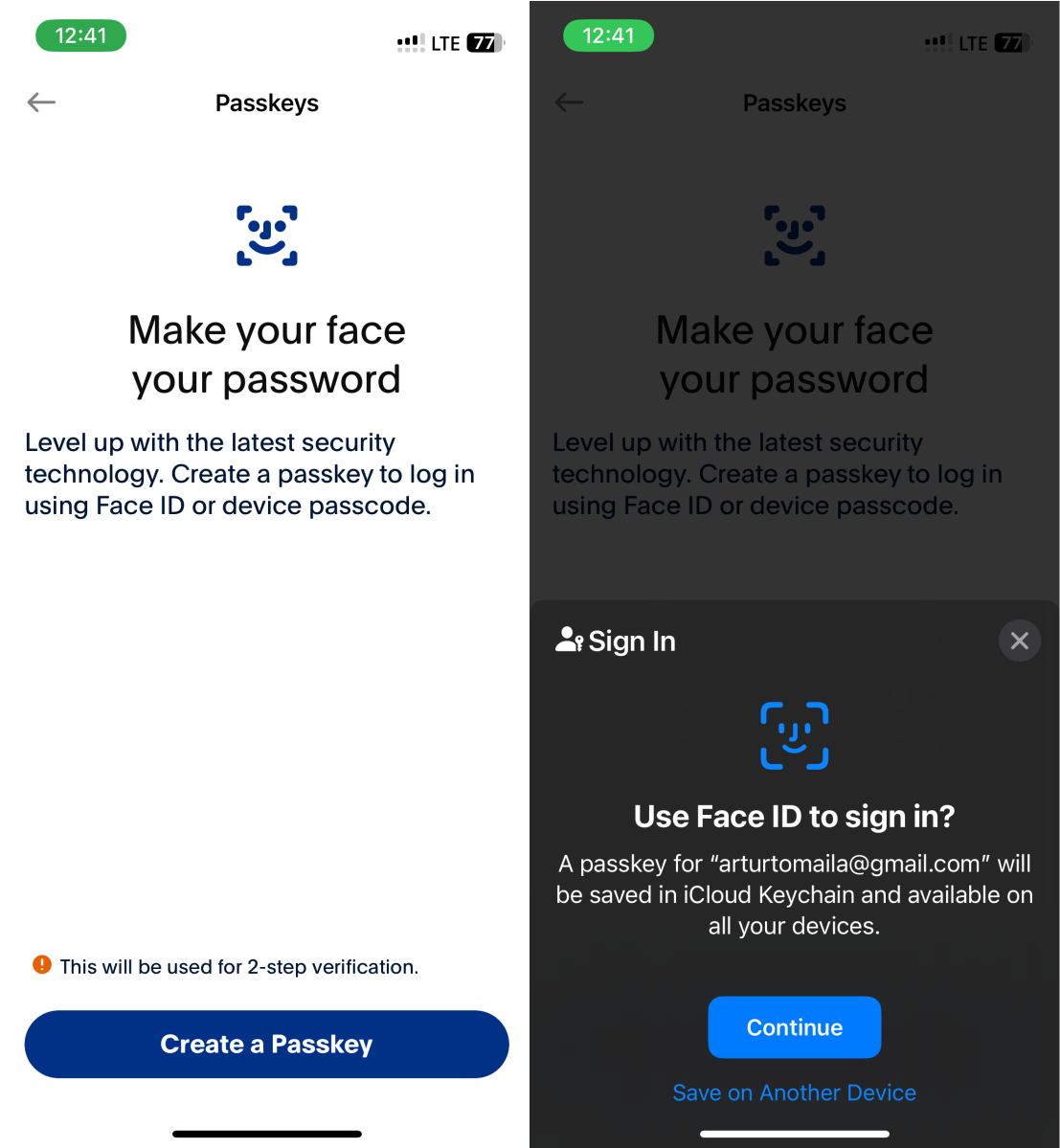
You can create a passkey for a new account or replace your old password with a passkey. However, this applies only to accounts that support passkeys. Not all do, but there are a selection of well-known sites that do, including PayPal, TikTok and others.
When creating a new account, simply provide an username or an email address and then you’ll be asked to create a passkey. Your iPhone or other Apple device will automatically generate the encryption key pair for your account and ask for authentication through Face ID or Touch ID.
Replace your password with a passkey
Artur Tomala / Foundry
To replace your old password with a passkey, you have to log in to your account using your existing username and password.
Then you will see a prompt asking if you wish to upgrade to using a passkey or you will have to manually go to the password settings of your account and choose the option to create a passkey.
Then simply confirm that you want to use a passkey from now on and confirm it with Face ID or Touch ID.
Log in to your account using a passkey
Artur Tomala / Foundry
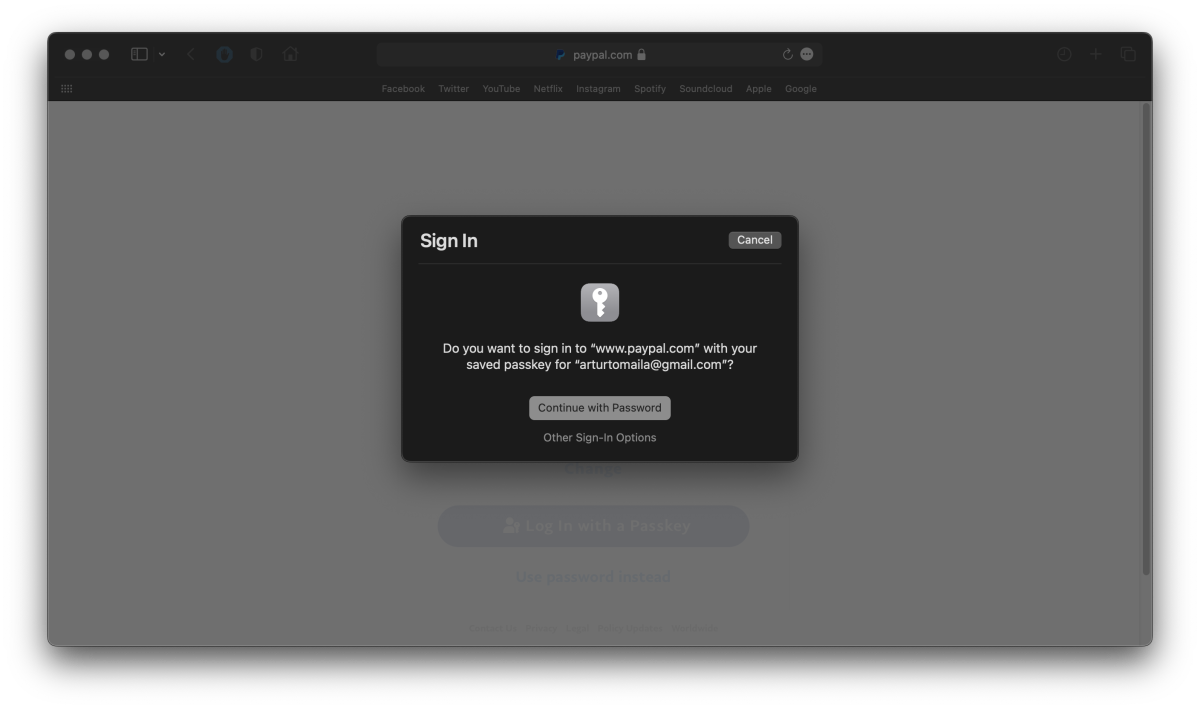
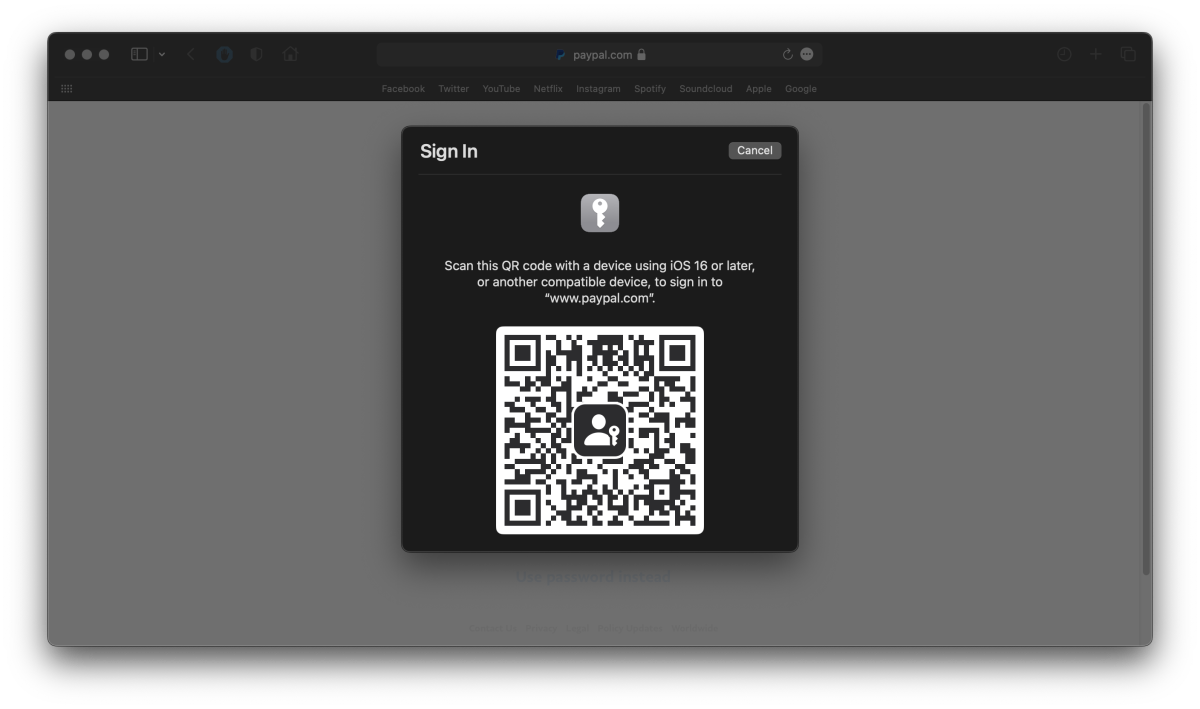
Whether you created a new account with a passkey or replaced your old password with it (both original password and a new passkey will be stored), next time simply provide your username or email address and confirm logging in with Face ID or Touch ID.
If you wish to use passkeys to log in to sites and services on your other, non-Apple devices, you can do that to. Simply generate a QR Code, scan it with your iPhone’s camera and verify your identity with biometrics.
Author: Artur Tomala, Mobile Writer, Tech Advisor

Artur is a Mobile Writer at Tech Advisor, where he covers a range of smartphone, tablet and smartwatch-related topics. He has been working in the tech industry since 2021, including time spent leading a team focused on mobile news, reviews and product rankings. As an ambassador for the productivity app Notion, he runs training workshops and creates advanced templates to help people stay organised and productive.
Recent stories by Artur Tomala:
- Sick of Siri? iPhone owners can use Gemini too. Here’s how
- Update iOS now: Serious security flaw could give free rein to hackers
- Apple Intelligence not for you? Tough.
