Whether you’ve sent a tweet with a spelling error or used the wrong hashtag, there are always times when you wish you could change what you originally typed out. Fortunately, the edit button on Twitter is now available.
You may have to wait up to seven days for an account to be verified by a member of the team. In my case, it took a couple of days. Therefore, this is not a quick fix if you’ve just posted something.
Tweets can only be edited within 30 minutes of posting, and you can only do it up to five times. Plus, not every type of tweet can be edited – we go into more detail below.
How to edit a tweet
- Time to complete: 5 minutes
- Tools required: PC or smartphone, Twitter webpage or app, Active and approved Twitter Blue subscription
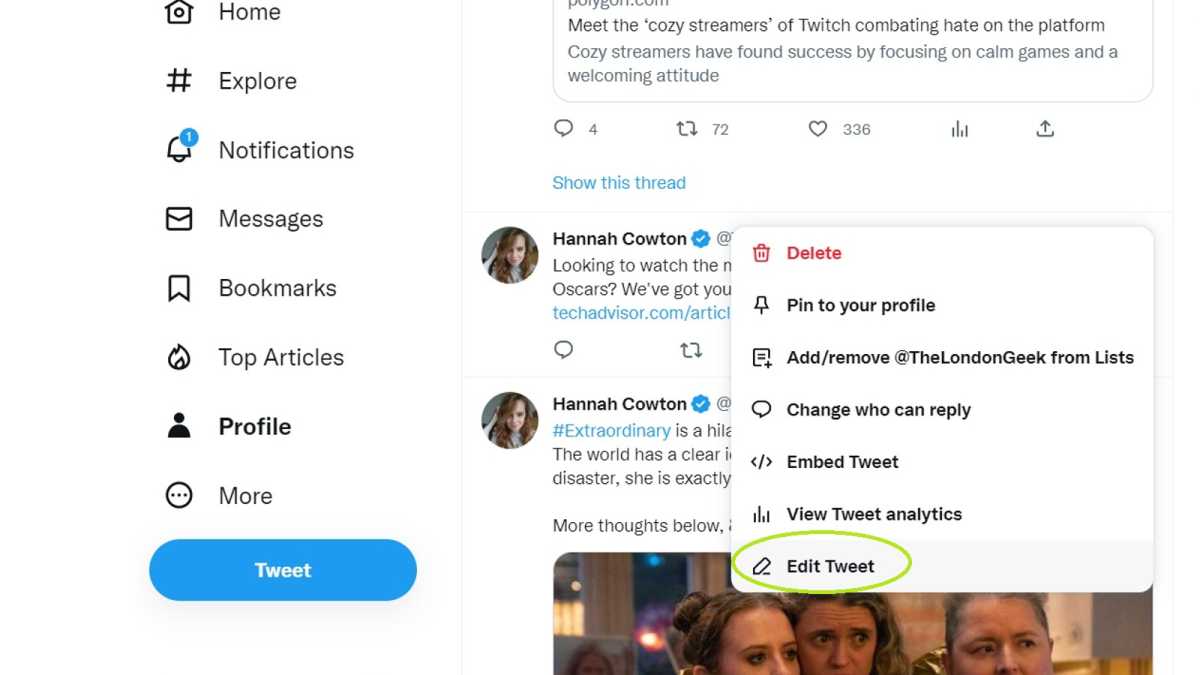
Find the tweet you want to edit
Hannah Cowton / Foundry
Click on the three dots on the top right hand side of the tweet, and select ‘Edit Tweet’
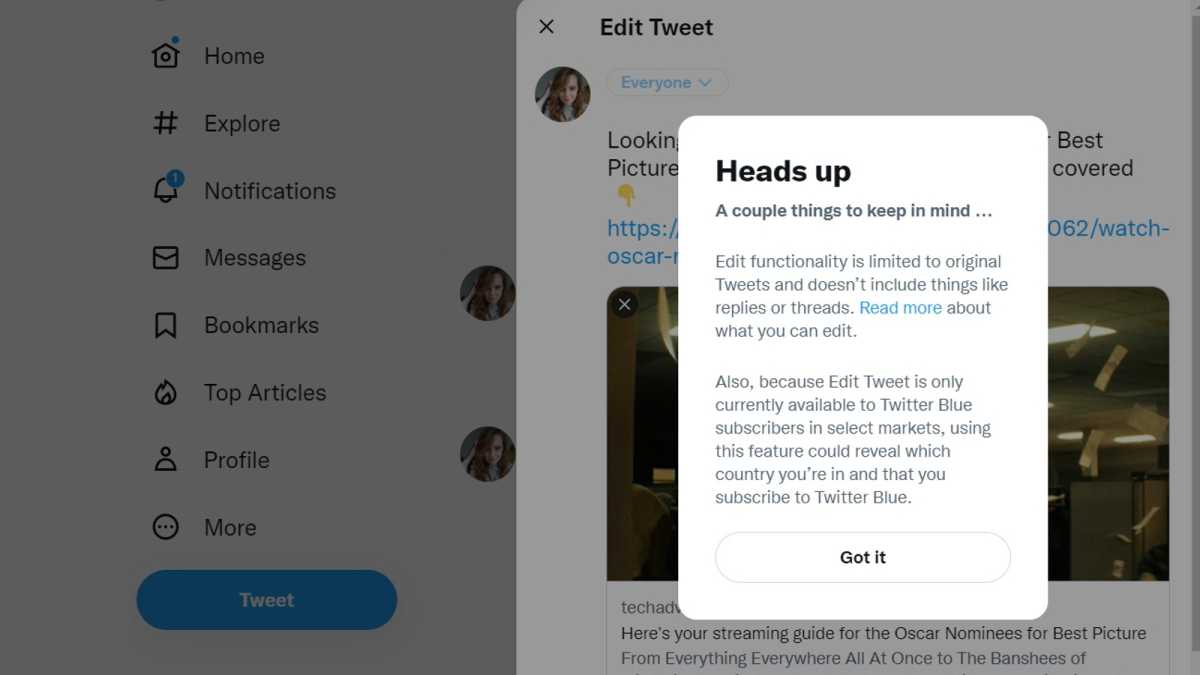
Accept Twitter’s ‘Heads up’ notice
Hannah Cowton / Foundry
Read Twitter’s terms on edit functionality and click ‘Got it’ if you’re happy to proceed
Edit your tweet

Hannah Cowton / Foundry
Make any edits you want, and then click the blue ‘Update’ button when you’re happy
Twitter will confirm your edits

Hannah Cowton / Foundry
Twitter will now display the button ‘Your Tweet has been edited’
We have tested the process both on desktop and on a smartphone, and the steps are the same.
What tweets can’t be edited with Twitter’s edit button?
Whilst standard tweets can be changed, there are some which are exempt. They are:
- Tweets that have been sent over 30 minutes ago
- Retweets
- Replies
- Polls
- Tweets that have been sent on a different device to the one you’re editing on
Can people see if you’ve edited a tweet?
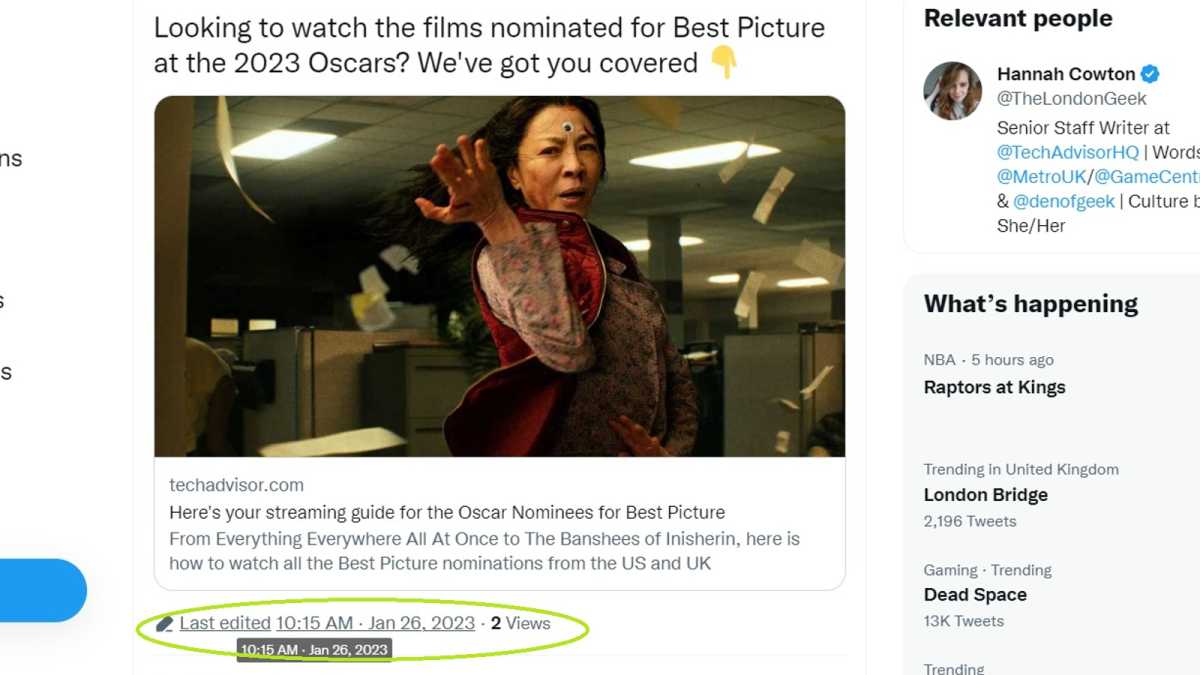
Yes. Underneath the tweet, you’ll see a link highlighted in blue, which says ‘Last edited’ and then the time and date.
Hannah Cowton / Foundry
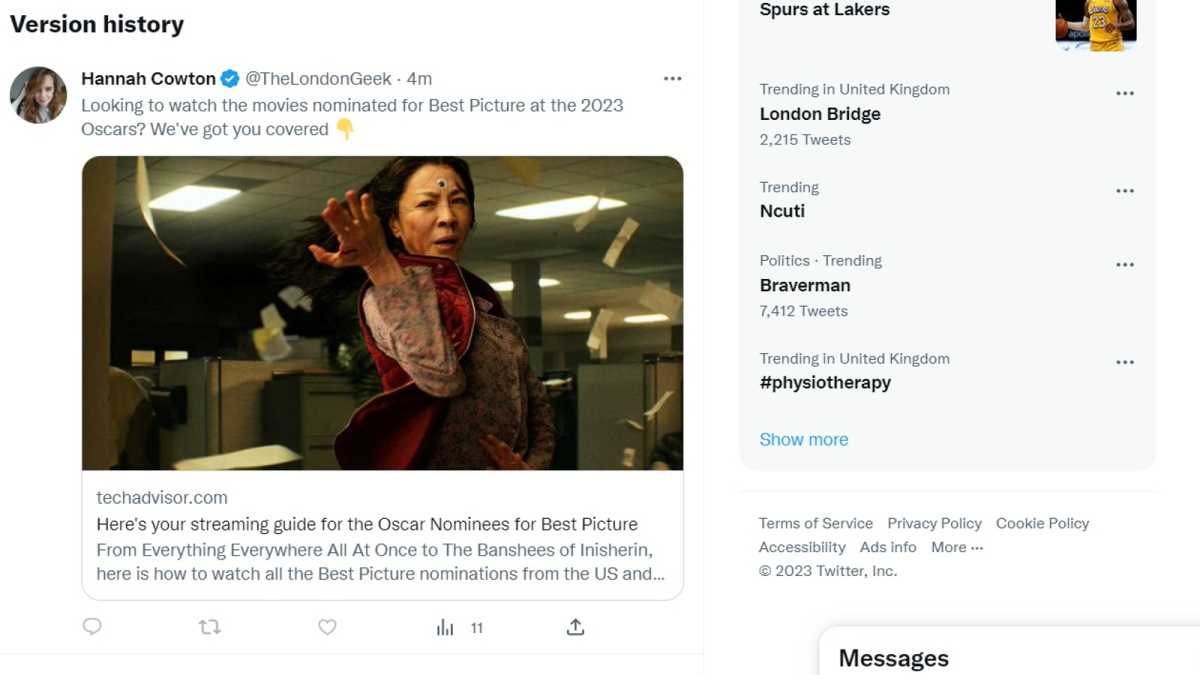
If any user clicks on this, it will display the various versions of your tweet. Therefore, if you don’t want people to see your previous tweet, the best method is to simply delete it and make a brand new one.
Hannah Cowton / Foundry
Can you unsend a Tweet?
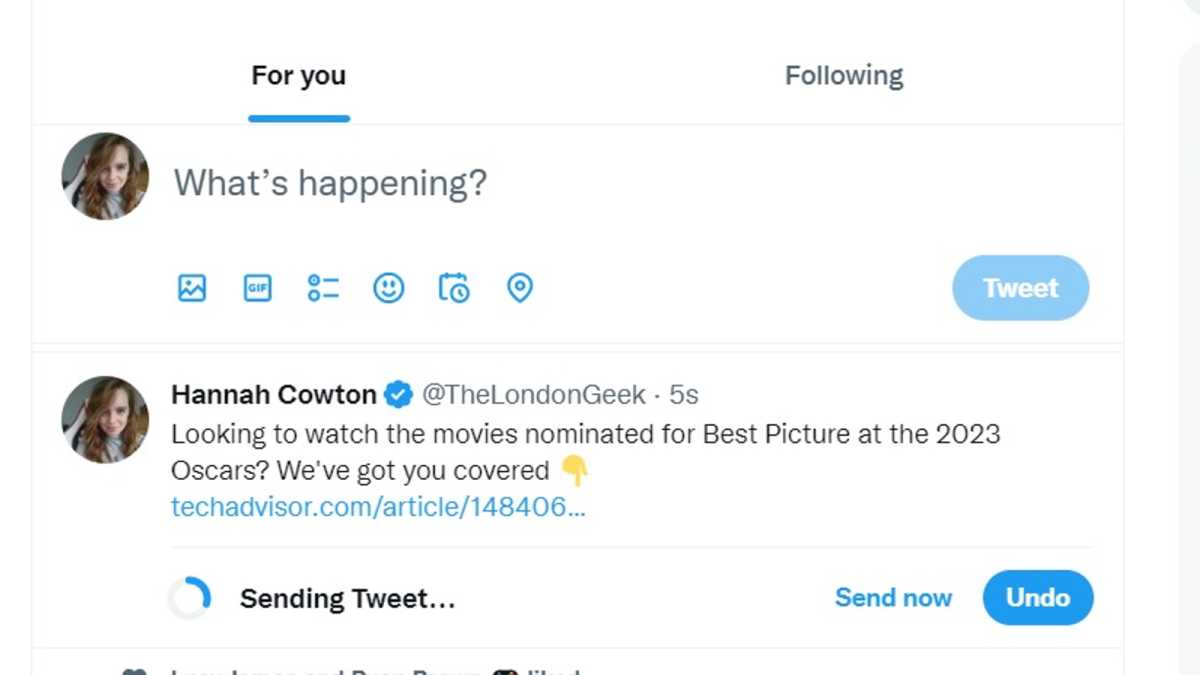
If you send a tweet and immediately change your mind, then Twitter Blue also allows you 30 seconds to click the ‘undo’ button before it goes live.
Hannah Cowton / Foundry
You can change this to either 5, 10, 20 or 60 seconds in the Twitter Blue settings, or turn it off entirely.
If you’re looking for more social media tips, check out five new great features coming to WhatsApp in 2023 .
Author: Hannah Cowton-Barnes, Entertainment Editor, Tech Advisor

As Tech Advisor’s Entertainment Editor, Hannah is the resident expert in all things streaming, film and TV. Before joining Tech Advisor in 2019, she studied Theatre and Performance at the University of Leeds and created a website dedicated to geek culture and lifestyle. She’s also reviewed a whole range of gadgets including flagship smartphones, wearables and styling tools. Outside of Foundry, she’s written freelance pieces for Polygon, Metro and Den of Geek, and is proud to be a Women Techmakers Ambassador for Google.
Recent stories by Hannah Cowton-Barnes:
- Bag a free TV if you sign up for these Virgin Media bundles
- Improve your chances of getting Glastonbury 2025 tickets with these tips & hacks
- The best student deals and discounts in the UK
