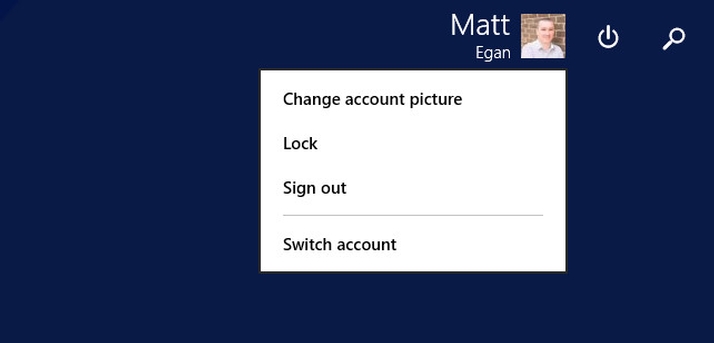
Starting with Windows 8, users have had the ability to sign into their PCs using a Microsoft account rather than simply choosing a user name and password.
A Microsoft account is most often associated with one of Microsoft’s own email services such as outlook.com or Hotmail.com, but can in fact be any email address you currently use or even one you set up specifically just for your Microsoft account. However, we’d recommend you don’t use a work email or any other email address you’re likely to lose access to if you should change jobs.
There are advantages of signing in with a Microsoft account, including the ability to synchronise settings between the different Windows 8 PCs you use, connect seamlessly with online services which also use the Microsoft account sign-in, and also the ability to easily install apps from the Windows Store.
However, several users don’t want to use a Microsoft account, perhaps for security or privacy reasons.
How to create a local account to run Windows 8
Microsoft has hidden away the option to create a local account, but it’s still there. Just follow these steps:
Perhaps the simplest way is to make sure you’re not connected to the Internet when you set up your PC. Windows will then automatically suggest you create a local account and display a button to create one.
Otherwise, Windows will immediately ask you to sign in to your Microsoft account. If you don’t have one, you can click on “Create a new account”. Do this even if you don’t want to create a Microsoft account, because at the bottom of the next page will be a link marked, “Sign in without a Microsoft account”. Click this and you will be able to choose a user name and password for a local account.
If you’ve already set up your PC with a Microsoft account, but you’d rather not use it, you can switch to a local account at any time. However, be aware that you’ll lose the conveniences, mentioned above, that come with using one.
Following these instructions will keep all your documents and settings intact.
From the Start screen, type “settings” and select “PC Settings”. From here, select “Your account”. Now click on “Disconnect” to dissociate your Microsoft Account.
If you’ve already set up a local account but want to switch to using a Microsoft account, you can follow the same procedure, but select “Connect to a Microsoft account”. This will verify your account by text or email and then offer to automatically save your photos document and settings to Microsoft’s OneDrive cloud storage service. You can opt out of this if you wish.
If you want to use apps from the Windows Store, it’s much easier to be signed in with a Microsoft account, and Windows will strongly suggest that you do so if you attempt to install one.
See all How to articles
Getting your documents, spreadsheets, posters, and other creations from PC to paper is a relatively straightforward affair. But, as with all things in life, it’s only easy when you know how. We show you the steps to take if you want to set up a printer and use it with Windows 10.
For users still on earlier versions of Windows, we’ve also included instructions on how to set up a printer in Windows 8 and 8.1.
If you need to buy a printer, check out our recommendations of the best printers.
Setting up a local printer in Windows 10
Before you can print, you’ll need to tell Windows that there’s a device that can receive your document. To set this up, first plug the printer into your PC with its supplied USB cable and turn it on. If all goes well, Windows should recognise it and install the appropriate driver.
If that doesn’t happen, open the Start Menu and select Settings . From the window that appears, click on Devices then make sure the Printers & scanners section is highlighted in the left hand column.

In the main pane, click on the Add a new printer or scanner button.

Hopefully Windows will now detect your device. If this is the case then click on its name and follow the instructions that appear to complete the setup.
If the printer name doesn’t appear, then it could be that you need specific drivers or software. To find these, visit the manufacturer’s website and search for your model of printer. This should give you a link to the download you require.
Install it and follow the instructions on screen. Typically you leave the USB cable disconnected until instructed to plug it in.
Setting up a wireless printer
USB cables are pretty old fashioned when it comes to printers and most modern models have Wi-Fi. You’ll need to follow any instructions that come with the printer, as they vary too much to give anything specific here. Generally, this involves using the display on the printer itself to identify your home Wi-Fi network, then entering the password.
With this done, you can then follow the steps listed above in the Setting up a local printer section, as Windows should find the new device and add it. Again, you may still need to download software specific to the printer model from the manufacturer’s website.
Printing from Windows 10 applications
With your printer ready to roll, you can start sending it things to print. Again, this can vary from app to app, but the normal process is to go up to the menu bar at the top and select File>Print , choosing your printer, how many copies and so forth, then clicking on the Print option.

A shortcut that also works is holding down CTRL+P , which should take you to the Print options page.
Now, if all has gone to plan then you should be able to printout your documents and other paper-based creations to your heart’s content.
If you’re looking to print photographs, then read How print photos at a larger size , while for other related issues there’s also How to print from iPhone or iPad , and How to fix common printer problems .
Print in Windows 8 and 8.1 from desktop software
Each program can set its own method via which you can print, but most follow some common themes. In most cases, go to File>Print , and you can print. A similar number of desktop programs support CTRL+P as a shortcut – just hold down those two keys together.
One final, less usual, option is to look for a print icon or button. Some software makers simplify the print process by putting in place a print button. You’ll tend to find that the File, Print and Ctrl+P options also work, but a print icon can be a simpler way of doing things.
Print in Windows 8 and 8.1 from Windows apps
Things work a little different from within Windows apps. In this case you must first open the item you want to print. Then either mouse to the top- or bottom-right hand corner of the screen, or swipe in from the right edge of the screen if you are using a touchscreen device. Tap the Devices charm, and then tap Print .
Installing a printer in Windows 8 and 8.1
Using either method you should now be at a printer settings page. You’ll need to choose a printer from the list. In most home setups this will just be your one and only printer. If you can’t see the printer you want, or any printer, you may need to install your printer.
In most cases, all you have to do to set up a printer is to connect it to your PC. Simply plug the USB cable from your printer into an available USB port on your PC, and turn the printer on.
If you have a wireless printer that hasn’t been added to your home network, it’s a little more complicated and you’ll need to read the instructions that came with the printer to learn how to add it.
If you are unsure about any of this you can check by going to the Settings charm, and selecting Change PC settings . Select PC and devices , and then Devices . Your printer should appear under Printers. If it isn’t there you need to follow the steps outlined above in order to install it.
Assuming you have a printer installed and ready to go, at this stage you’ll see a preview of what you’re printing, along with the number of copies and the page orientation on the preview pane.
Choose the paper type, page layout, print orientation, and other output settings. Once you are happy, click Print .
Author: Martyn Casserly, Contributor, Tech Advisor

Martyn has been involved with tech ever since the arrival of his ZX Spectrum back in the early 80s. He covers iOS, Android, Windows and macOS, writing tutorials, buying guides and reviews.
Recent stories by Martyn Casserly:
- What is Google Gemini?
- How to back up your data for free
- You can now buy Microsoft Office 2024 on Amazon without a 365 subscription
