One handy feature of a modern smartphone is the ability to turn it into a mobile hotspot, allowing you to share your phone’s internet connection with other devices, such as laptops, tablets, or even other phones.
Whether you have one of the best Android phones or the best iPhone , this guide will walk you through the steps to set up and use your phone as a mobile hotspot.
What is a mobile hotspot?
A mobile hotspot turns your smartphone into a wireless access point, allowing other devices to connect to the internet using your phone’s data connection. This feature is especially useful when you’re travelling, working remotely, or when there’s no Wi-Fi available.
How to set up a mobile hotspot on Android
Setting up a mobile hotspot on an Android phone is straightforward. Here’s how to do it:
- Start by opening the ‘Settings’ app on your Android device.
- Tap on ‘Network & internet’ (the name may vary slightly depending on your device, sometimes it’s labelled as ‘Connections’ or ‘Wireless & networks’).
- Look for ‘Hotspot & tethering’ and tap on it. Here, you’ll find several options, including ‘Wi-Fi hotspot’, ‘USB tethering’, and ‘Bluetooth tethering.’
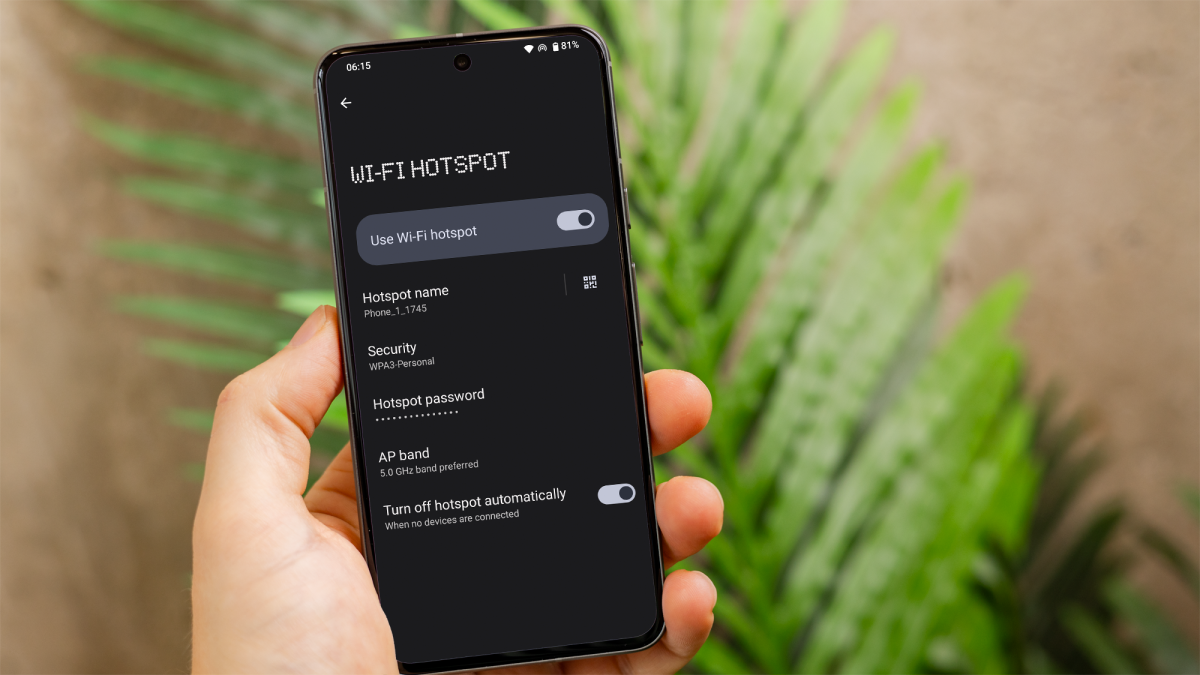
- Toggle the switch next to Wi-Fi hotspot to turn it on. You may also need to configure your hotspot by setting a name (SSID) and password for the connection.
- Tap on ‘Wi-Fi Hotspot’ to customise your hotspot settings. You can change the network name, set a secure password (ensuring your hotspot is secured with a strong password to prevent unauthorised access), and choose the preferred security type (WPA3 is recommended for the best security).
- On the device you want to connect, find your hotspot network in the Wi-Fi settings, select it, and enter the password.
Dominik Tomaszewski / Foundry
It’s important to monitor your data usage while using a mobile hotspot, as tethering can consume a significant amount of data quickly.
How to set up a mobile hotspot on iPhone
For iPhone users, the process of setting up a mobile hotspot is just as simple. Follow these steps:
- Go to the ‘Settings’ app on your iPhone.
- Scroll down and tap on ‘Mobile Service’ and turn on ‘Mobile Data’. Then, go back and tap on ‘Personal Hotspot’.
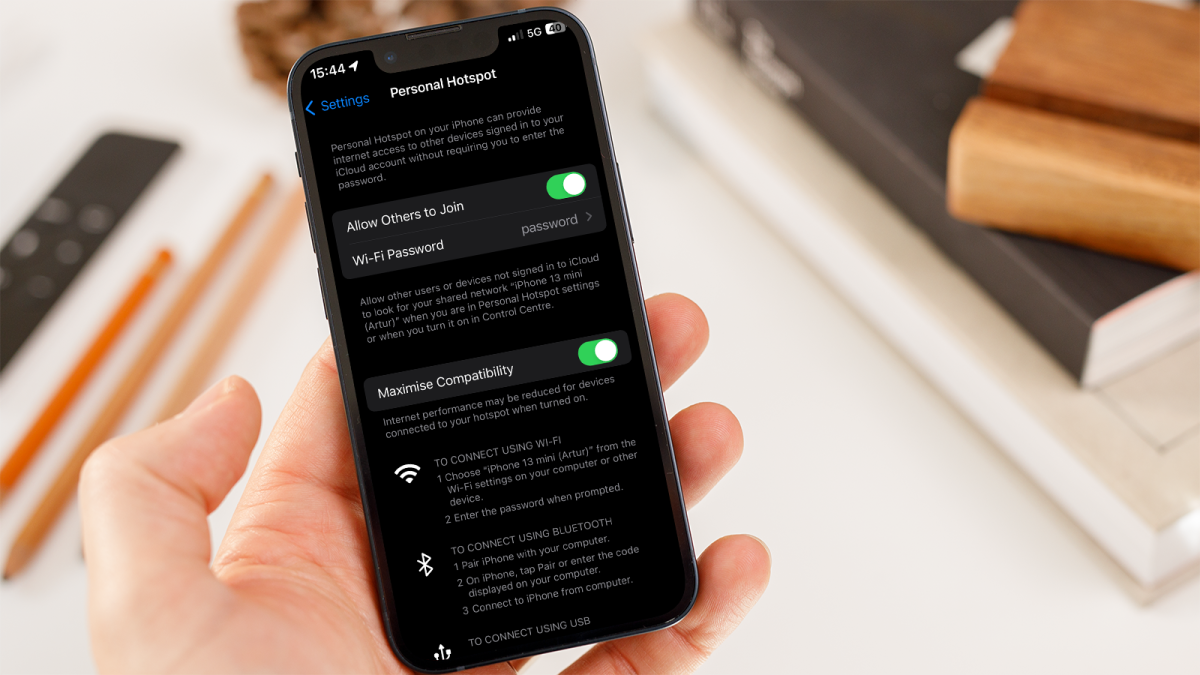
- Toggle the switch next to ‘Allow Others to Join’ to enable the mobile hotspot.
- By default, the network name will be your iPhone’s name, and a password will be auto-generated. You can tap on ‘Wi-Fi Password’ to change the password to something more memorable.
- On the device you want to connect, search for your iPhone’s network name in the Wi-Fi settings, select it, and enter the password.
Dominik Tomaszewski / Foundry
Using your iPhone as a hotspot can drain your battery quickly, so it’s a good idea to keep your phone plugged in. Also, be mindful of your data usage.
If you want to make sure you never run out of data to use, check out our list of the best mobile phone networks in the UK and the best Pay As You Go phone networks in the UK right now .
Author: Artur Tomala, Mobile Writer, Tech Advisor

Artur is a Mobile Writer at Tech Advisor, where he covers a range of smartphone, tablet and smartwatch-related topics. He has been working in the tech industry since 2021, including time spent leading a team focused on mobile news, reviews and product rankings. As an ambassador for the productivity app Notion, he runs training workshops and creates advanced templates to help people stay organised and productive.
Recent stories by Artur Tomala:
- How to set up a new Android phone
- Samsung Galaxy A26: Everything you need to know
- What is an eSIM and how does it work?
