Are you looking to stream Netflix in crisp and clear 4K? There’s a plethora of Ultra HD content to enjoy right now, including Stranger Things, Black Mirror, Ozark and so much more. However, you must have the right equipment, account and internet if you want to get started.
For clarification, 4K and Ultra HD are basically the same thing. It’s currently the highest resolution that your screen is likely to have, with four times as many pixels as HD (hence the ‘4’ in the name).
What do I need to watch 4K content on Netflix?
If you want to start searching for all that juicy 4K content, here is a summary of what you’ll need:
- A 60Hz 4K TV that is capable of streaming Netflix
- A streaming device that allows for 4K content
- A strong internet connection speed of 15Mb/s or higher
- A Netflix Premium plan that allows you to stream 4K
- That your streaming quality is set to auto or high
Is my TV compatible with 4K content?
So what exactly are the technical requirements that you’ll need? Besides obviously having a 4K TV, you’ll need to ensure that your TV has a HDMI cable and port that is HDCP 2.2 certified. You should be able to find this information in your user manual or on the manufacturer’s website. If you’re looking for a cheat sheet, then Netflix has very handily provided a full list of compatible devices on their website that they update on a regular basis.
As a note, this article covers watching content from televisions only. If you’re looking to consume Ultra HD on your PC or laptop, then check out our guide to streaming 4K Netflix on your computer . You can also see our top picks of smart TVs (including 4K) here.

What streaming device do I need?
Again, you can find a full list of all the compatible devices on the Netflix website. If you’re looking to invest in a new streaming device, take a look at our top picks of media streaming boxes for your TV .
How can I check my internet connection?
Now you’ve got the TV, you need the internet speed to match it. The recommended speed for smooth streaming in Ultra HD from Netflix is 15Mb/s, with a higher number being preferable. Anything lower than that and you may encounter a lot of buffering issues.
For a stronger connection, you may want to consider an ethernet connection as opposed to just relying on the Wi-Fi, as 4K eats up a lot of data. This basically means that you’ll connect your streaming device directly to your router via an ethernet cable.
If you aren’t sure what speed your broadband is at, we advise visiting SpeedTest.Net and using the eponymous diagnosis program.

Do I have the right Netflix plan?
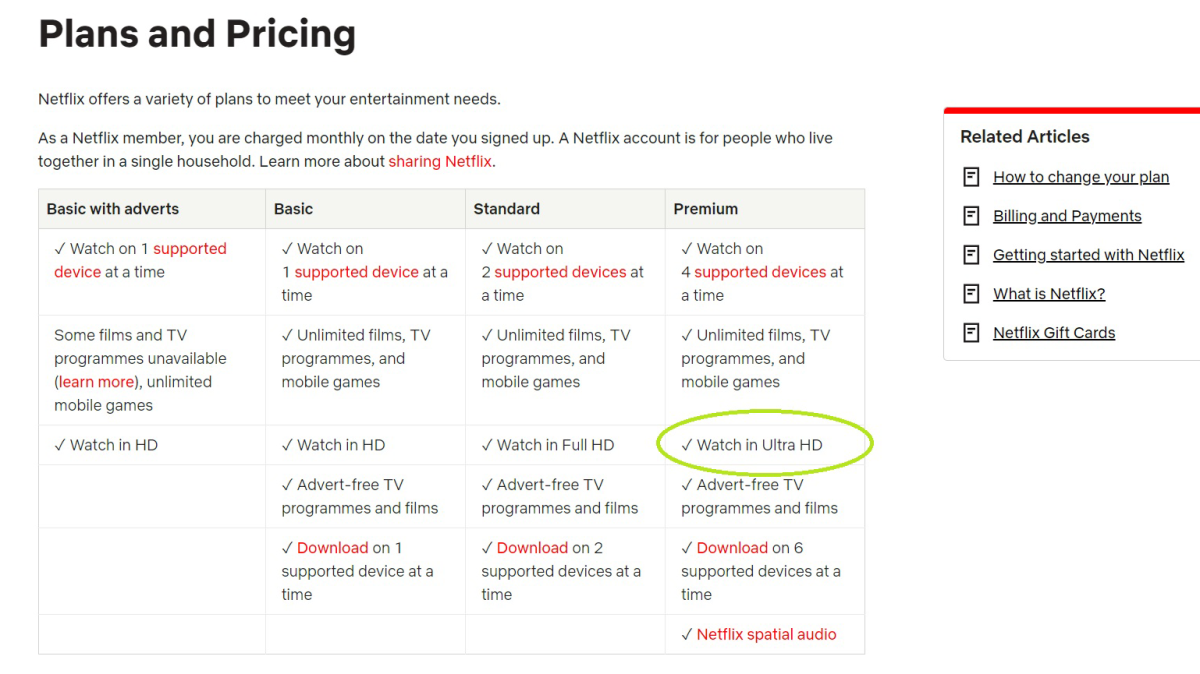
Unfortunately, the Basic plan will only allow you access to 720p content, whilst the Standard plan only streams up to 1080p. To watch in 4K, you’ll have to upgrade to Netflix’s Premium plan, which is currently priced at £15.99/$19.99 per month. This plan will also give you access to a whole host of perks, see full details below:
Hannah Cowton / Foundry
Is my streaming quality set right?
Ultra HD requires the streaming quality to be set to high, which will in most cases appear as auto if you’re watching from a 4K television with a strong internet connection.
You can double-check your streaming quality by firstly heading into the account tab, then clicking on “Playback settings” under the “My Profile” section. The screen should look like this:

You should note that the quality to which you set your videos will affect the amount of data that you use. If for whatever reason you’re looking to conserve your data, then you’ll have to switch down to a lower setting. However, this will then mean that your content will not appear in 4K.
What shows and movies are available in 4K on Netflix?
Annoyingly there isn’t yet a category for 4K content on Netflix, so the process is a little more manual. Pop into the search bar and type either “4K” or “UltraHD” to see what’s available.
You’ll also be able to check whether your favourite show or film is in 4K on the title card, which is displayed above the description. Scroll to the top of this page to see an example of this highlighted in the title image of the article.

Author: Hannah Cowton-Barnes, Entertainment Editor, Tech Advisor

As Tech Advisor’s Entertainment Editor, Hannah is the resident expert in all things streaming, film and TV. Before joining Tech Advisor in 2019, she studied Theatre and Performance at the University of Leeds and created a website dedicated to geek culture and lifestyle. She’s also reviewed a whole range of gadgets including flagship smartphones, wearables and styling tools. Outside of Foundry, she’s written freelance pieces for Polygon, Metro and Den of Geek, and is proud to be a Women Techmakers Ambassador for Google.
Recent stories by Hannah Cowton-Barnes:
- Harry Potter TV series has finally revealed a release window
- Jessica Jones returns in Daredevil: Born Again season 2 trailer
- The Traitors will return for season 5 with new twists and challenges
