The TV Streamer is the go-to entertainment device for tech giant Google now that the Chromecast has stopped being sold as new . As such, more and more users will be transitioning over to this media box , which launched last year.
If that’s you, then you’ll want to get the most out of your streaming device, and navigation is one of the best ways to cut out time scrolling through your TV OS. Thankfully, Google has a shortcut designed to do exactly that.
You can also read up on why Chromecasts and Google TV Streamers are now missing a key Netflix feature .
What is the Google TV Streamer shortcut button?
You can find the customisable button for the Google TV Streamer on the bottom of the remote on the right – it has a star icon on it. See below:
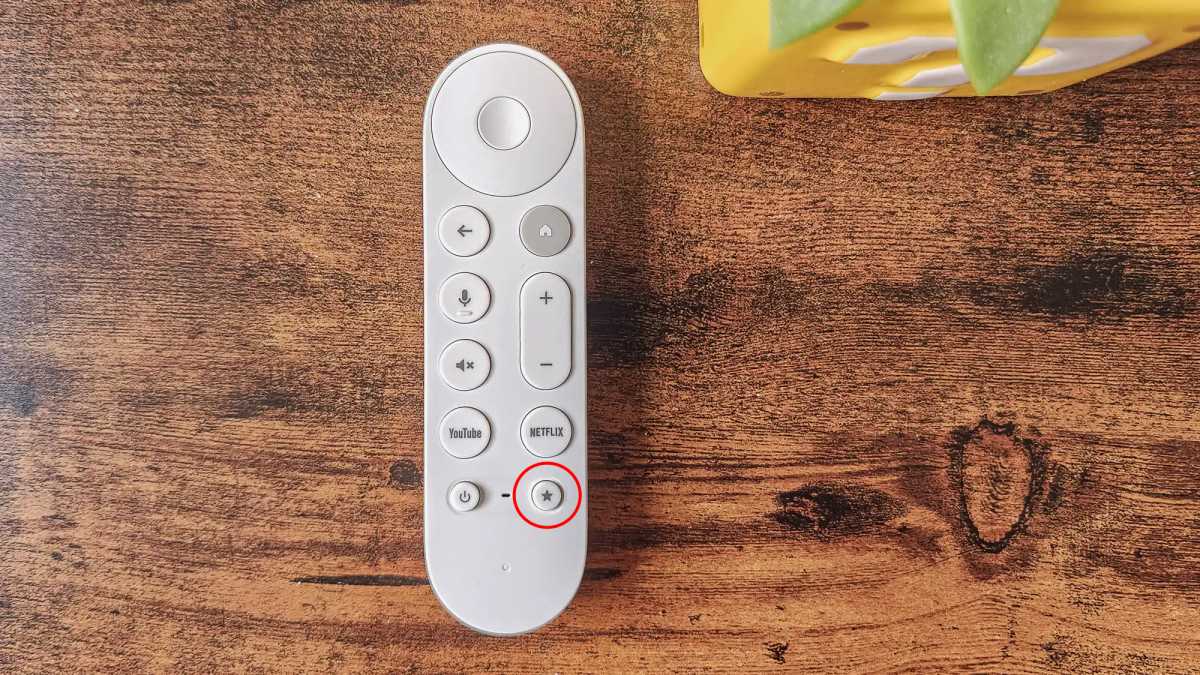
Hannah Cowton-Barnes / Foundry
The same button isn’t available on Chromecasts.
When you first set up your Google TV Streamer, the device will prompt you to map this button to your chosen function. However, if you were in a rush to get to streaming your favourite Netflix show (and I can’t blame you if so), then you may have rushed through this step.
Here’s how to change the button, and what you can assign it to.
How to set up your Google TV Streamer shortcut button
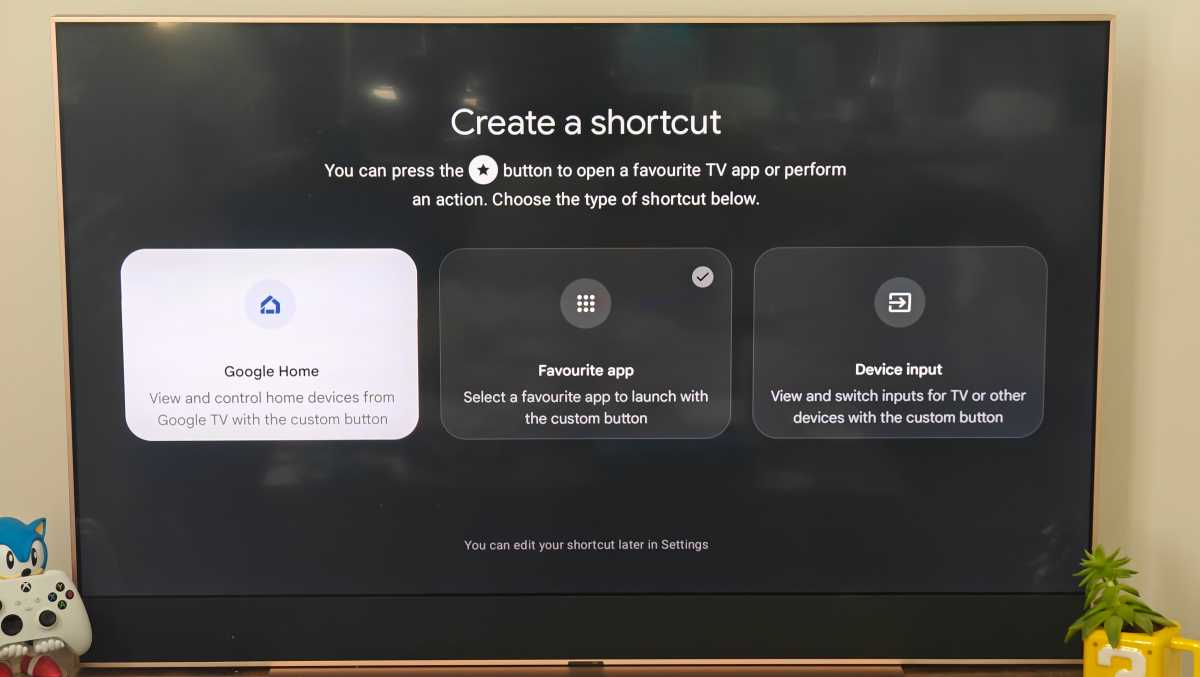
Once your Google TV Streamer is all turned on, hold the star button for 1 to 2 seconds until the page with the title ‘Create a shortcut’ appears.
Hannah Cowton-Barnes / Foundry
You can also find this button by going into Settings > Remotes & Accessories > Set up remote buttons and then clicking ‘Customisable button’.
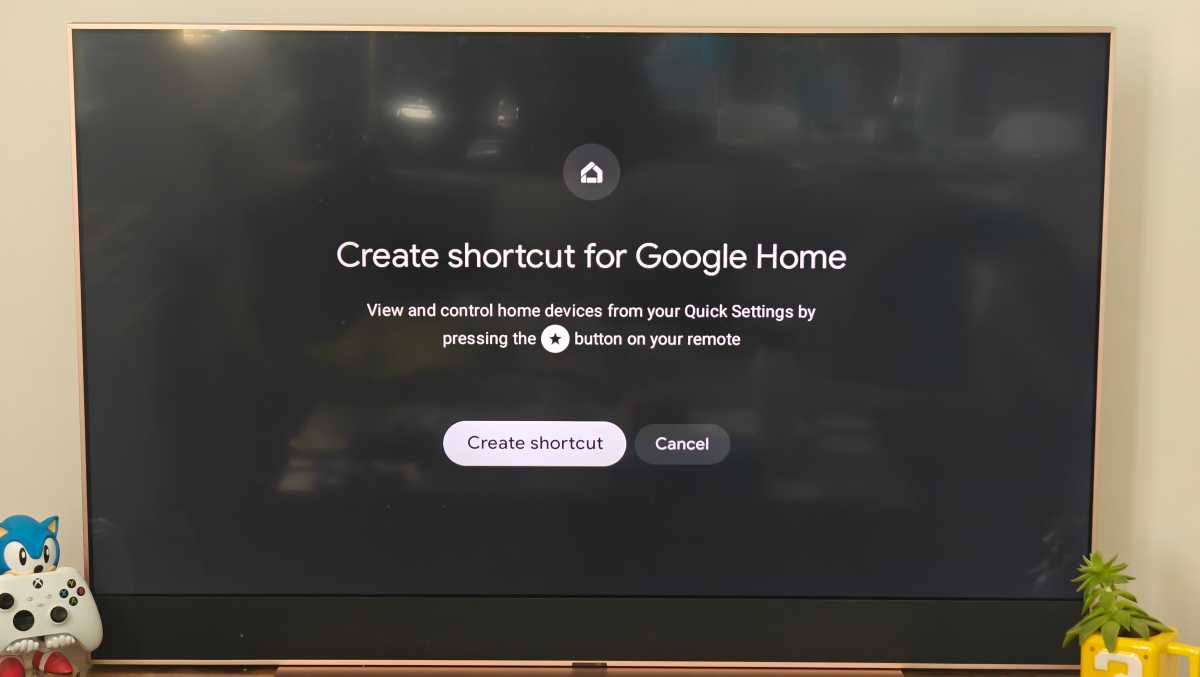
Once you’re on the page, you’ll have three core options to choose from. When you’ve selected the one you want, make sure you confirm your choice by pressing ‘Create shortcut’.
There’s no limit to how many times you can assign this button.
Hannah Cowton-Barnes / Foundry
Assign the Google TV Streamer shortcut button for your smart home
The Google TV Streamer was the first Google entertainment device that could be integrated into your smart home ecosystem, though older Chromecasts have since gained this feature too .
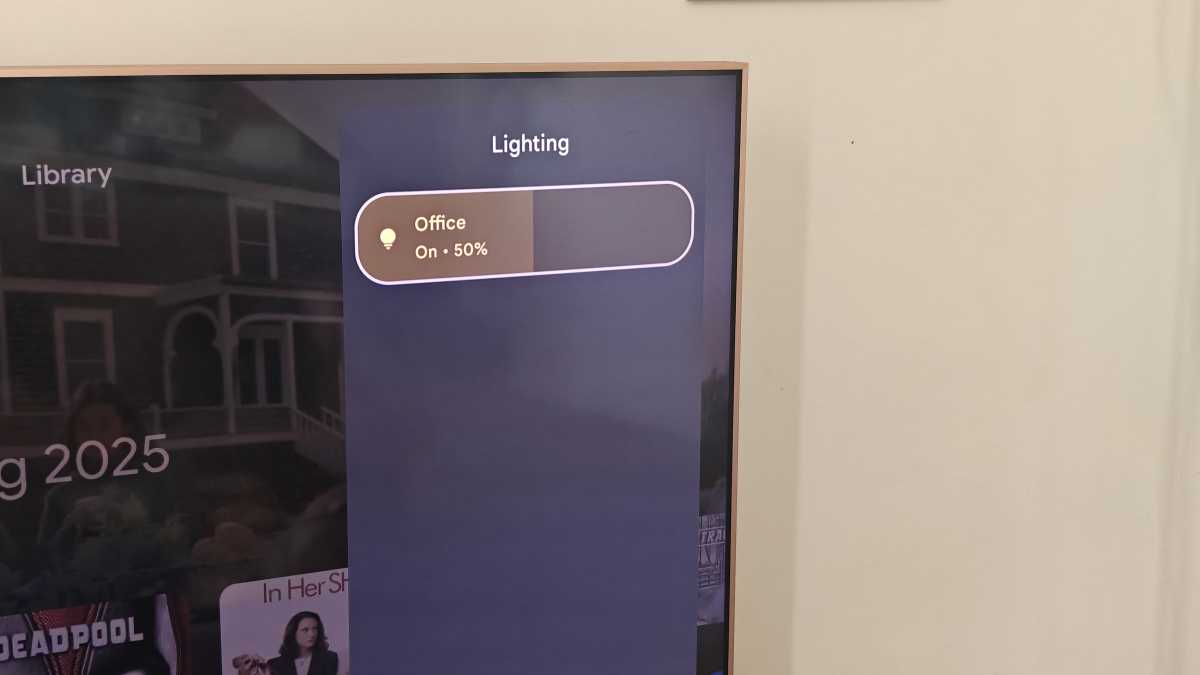
If you assign the button for this, it will automatically open the Home panel on the right-hand side of your TV – it can overlay whatever screen you’re on.
The Home panel can be used to control any device registered on the Google Home app on your smartphone – this includes products with Matter support. That covers smart lighting such as Nanoleaf , thermostats , doorbell cameras such as Nest, locks, plugs, vacuums , TVs and speakers.
From there you can turn devices on and off, and control certain elements – for example, you can toggle the brightness of your smart lighting.
Hannah Cowton-Barnes / Foundry
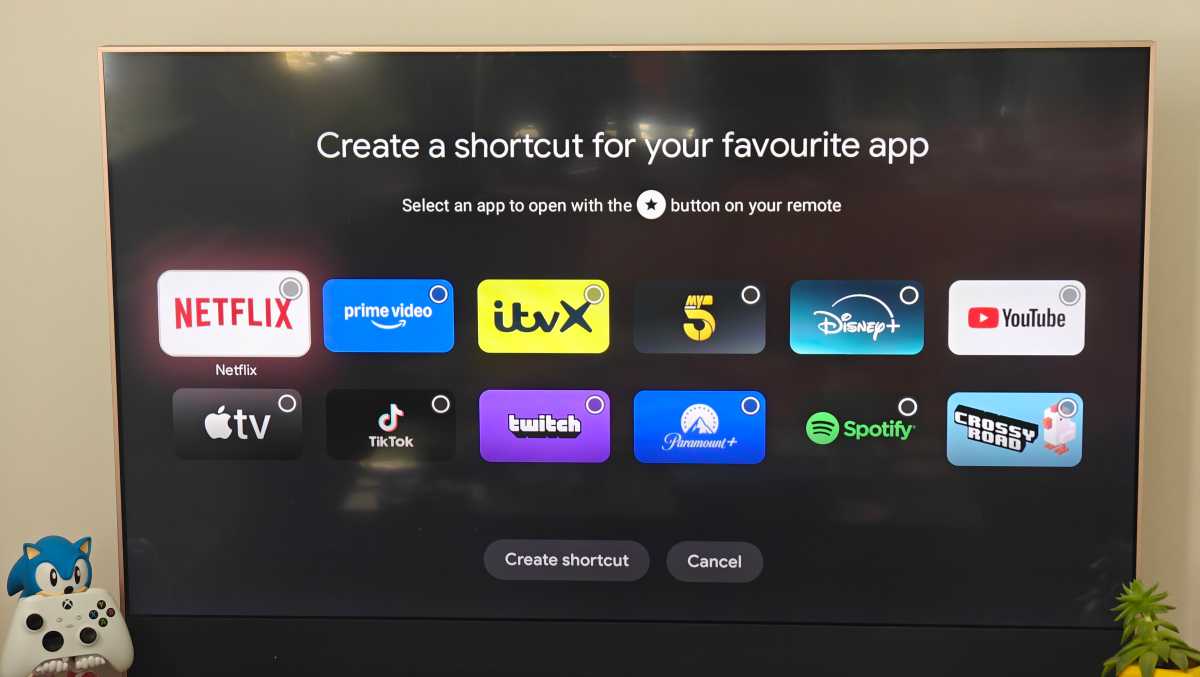
Assign the Google TV Streamer shortcut button for your favourite app
If you’re not the biggest adopter of smart home devices, you may prefer to use the shortcut button to quickly navigate to your favourite streaming service or app.
The remote already includes shortcut buttons for Netflix and YouTube, but you can assign your custom button to any other smart TV app installed, including Disney+, Max, Twitch, TikTok, Prime Video, Hulu, Spotify and more – the apps will vary depending on what country you’re in.
Hannah Cowton-Barnes / Foundry
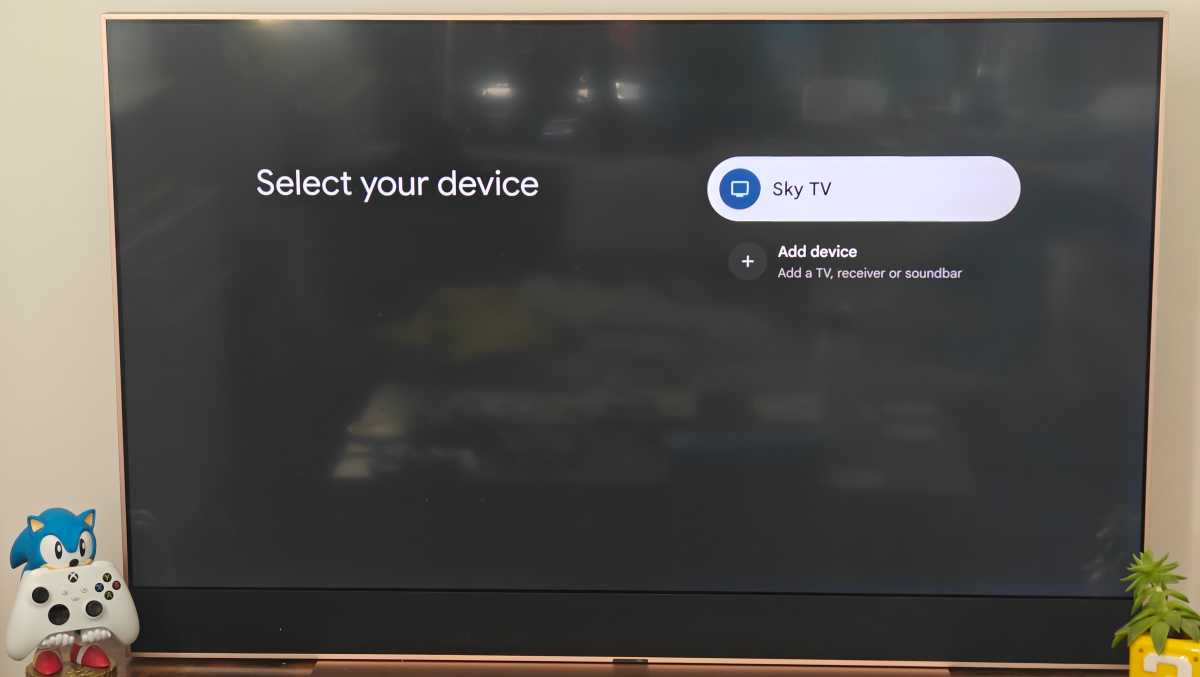
Assign the Google TV Streamer shortcut button for HDMI inputs
Finally, you can use the shortcut button to switch between inputs for your TV. This is particularly useful if you have a soundbar linked, or you want to switch to another TV interface.
Chromecast remotes included a button solely dedicated to this purpose.
Hannah Cowton-Barnes / Foundry
Author: Hannah Cowton-Barnes, Entertainment Editor, Tech Advisor

As Tech Advisor’s Entertainment Editor, Hannah is the resident expert in all things streaming, film and TV. Before joining Tech Advisor in 2019, she studied Theatre and Performance at the University of Leeds and created a website dedicated to geek culture and lifestyle. She’s also reviewed a whole range of gadgets including flagship smartphones, wearables and styling tools. Outside of Foundry, she’s written freelance pieces for Polygon, Metro and Den of Geek, and is proud to be a Women Techmakers Ambassador for Google.
Recent stories by Hannah Cowton-Barnes:
- Harry Potter TV series has finally revealed a release window
- Jessica Jones returns in Daredevil: Born Again season 2 trailer
- The Traitors will return for season 5 with new twists and challenges
