If you use WhatsApp a lot, then you’ll no doubt have come across the frustration when you can’t find a message or chat that you know is there but is either far down the list of chats or buried in a conversation somewhere.
Now, you can fix this by pinning messages to the top of a chat or pin the chat itself to the top of the list. Here’s how to use this helpful new feature in WhatsApp apps and on the web to help you manage content.
How to pin WhatsApp chats (smartphone)
To pin a particular chat to the top of the list, so that it’s always there or a least temporarily remains the first thing you see, here’s the steps to take.
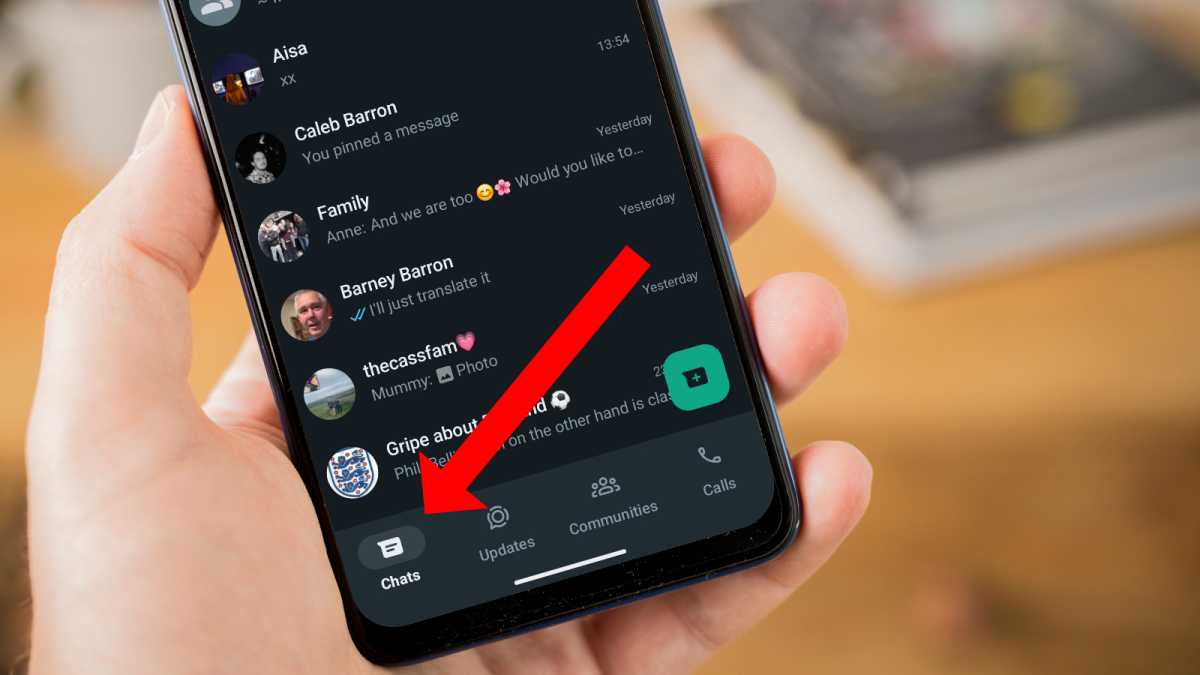
Select the Chat feed
Martyn Casserly
Open WhatsApp and select the Chats option at the bottom of the screen.
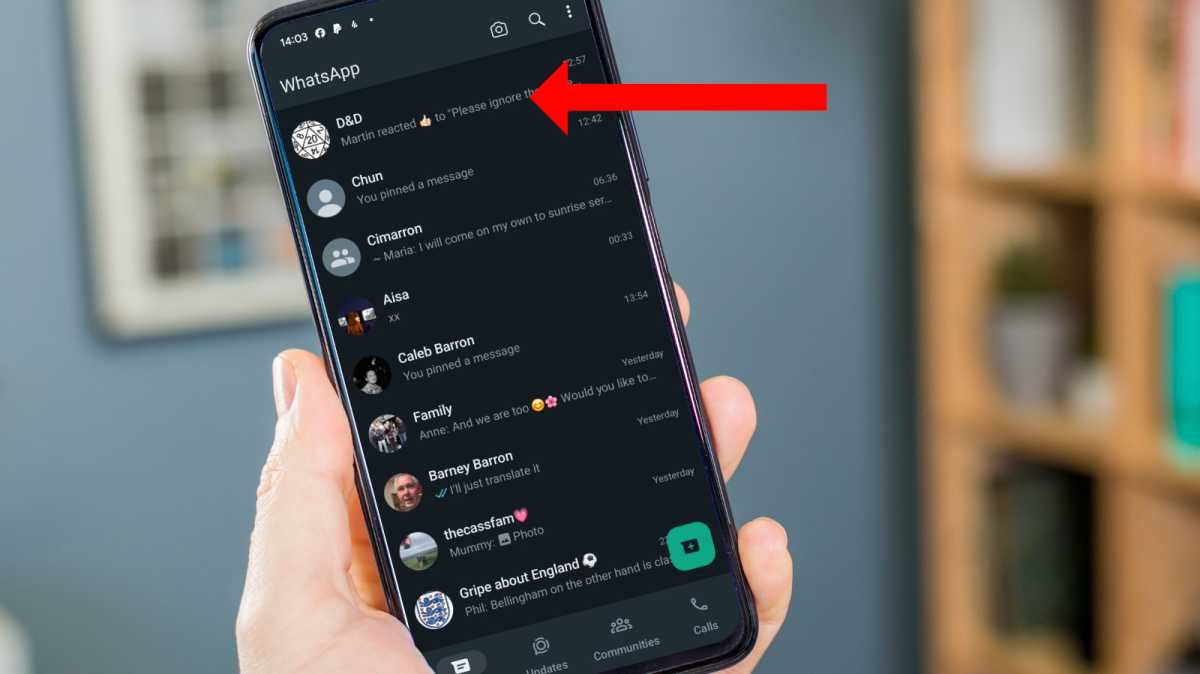
Find your chat
Martyn Casserly
Scroll through the list until you find the chat you want to pin to the top. Press and hold it to open up the action menu.
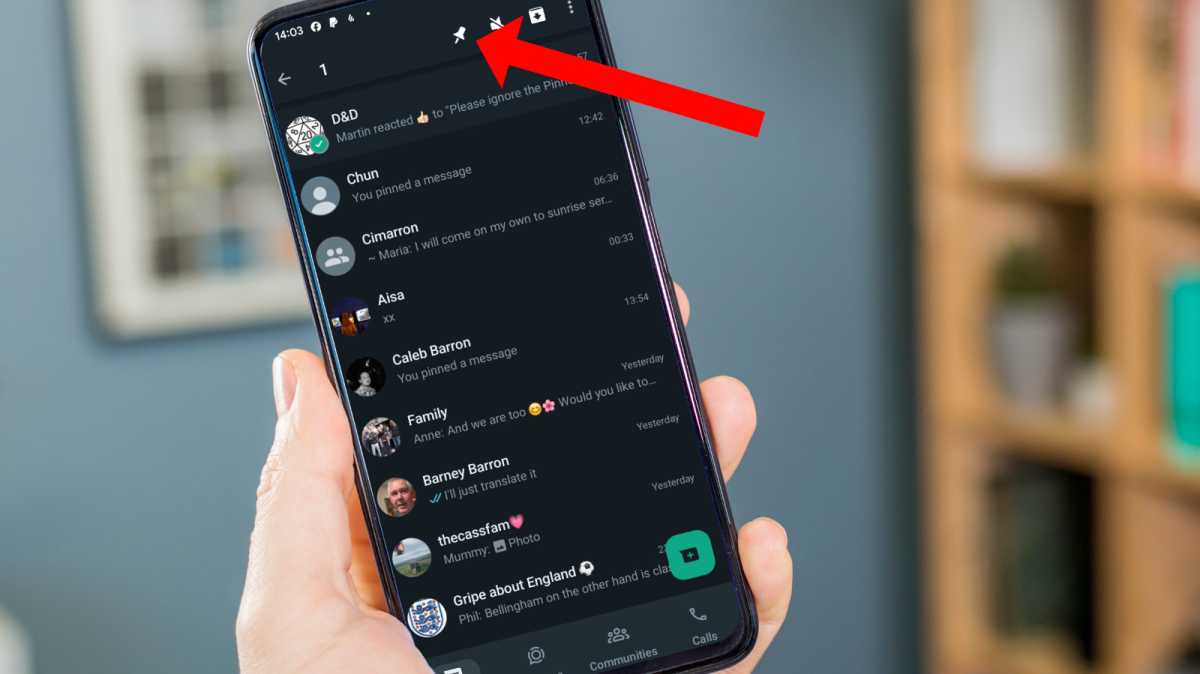
Pin the chat
Martyn Casserly
At the top of the screen you’ll see a few new icons appear. Select the one that looks like a pin and the chat will now remain at the top of your list. If you want to pin multiple chats, simply repeat this process.
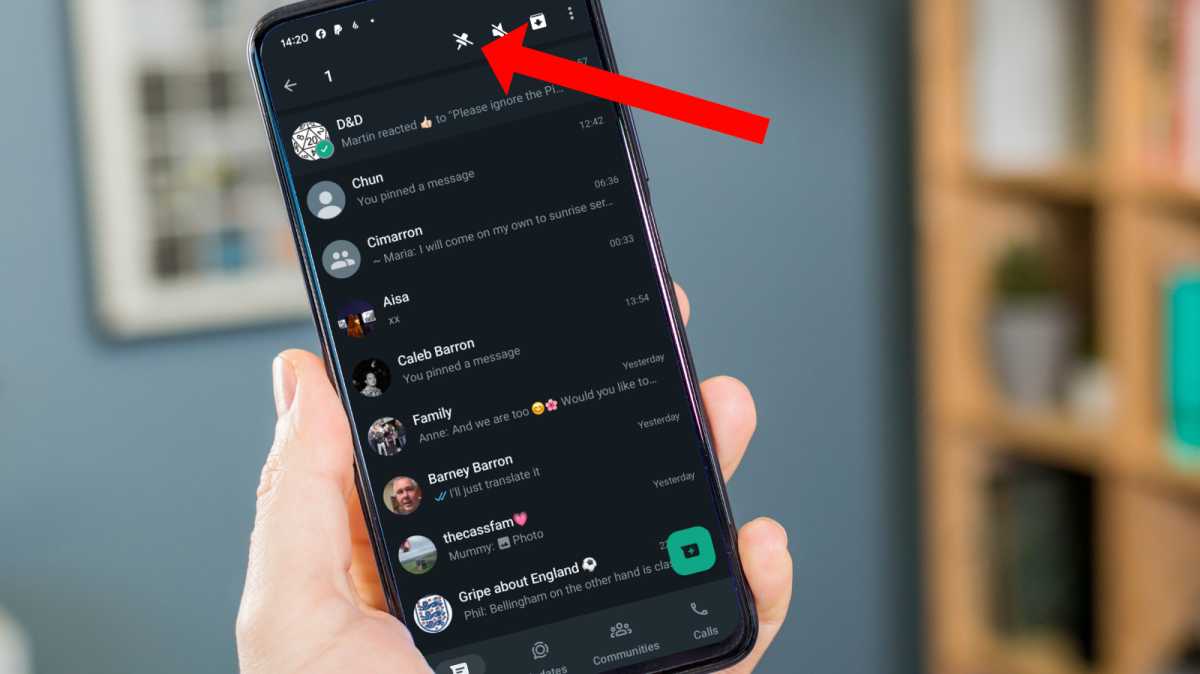
Unpin the chat
Martyn Casserly
If you no longer need the chat at the top of your list, simply replace the steps above and this time tap the unpin icon.
How to pin WhatsApp messages (smartphone)
If you want to remember or have quick access to certain messages, then these can be pinned to the top of a chat. This could be useful if you have a date for something that needs to be remembered or maybe an outstanding task that needs to be done.
Here’s what you need to do to pin Whatsapp messages within chats.
Step 1) Find the message
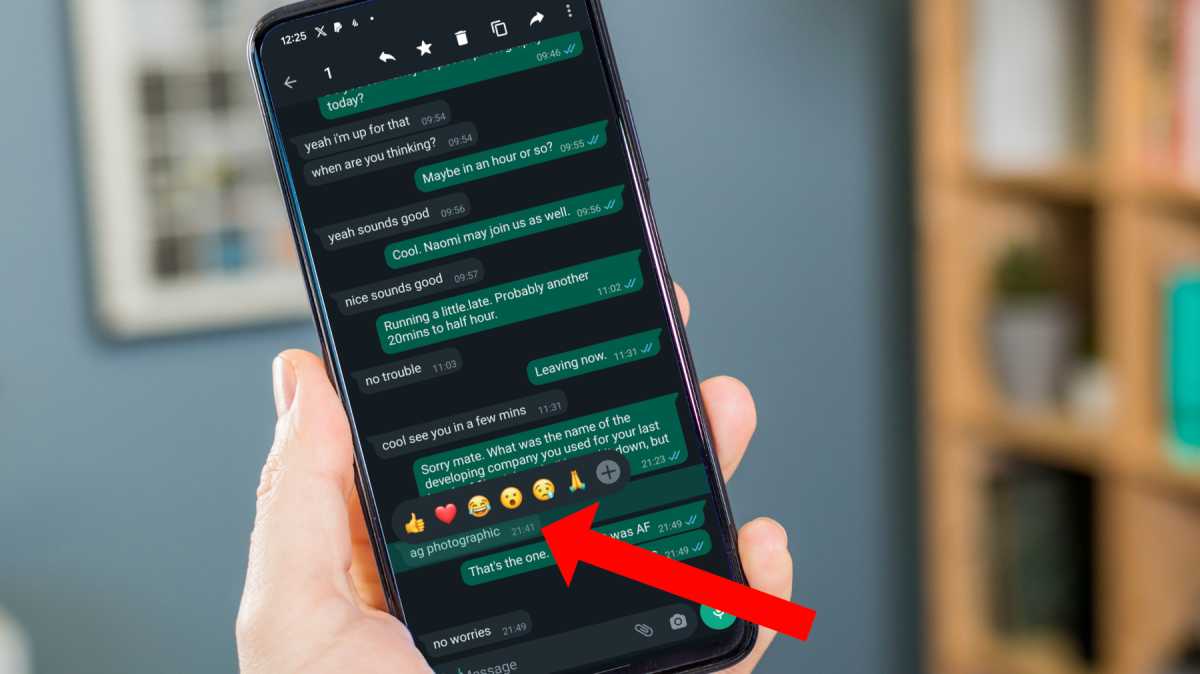
Martyn Casserly
To begin the process, locate the message you want to pin, then long press on it until the menu options appear.
Step 2) Open the contextual menu
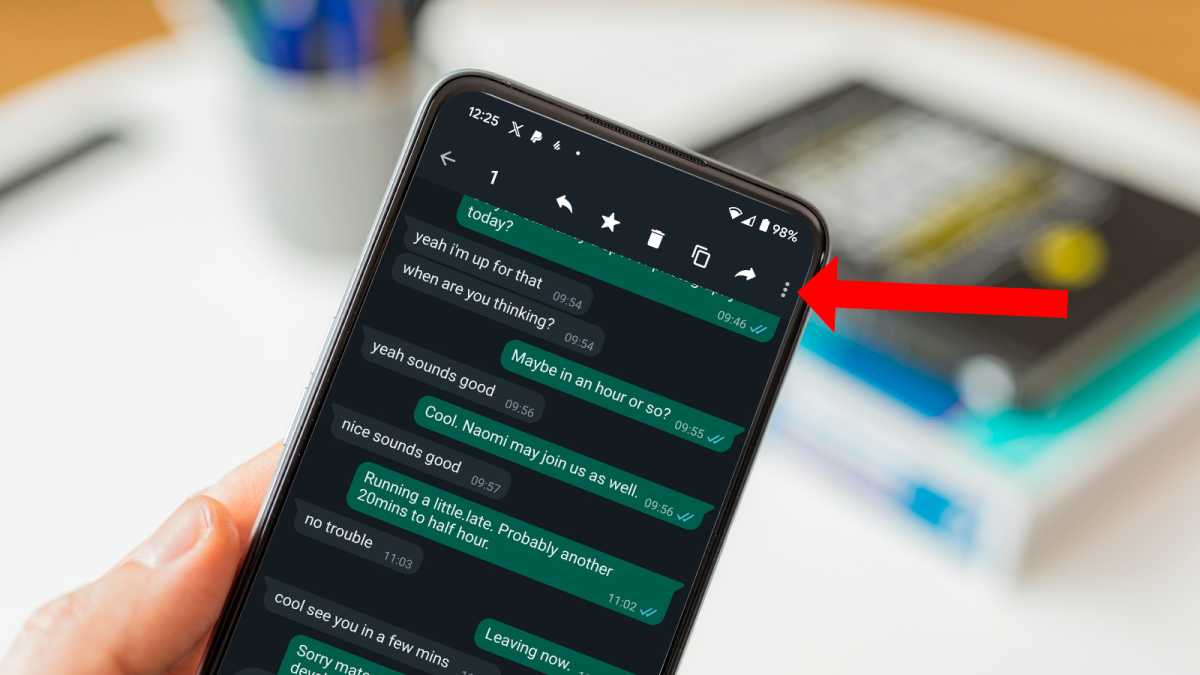
Martyn Casserly
At the top of the screen you’ll see the three dots menu icon. Tap this to open up the further menu options.
Step 3) Pin the message
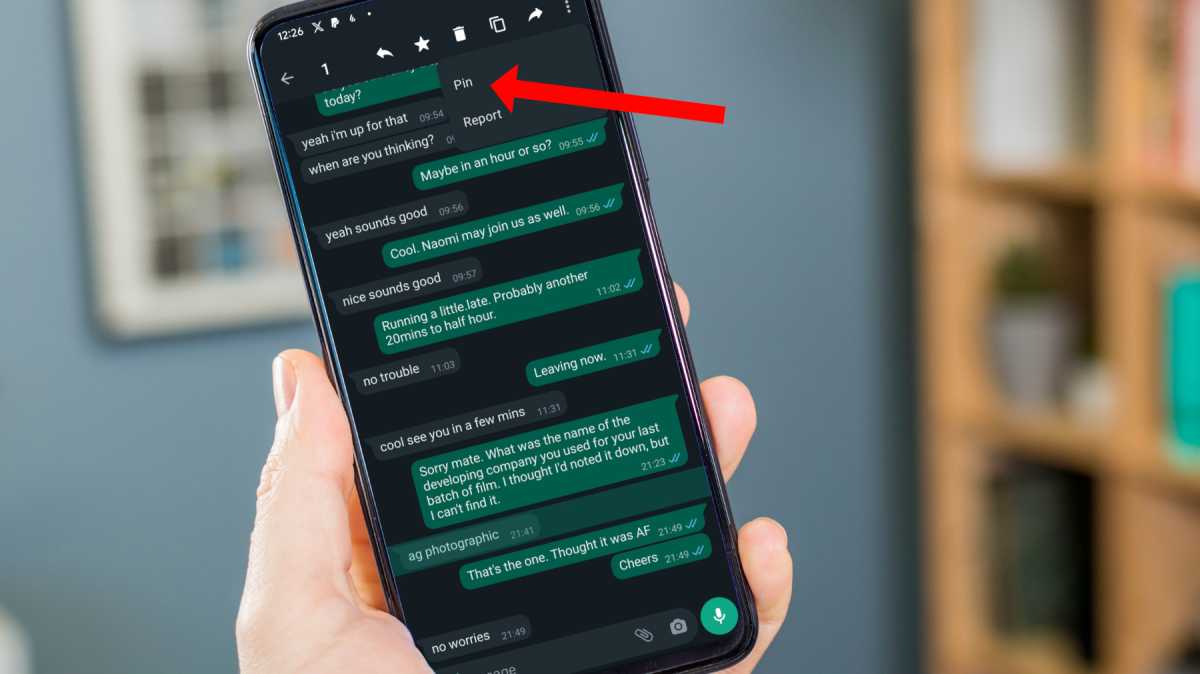
Martyn Casserly
From the options that appear, select Pin.
Step 4) Set the time limit
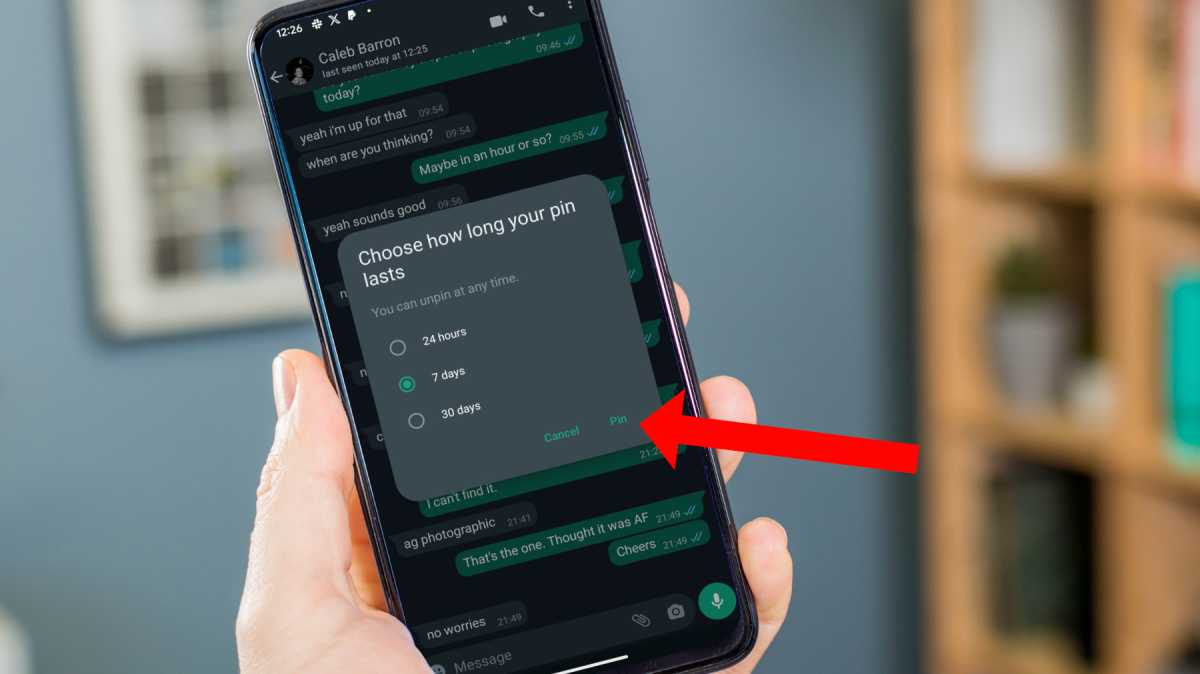
Martyn Casserly
WhatsApp allows you to have the message pinned to the top of the chat for three periods of time – 24 hours, 7 days or 30 days. Select the duration you require, then tap Pin to complete the process.
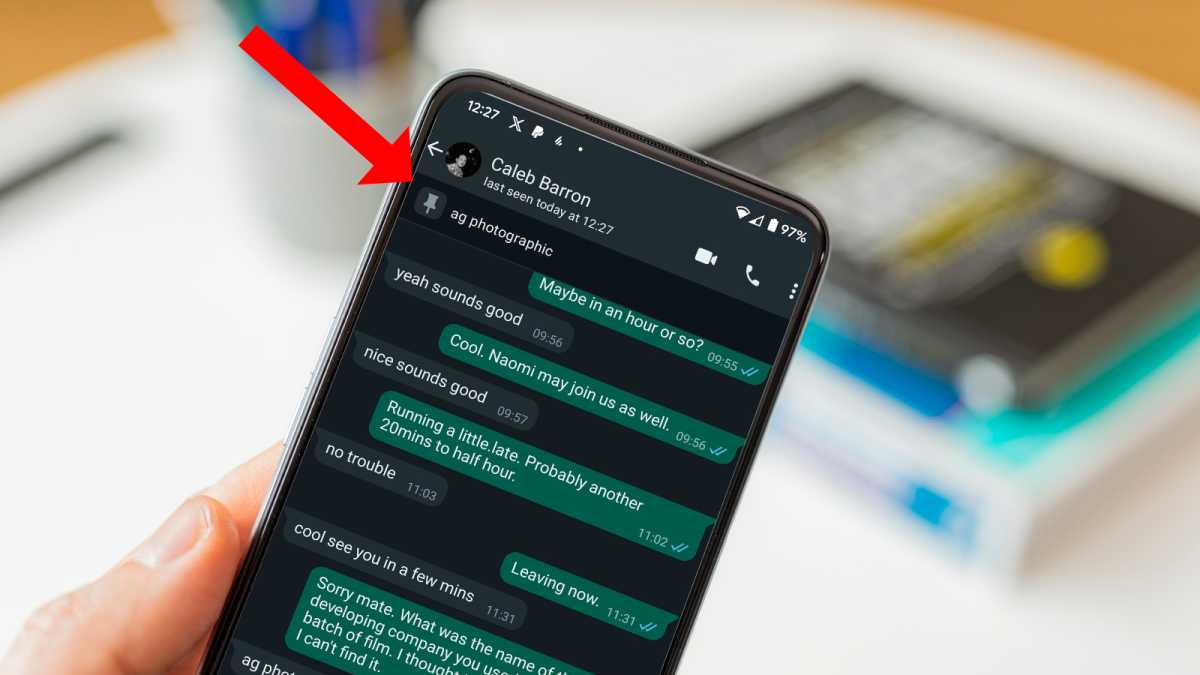
Step 5) Your message is now pinned
Martyn Casserly
You should now see the message you selected is pinned to the top of the chat conversation. This will remain here for the time limit that you set, so you can easily find it.
WhatsApp now allows you to pin three messages to the top of a chat, so you can repeat these steps to add a couple more (if the feature has been rolled out in your region). You can also unpin any message by repeating the steps above and selecting the Unpin option instead.
How to pin WhatsApp chats (desktop/web)
If you use WhatsApp on your desktop or through the web version, you’re still able to take advantage of the pinning feature. Here’s what you need to do.
Looking to pin a chat to the top of the list? Here’s the steps.
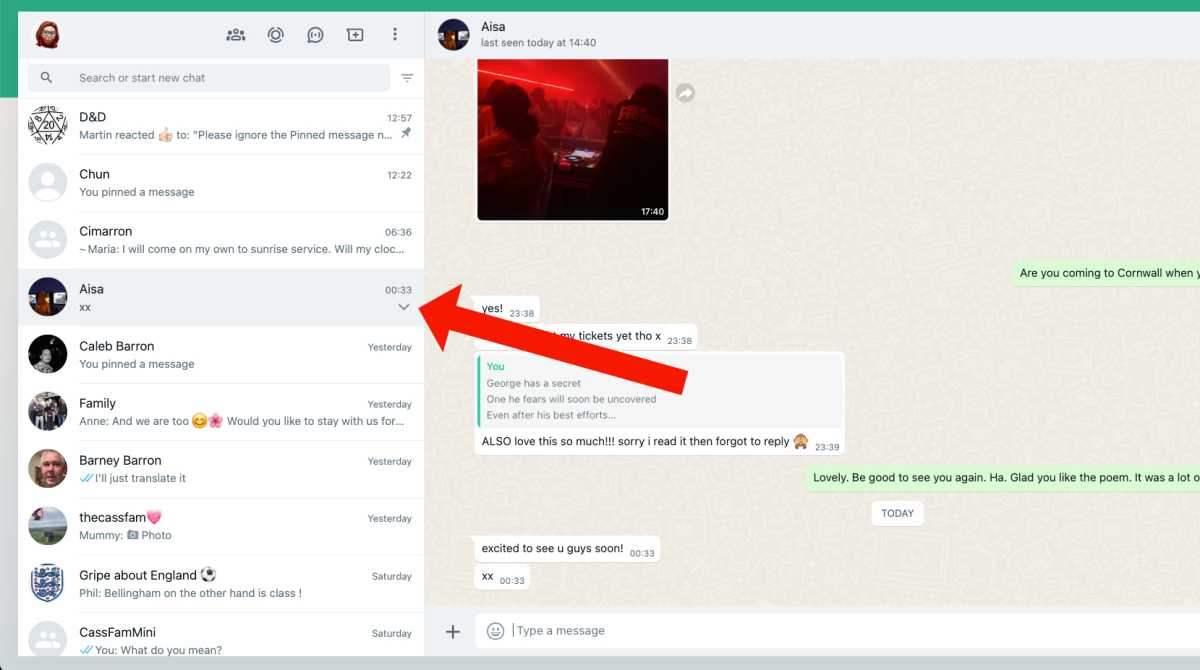
Step 1) Find the chat you want to pin
Martyn Casserly
Locate the chat that you want to pin to the top of the list, then click on the down arrow that is shown beneath the time of the last message sent from the chat.
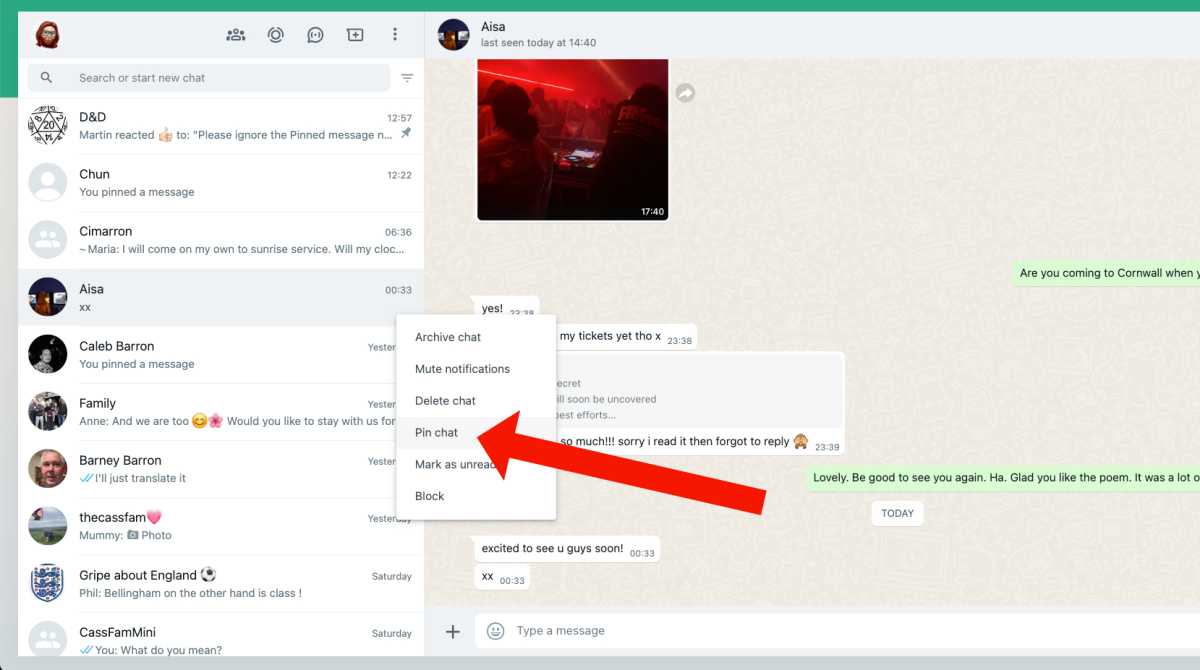
Step 2) Pin chat
Martyn Casserly
From the menu options that appear, select Pin.
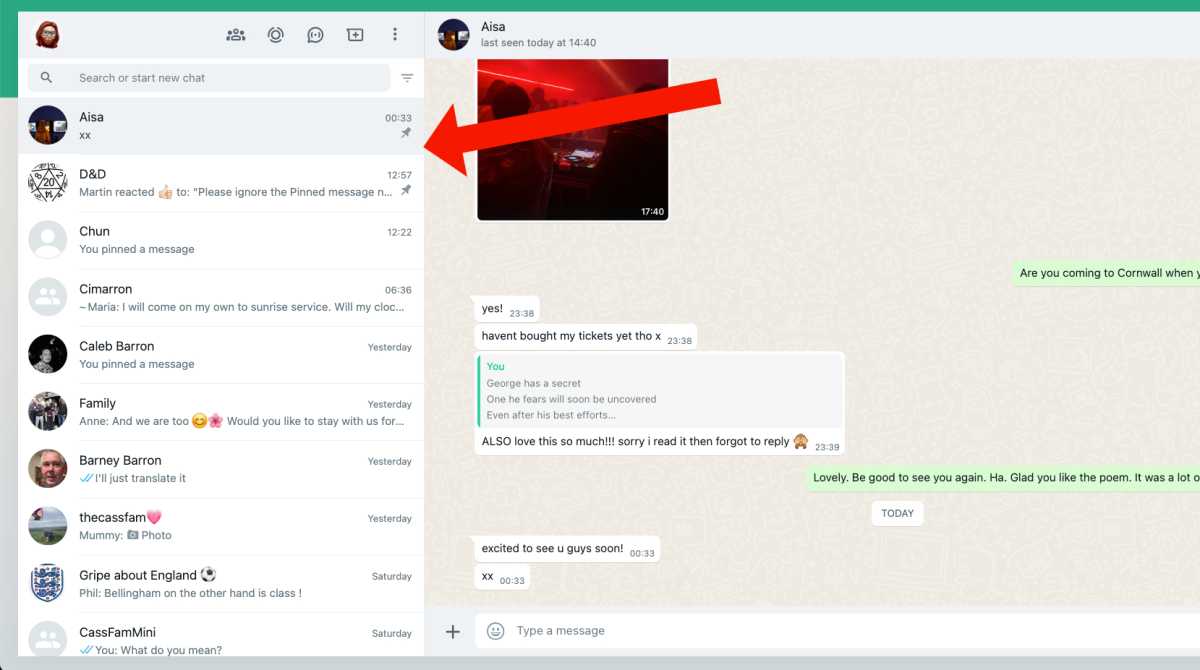
Step 3) Your chat is pinned
Martyn Casserly
You should now see the chat pinned to the top of the list of chats in your feed. You can have multiple chats pinned at any one time. If you don’t need one there anymore, just repeat the process and select the Unpin option.
How to pin WhatsApp messages (desktop/web)
If you want to pin certain messages within a chat, here’s how it’s done.
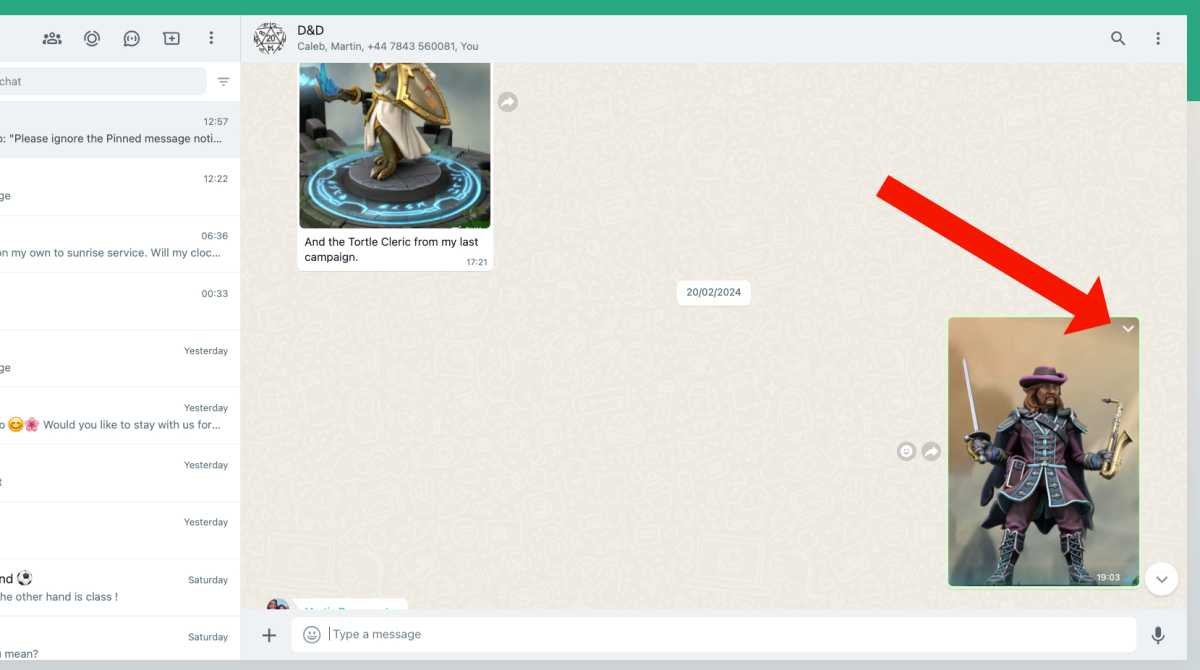
Step 1) Find the message
Martyn Casserly
Locate the message you want to pin, then click on the down arrow in the upper right corner of the message.
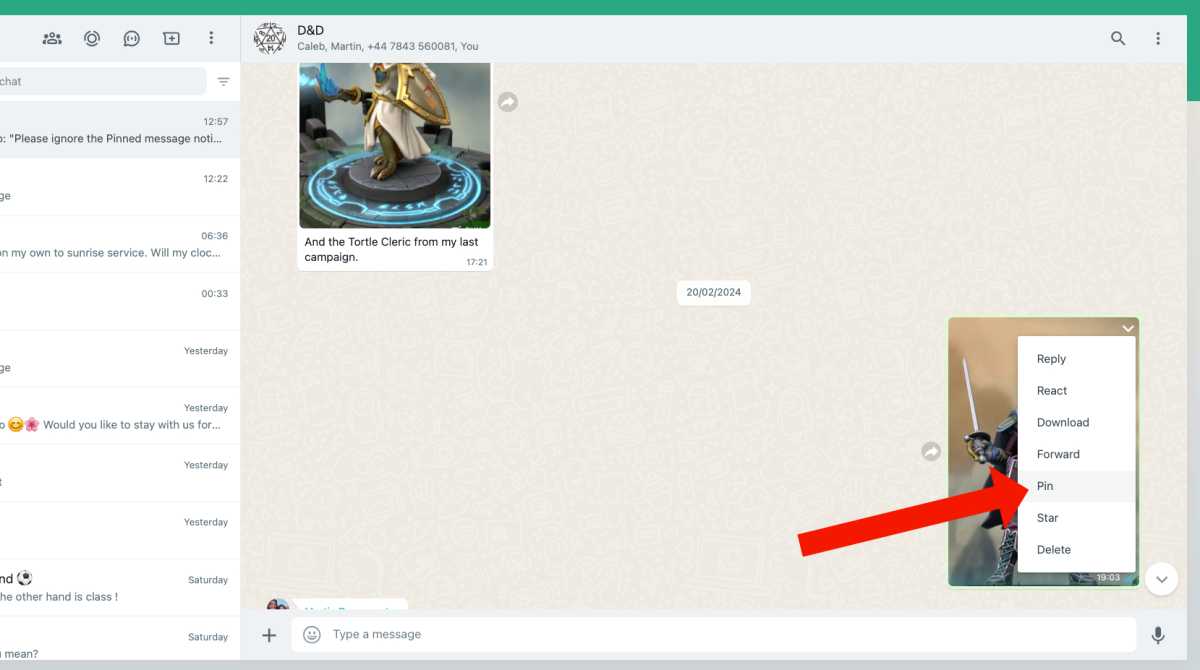
Step 2) Pin the message
Martyn Casserly
From the menu options that appear, select Pin
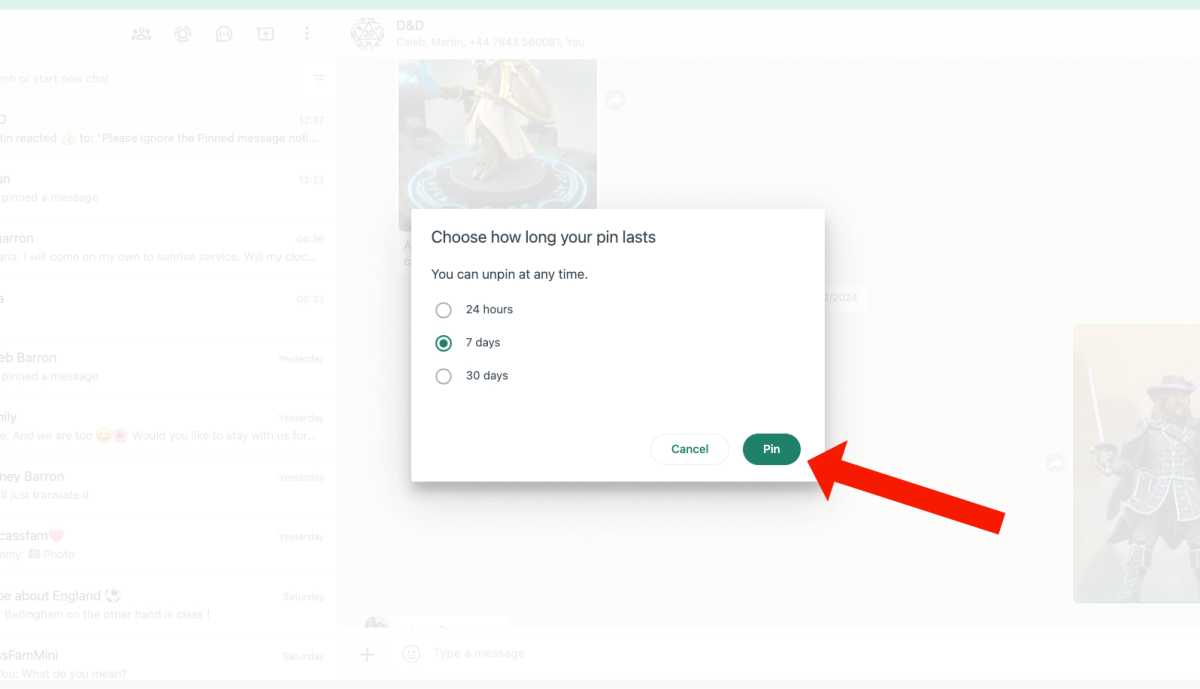
Step 3) Choose duration
Martyn Casserly
You’ll next be presented with three choices of how long you want the message to be pinned to the top of the chat. Select the one that suits your requirements, click Pin and you should now see the message sitting at the top of your chat.
You can add multiple messages (if the feature has rolled out in your region), and when you’re finished with them simply repeat the process and select Unpin to remove them.
- How to read WhatsApp messages without the sender knowing
- How to add a contact to WhatsApp
- How to tell if you’ve been blocked on WhatsApp
- How to tell if you’re being spied on via WhatsApp
Author: Martyn Casserly, Contributor, Tech Advisor

Martyn has been involved with tech ever since the arrival of his ZX Spectrum back in the early 80s. He covers iOS, Android, Windows and macOS, writing tutorials, buying guides and reviews.
Recent stories by Martyn Casserly:
- How to tell if you’ve been blocked on Facebook Messenger
- How to get Google’s Magic Editor on any phone – Android or iPhone
- We bought multiple items to see if the TikTok Shop is safe
