As convenient as Sky Glass and Sky Stream are, sometimes things go wrong.
Cordbusters reports that a selection of Gen 1 and Gen 2 Sky Glass TVs are currently experiencing bugs relating to picture and sound. Some users (such as my husband) found that the TV picture would go blank while audio would continue playing – sometimes, bizarrely, not even from a programme you’re watching.
If this is happening to you, then there are a few things you can do to get your services back up and working again.
Sky has provided the following quote to Tech Advisor:
“We’re aware of a technical issue which we believe is impacting a small number of Sky Glass customers. We’re investigating this as a priority and are sorry for any inconvenience caused.”
As of right now, no known fix is rolling out, as Sky is still collating information from users to diagnose the problem . Below are some options for you to try in the meantime.
There is also a section for resetting Sky Stream further down, though no known issues are plaguing these devices at the time of editing, only Sky Glass.
Check if there’s an active Sky issue
The first thing you should do is establish whether this is an issue with your hardware, or if it’s a wider problem. You can do this by visiting Sky’s service page , which should tell you if engineers are working to solve something.
If something is a large problem, Sky may post on its own Help social channels . If you can’t find that, then try going to Sky’s forums , Twitter and Reddit to see if anyone else is experiencing the same things as you.

Hannah Cowton-Barnes / Foundry
Try a soft reset on your Sky device
For the blank screen issues on Sky Glass, some users have found that the problems have gone away by unplugging their TV from the mains and plugging it back in. This is what I tried, and it worked for me.
Others have gone to the settings menu and pressed ‘restart’ to stop the problems from persisting. Neither of these options are confirmed widespread solutions for the bug, but they’re minimal effort tasks worth a try if you’re affected.
Try the Sky recovery process
For the issues happening in May 2025, Cordbusters write that Sky isn’t actively encouraging all users to factory reset unless advised directly by support, but if the problems are persisting, you can give this a go.
However, it’s worth noting that forums suggest that even this recovery process has not fixed everyone’s issues.
Nonetheless, here are the steps you need to take:
How to reset Sky Glass
- Turn off your Sky Glass at the mains (you don’t need to unplug it)
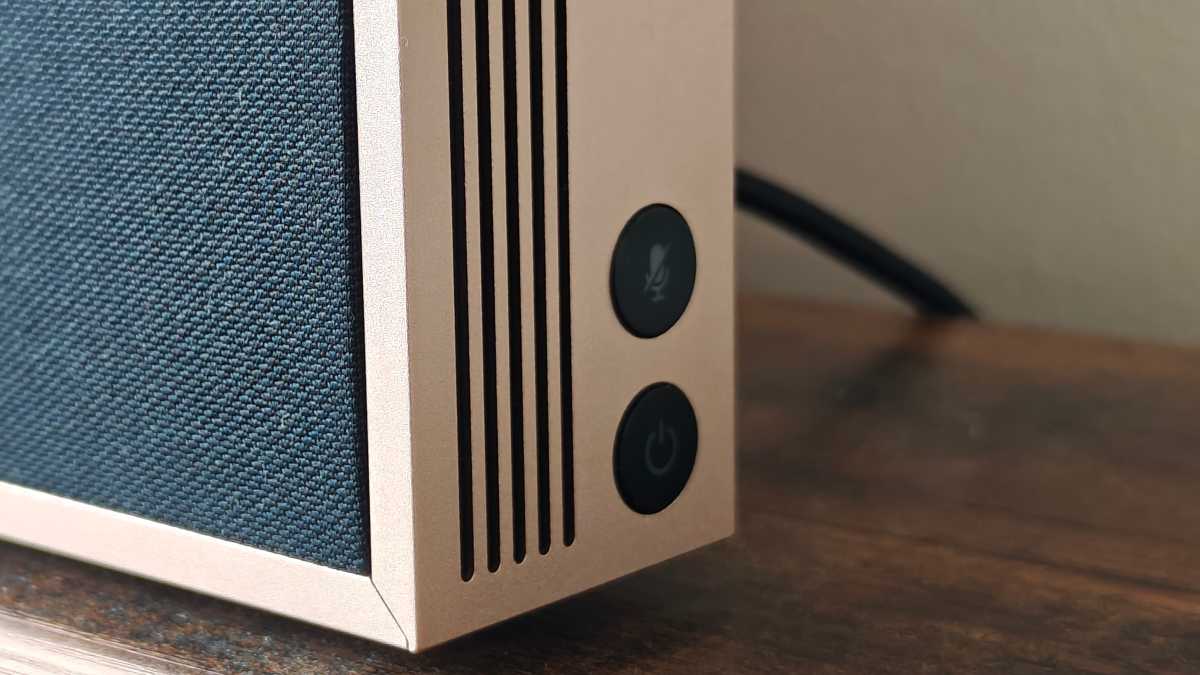
- Press and hold the Standby button on the right-hand side of TV (below the Mute button) for at least 60 seconds – pictured below
Hannah Cowton-Barnes / Foundry
- Keep your finger on the button as you switch the TV back on at the mains
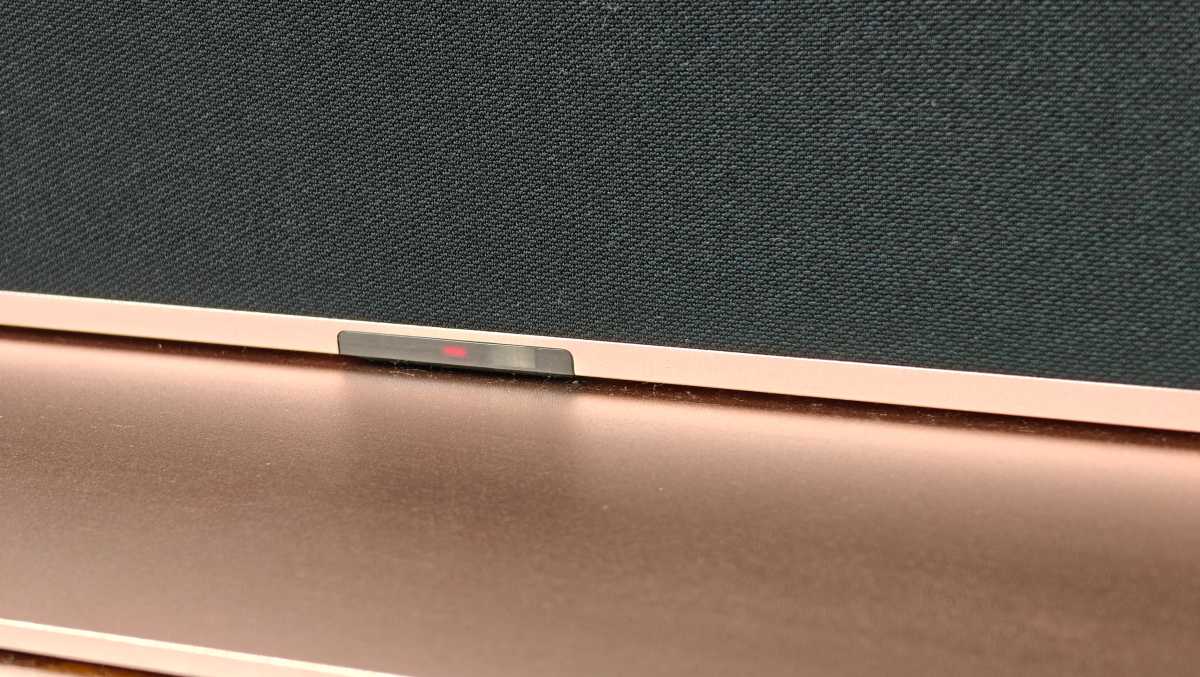
- Wait until you see the LED lights in the middle of your TV flash – pictured below
Hannah Cowton-Barnes / Foundry
- Allow 15 minutes for your Sky Glass to finish the recovery process
- Turn the TV back on
- Follow the steps to set up your TV. You’ll need to sign in to your Sky account on your smartphone, and choose your preferences for your display
- Once you’re set up, you’ll need to resign into any streaming apps such as Netflix etc
- You will also need to set your picture and audio settings back to what you had
- Playlists should be saved
I’d like to note that I didn’t hold the standby button for 60 seconds while the TV was off – this step seems to have been added by Sky since I last tested.
How to reset Sky Stream puck
- Turn off your Sky Stream at the mains (you don’t need to unplug it)
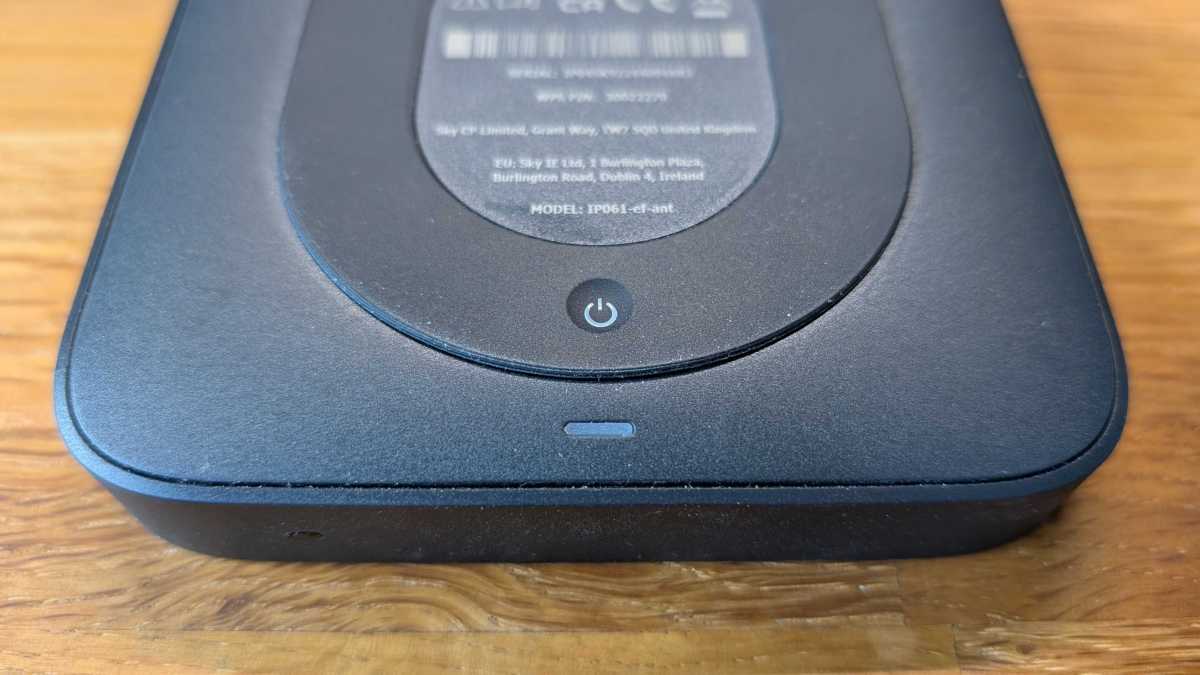
- Press and hold the Standby button on bottom of your puck for at least 60 seconds – pictured below
Chris Martin / Foundry
- Keep your finger on the button as you switch the TV back on at the mains
- Wait until you see the LED lights on the top of your puck flash different colours
- Allow 15 minutes for your Sky Stream to finish the recovery process
- Turn your TV back on to access Sky Stream
- Follow the steps to set up your Stream. You’ll need to sign in to your Sky account on your smartphone, and choose and preferences for your puck
- Once you’re set up, you’ll need to resign into any streaming apps such as Netflix etc
- You will also need to set your picture and audio settings back to what you had
- Playlists should be saved
Cord Busters also reported other issues with the recovery process, including difficulties reconnecting the remote and issues linking the Sky account to the TV/puck.
What do I do if the recovery process doesn’t work for Sky Glass/Sky Stream?
If this is not working, then Sky recommends you look through its help pages for anything more specific .
There is a virtual assistant on Sky’s webpage, but this is not with a human – you may get the option to call directly. If we get any more updates from Sky on how to fix common issues, we’ll update this tutorial.
Author: Hannah Cowton-Barnes, Entertainment Editor, Tech Advisor

As Tech Advisor’s Entertainment Editor, Hannah is the resident expert in all things streaming, film and TV. Before joining Tech Advisor in 2019, she studied Theatre and Performance at the University of Leeds and created a website dedicated to geek culture and lifestyle. She’s also reviewed a whole range of gadgets including flagship smartphones, wearables and styling tools. Outside of Foundry, she’s written freelance pieces for Polygon, Metro and Den of Geek, and is proud to be a Women Techmakers Ambassador for Google.
Recent stories by Hannah Cowton-Barnes:
- Harry Potter TV series has finally revealed a release window
- Jessica Jones returns in Daredevil: Born Again season 2 trailer
- The Traitors will return for season 5 with new twists and challenges
