I’ve been using the Xiaomi 14 and 14 Ultra for a while now, and it’s a great phone but something about the camera app has been irking me.
I was sitting at my local pub, taking pictures of my beer as I can often be found doing. My wife and daughter joined me, so I started taking some selfies of us with the Xiaomi 14 – only something looked odd about the snaps.
After a minute of flicking through them, I realised that everything was the wrong way around. The fireplace was on the wrong side of the pub and the writing on my t-shirt was backwards. I don’t want my photos to be of a mirror world and you probably don’t either.
I’m accustomed to the preview on the screen being a mirror image but it’s typical for phones to have flipped the photograph when you and go at look at it later.
Of course, it’s not a big deal to flip them around with software after taking your snaps – see our how to flip a photo on Android guide – but you don’t want to do that for every selfie you ever take so here’s how to fix it.
- Open the camera app on your Xiaomi 14 (or 14 Ultra ) and tap the little down-pointing arrow at the top to open a menu.
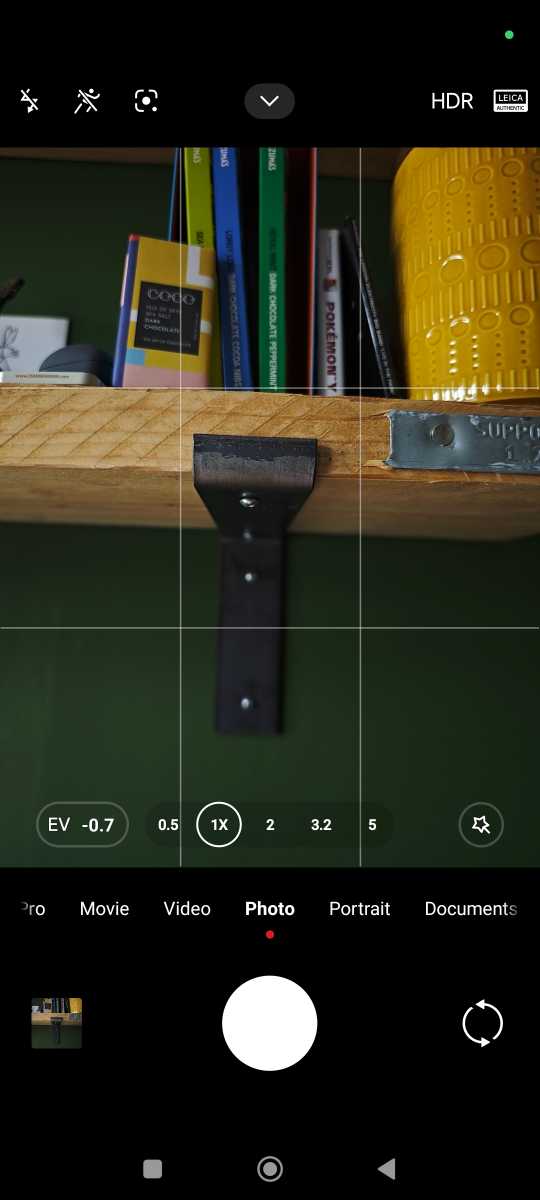
Chris Martin / Foundry
- Now tap the cog wheel at the top right.
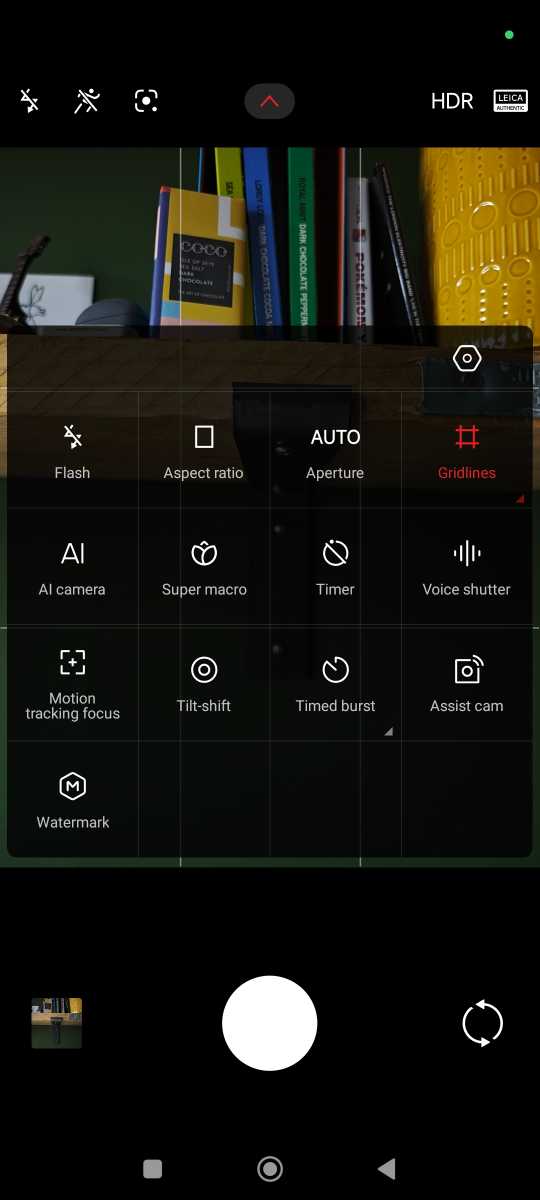
Chris Martin / Foundry
- Scroll down and select ‘Selfie settings’.
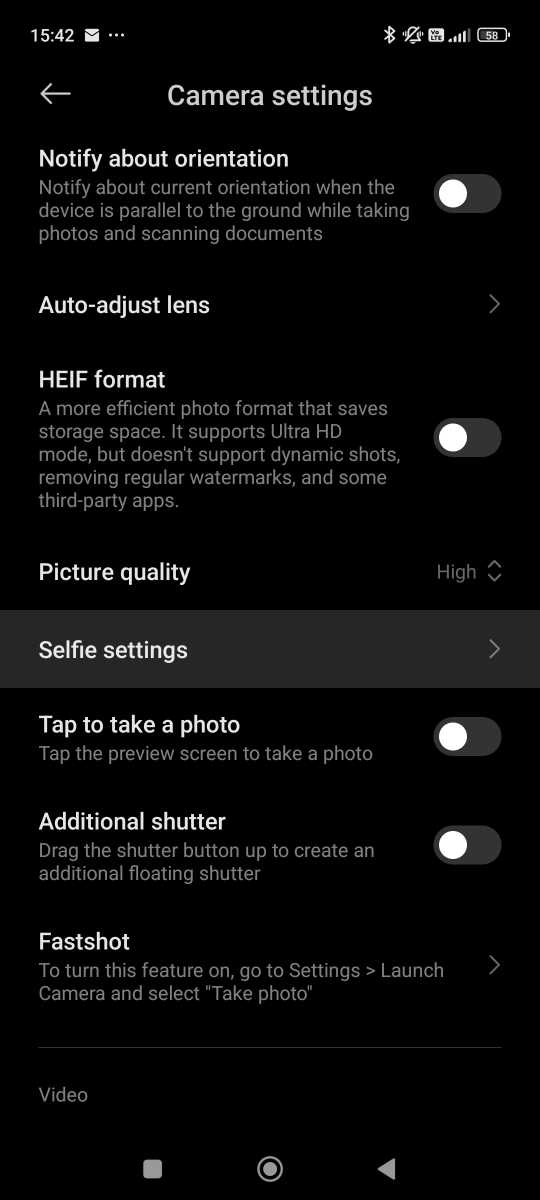
Chris Martin / Foundry
- Toggle the ‘Mirror front camera’ option to off.
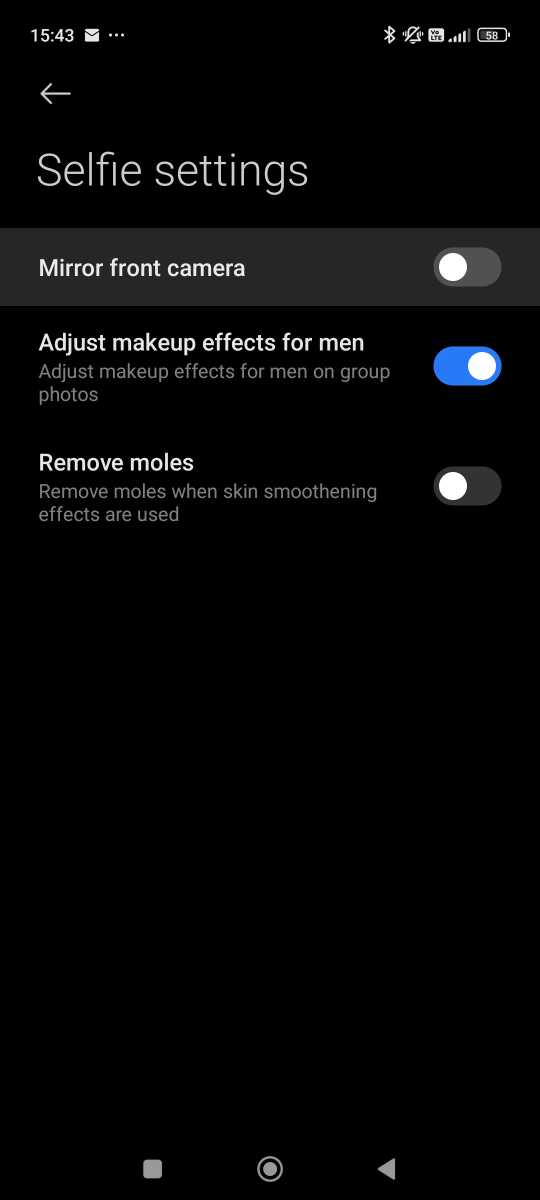
Chris Martin / Foundry
Author: Chris Martin, Managing Editor, Tech Advisor

Tech Advisor Managing Editor Chris got his break as a reporter at infamous site The Inquirer and has been with us for more than 12 years. With a BA degree in Music Technology, audio is his specialism, but over the years he has reviewed all kinds of gadgets, from smartwatches to mesh Wi-Fi to coffee machines.
Recent stories by Chris Martin:
- Every Pixel 10a colour is now ‘confirmed’
- In 2026 my ‘previous gen’ phone rule applies more than ever
- See the Samsung Galaxy S26 Ultra in 3D spinning glory
