I’ve been testing the new iPhone 17 for Tech Advisor’s review and I’m a big fan. This year’s base model is excellent. It’s had all sorts of upgrades that bring it dizzyingly close to the Pro model, but it’s held its price point from last year – and with extra storage to boot.
Coming from an iPhone 14, which was my daily driver until I was loaned the latest model, this is my first opportunity to enjoy features including Dynamic Island and the Action button. And I’m making the most of them.
Jump into Settings and you’ll see the options for your Action button, which is the top button on the left side of your iPhone. Apple provides a number of default actions, including toggling Silent Mode, switching to Focus mode, turning on your torch, magnifying, identifying a song or translating.
But what if you want your Action button to do more than one of these things – or something completely different?
I had it set to Shazam for a while, as identifying a song is something you need to be able to do quickly. But I also wanted the ability to set my phone to silent instantly for meetings and in the cinema. You could use Back Taps for something like this, but I’ve found them to be a mixed blessing: it’s too easy to change a setting accidentally.
This is where shortcuts come in. Now, when I press the Action button, I can Shazam a song, silence my phone, or turn off my bedside light.
Shortcuts are easy to set up. Here’s how.
1. Open the Shortcuts folder
If you can’t spot it on your homepage, do an app search to find it. Here’s what the icon looks like.

Apple
2. Create a new folder
Shortcuts has three tabs: Library, Automation and Gallery. Go to Library and click on the new folder icon in the top right corner of your screen.
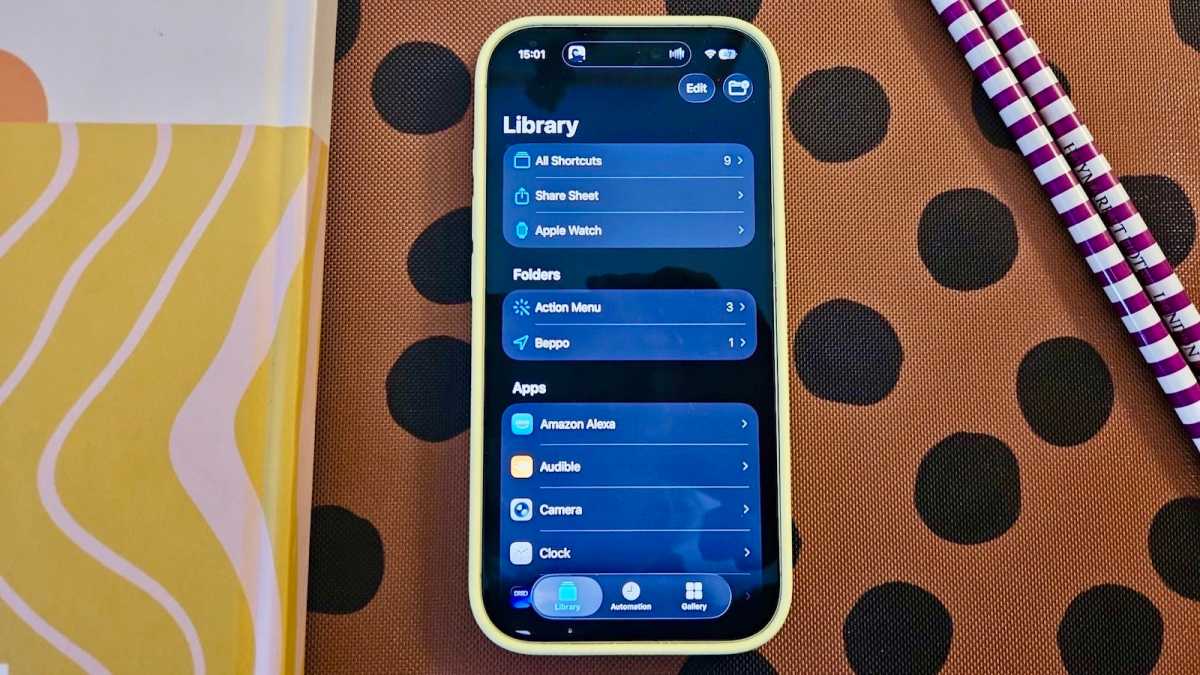
Emma Rowley / Foundry
Then name your new folder. If you’re creating an Action button shortcut, calling it something with “Action” in the name is probably a plan. You can even choose an icon to help you recognise it.
3. Choose what you want your Action button to do
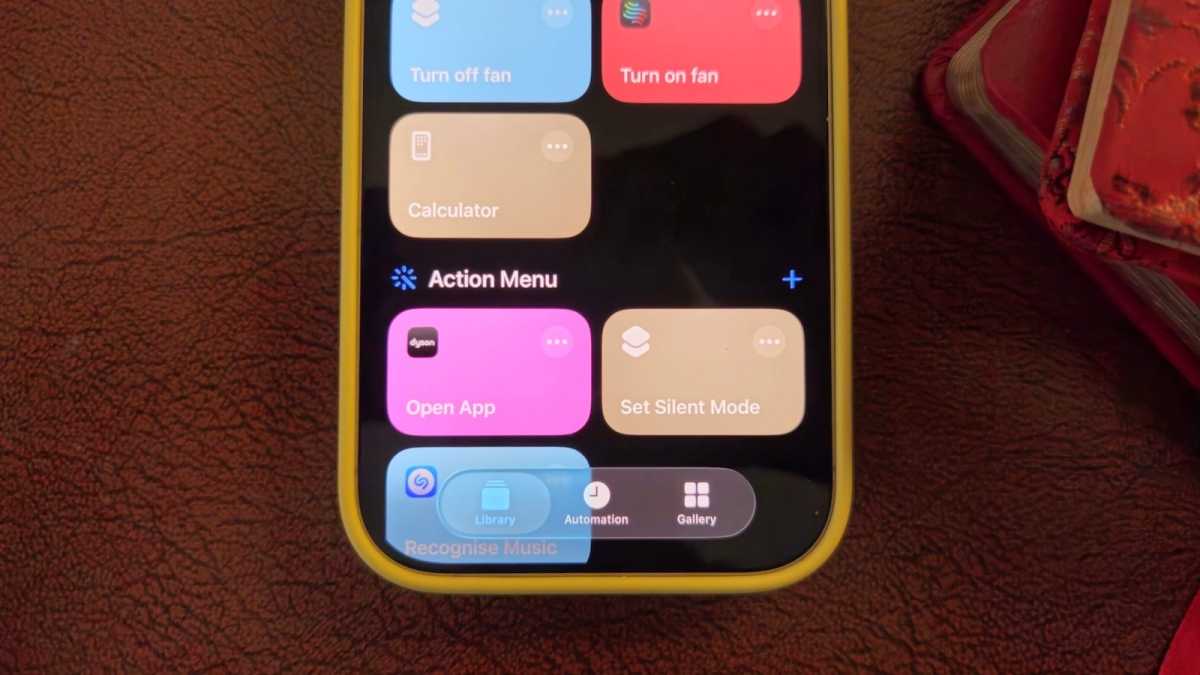
Once you’ve created your folder, it’ll appear in the Shortcuts library under Folders, and in All Shortcuts. Click on it, then on the plus symbol at the top right of the screen, and you’ll be able to add new actions.
Emma Rowley / Foundry
If you don’t know where to start, use the search box that appears and input keywords to find what you want. My Action button is now set up to switch my phone to silent, identify a song and switch off my bedside light.
4. Set up your Action button
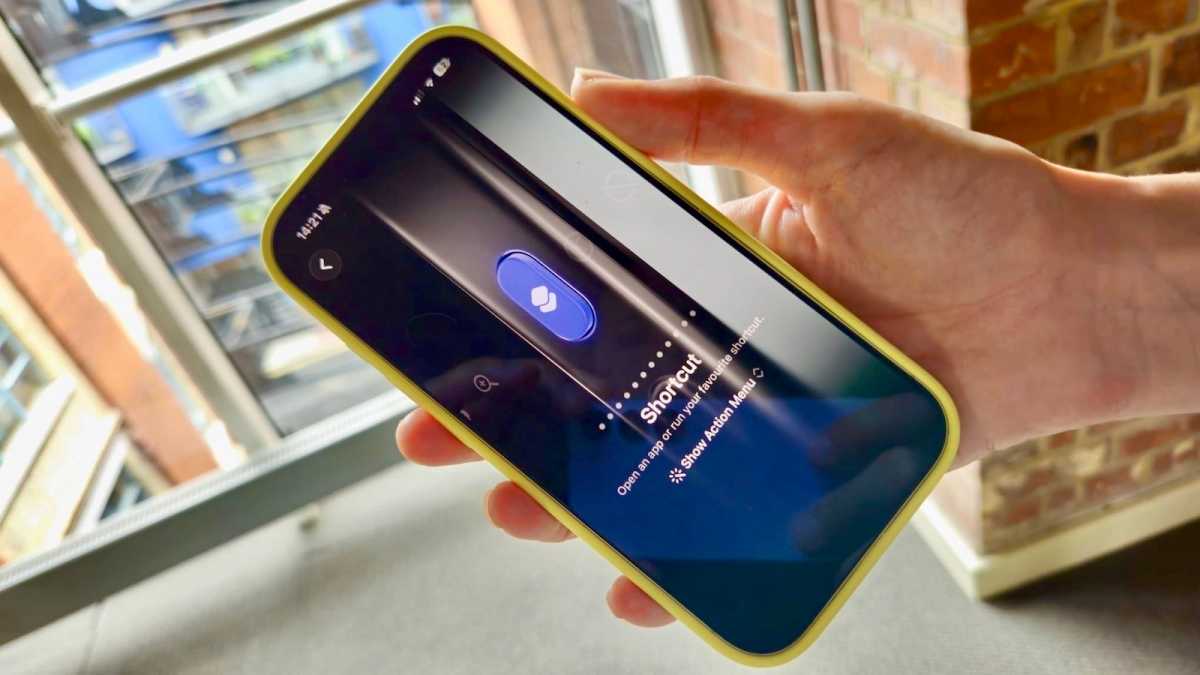
Once you’ve added everything you want your Action button to control, the final step is to link it to the Action button. Go to the main Settings menu, scroll down to Action Button, then swipe through the options until you see Shortcut. Click on this and choose the Action button shortcut you just set up.
Emma Rowley / Foundry
5. You’re done!
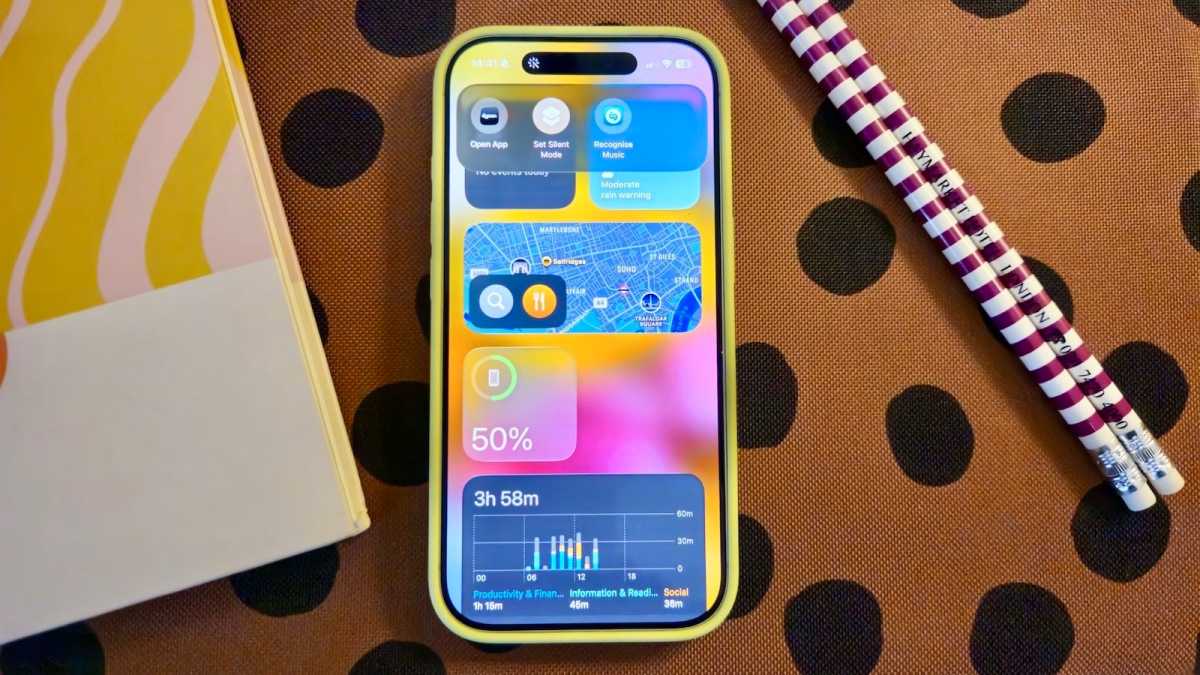
Now, when you press your Action button, you’ll be able to pick from the options you chose.
Emma Rowley / Foundry
Author: Emma Rowley, Deputy Editor, Tech Advisor

Tech Advisor’s Deputy Editor, Emma has been a journalist and copywriter for over 20 years and has been testing and writing about home tech and appliances for seven years. She tries out every appliance she writes about at home, and aims to recommend time- and energy-saving products that will last.
Recent stories by Emma Rowley:
- iPhone 17e: Apple’s next iPhone could be in stores this month
- Apple’s foldable iPhone: Everything we know so far
- Google Photos now lets you star in your own memes
