Many printers are cheap to buy, but there’s a very good chance that you’ll spend much, much more on ink or toner cartridges than you did on the device itself. So, is it worth trying to save a bit of money by buying cheaper refills or should you stick with the more expensive genuine manufacturer cartridges?
We explain these options so you can decide which is best for you.
If you’re considering replacing the printer itself, then you check out our best printers guide.
Genuine ink & toner
Whichever model of printer you buy, the company that made it will have specific ink that it recommends you use. Of course, this is also most likely made by the said company and can be seen as something of a money grab due to the fact that it’s always more expensive than third party rivals. And just expensive in general.
The truth is a little more complicated. Ink is a serious business, as we can attest having once spent hours with a HP Inkologist explaining bonding agents, flow rates and various other properties.
All ink is not equal, and over the years various tests have proven this as such.

When you opt for a manufacturer’s own-brand ink you know that it has been designed to work specifically with your printer. It means you can expect the best image quality, the best fade-resistance and to get the quoted number of pages from the cartridge.
There’s also the security that it shouldn’t block up the nozzles or print heads on your device (in some cases the ink actually cleans them), plus it won’t affect your warranty on the printer.
The trade-off is that they’re more expensive than alternatives available online, but if you want the best performance, results and to potentially extend the life of your printer then this is the price you pay.

Depending on the make of your device, there will be different cartridges and toner packages available. Try searching the manufacturers’ online guides for which one to choose, such as these for Canon , HP , Epson , and Brother .
And also remember that in most cases, it’s possible to buy high-capacity cartridges which work out cheaper per page printed.
Third-party cartridges
If you’re looking to save some money in the short-term, then the individual cost of third-party cartridges will be hard to resist – especially if you own a colour laser printer. The reasons for these lower prices are manifold, not all of which are good.
The first is that they often use cheaper components. The ink might be water- rather than oil-based or the powders are of a lesser quality. The construction of the casings in some products are more fragile than the more expensive alternatives, which could lead to leaking or spillage. Plus, the connector fittings might not be quite up to the same standard as the manufacturers’ official products.

And if your printer has the printheads built into the cartridges, it’s likely you’re getting a refilled original manufacturer cartridge, or a lower-quality printhead.
All this being said, if your printer is old, or you only want to print out stuff that doesn’t matters and home work sheets rather than official documents for work or distribution, then the savings could be worth the risk. And, for balance, we at Tech Advisor have successfully used third-party toner in laser printer for years and saved hundreds upon hundreds compared to buying genuine toner.
Subscription services
If you would prefer to use genuine ink from the printer manufacturers, but don’t want to have to spend a chunk of money when the cartridges run dry, then it might be worth considering a subscription plan.
For example, HP has an initiative called Instant Ink whereby consumers can pay a low monthly amount based on the number of pages they think they’ll print each month. At the moment it’s free for 15 pages, £1.99 for 50, £3.49 for 100, and £7.99 for 300.

So long as your printer is able to connect to WiFi (most modern ones can) then whenever it’s running out of ink the device will inform HP who will then automatically send out a replacement cartridge. Everything is included in the subscription cost, and you can even roll over leftover page allowances from the previous month.
Epson offers something similar called ReadyInk , but instead of a subscription service the replacement cartridges are charged at the normal price and sent automatically whenever you’re about to run out.
Both of these are great solutions if you’re not able to easily get to a shop when your printer runs dry, or you can’t afford to be without a working printer for any length of time.
Whichever path you decide to walk, just be sure to find out which ink or toner your printer takes before ordering anything. To do this, search for the make and model online to see what’s listed as being compatible with your printer.
There are no hard or fast rules, and you could move freely between all the options listed above. Eventually you’ll find what works best for you. In the meantime, try to keep a log of how much you actually print each month, as this will allow you to make a more informed decision of your actual printer needs.
Author: Martyn Casserly, Contributor, Tech Advisor

Martyn has been involved with tech ever since the arrival of his ZX Spectrum back in the early 80s. He covers iOS, Android, Windows and macOS, writing tutorials, buying guides and reviews.
Recent stories by Martyn Casserly:
- Best printing subscription services
- How to print in Windows 10
- Inkjet vs Laser printer: Which one is right for you?
Printers might not be as exciting as a new smartphone but it’s likely we all need one at some point in our lives, even if it’s just occasionally. Whether you’re working from home or need an office printer for many people to use, we have reviewed and ranked ten of the best you can buy from tank system inkjets to large laser printers.
You might want to print a calendar, gig tickets, a boarding pass or some photos you’ve taken on your phone. Many printers are multi-function and therefore also handy for scanning and copying, too.
Whatever your needs, buying a new printer can be a confusing process. Not only do you have to worry about the upfront cost and whether it can print a good photo, but you’ve also got to consider print speeds, ongoing costs and a host of potential features.
It’s worth bearing in mind that the printer market moves slowly, and the latest printers aren’t always the best. Printer tech moves slowly so reviews might not be from this year or even the year before that but they stay on sale for a long time unlike phones or laptops .
Read on below our chart for more in-depth printer buying advice on things like whether to choose inkjet or laser.
Best printers 2023
1. Canon Pixma TS7450/1 – Best Overall

Pros
- Prints quickly
- Excellent quality
- Inexpensive to buy and run
Cons
- Mobile apps aren’t always intuitive
- Bulky design
- Photos need glossy paper

Printers are hard to even find in stock right now so a great value all-rounder from Canon at under £100 is worth snapping up, even though it is quite heavy.
This is a great value all-in-one printer that’s easy to set up and use. It’s also no slough with lots of features and versatile printing including documents and photos. Cheaper printers can be expensive to run but the TS7450 doesn’t even fall into this category.
The mobile apps are a little frustrating at times but print quality is good, although you’ll want to stick to proper glossy paper for photos. Note that the TS7451 is the same printer, only in white.
Read our full Canon Pixma TS7450 review
2. HP Envy Inspire 7220e – Best Compact Family Printer

Pros
- Attractive price
- Fast printing speeds
- 2-sided printing
- Good text and photo quality
Cons
- No ADF
- Can’t print on A4 glossy paper

Those looking for a compact and easy-to-use printer for the whole family might have just found it.
The Envy Inspire 7220e is an excellent all-rounder for those needing to regularly print text and photos at good speeds and affordable costs. The printer looks nice, has wide support for different wireless printing services and offers high-quality results.
It doesn’t have an automatic document feeder but that’s normal, so as long as you don’t need to print on A4 glossy paper, it’s a bit of a steal.
Read our full HP Envy Inspire 7220e review
3. Canon Pixma TS3350 MkII – Best Budget Printer

Pros
- Cheap
- High quality printing
- Connectivity
Cons
- Slow printing
- Expensive ink
If you’re looking for a cheap printer to handle day-to-day tasks then the TS3350 MkII (or TS3320 in the US) is an excellent choice.
This is not only affordable but offers great quality printing for a range of jobs, including colour images. This is even a copier and scanner too so you’re getting a lot for your money.
It’s quite slow so isn’t a workhorse and you’ll want to get XL cartridges to keep running costs down. For printing the occasional letter, boarding pass or family photo without breaking the bank it’s perfect.
Read our full Canon Pixma TS3350 MkII review
4. HP DeskJet Plus 4120 – Excellent Value Inkjet

Pros
- Very cheap
- Easy to use
- Good photo & graphics quality
Cons
- Average text quality
- Needs Instant Ink to keep running costs down
Those on a budget needing a printer for a mix of different tasks should consider the DeskJet Plus 4120 – known as the 4155 in the US.
It’s basic in style and design with things like a simple LCD display but keeps costs down, especially if you use HP’s Instant Ink subscription service.
Read our full HP DeskJet Plus 4120 review
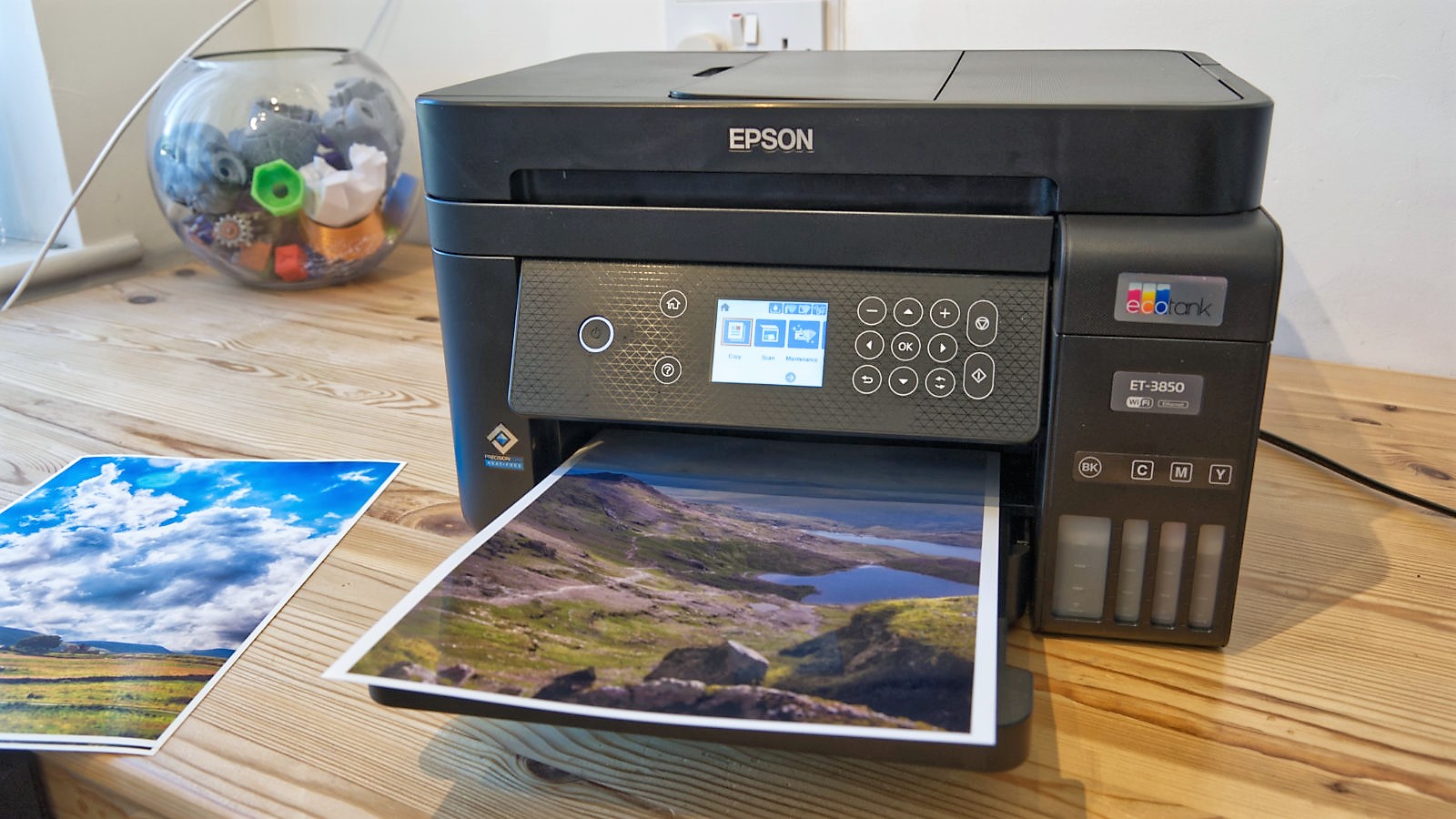
5. Epson EcoTank ET-3850 – Best Ink Tank Printer
Pros
- Cost per page is very low
- Good print speed
- Excellent print quality
Cons
- Pigment black isn’t ideal for photos
- Lack duplex copying
- One year warranty

Anyone against traditional cartridges should consider this EcoTank model from Epson. The ET-3850 offers high-quality printing at decent speeds while keeping the cost down, even if you’re printing A4 colour pages on a regular basis.
It’s more expensive to buy the device itself than cartridge rivals but may well work out better value in the long run. And it has virtually the same specs as higher-end EcoTank models, including the PrecisionCore print head.
One of the main practical downsides is that it doesn’t offer duplex printing and Epson only offers a one year warranty or 50,000 pages – whichever comes first.
Read our full Epson EcoTank ET-3850 review
6. HP Smart Tank 7605 – Best Small Office Printer

Pros
- Fax function
- Dual-band WLAN
- Touch display
- Additional XL-BK ink bottle
Cons
- Limited USB host functions
- No real off switch
If you’re looking for a great all-rounder then the Smart Tank 7605 is a hot contender with its wide range of functions and large amount of ink included in the box – enough for up to 12,000 pages.
It’s highly suitable for home or small office use, even if there’s a slight overreliance on the HP Smart app. Still, it can wirelessly print, copy, scan and fax, plus has an automatic document feeder.
The compact printer looks stylish and has a 3in touchscreen, the tank system keeps costs low and print quality is good. There’s little more we could ask for at this price.
Read our full HP Smart Tank 7605 review
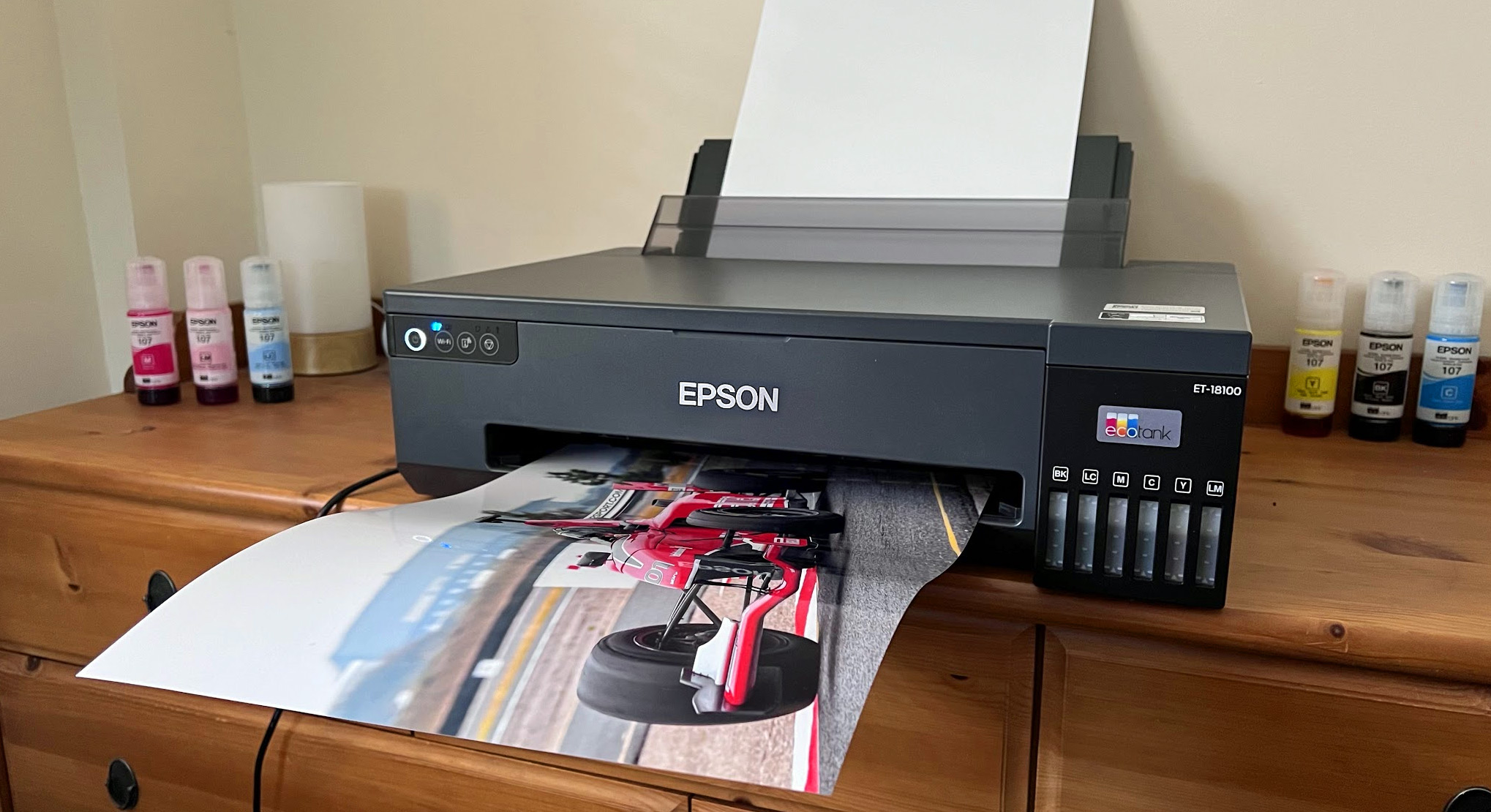
7. Epson EcoTank ET-18100 – Best Photo Printer
Pros
- Inexpensive photo prints
- Great print quality
- Mess-free ink refills
Cons
- No display
- No scanner / copier
- Expensive to buy
The ET-18100 has niche appeal because it’s been designed with a particular user in mind.
If you want to print a lot of photos at up to A3 sizes without breaking the bank, then you’re the target market. The printer itself is costly, but the ink tank design keeps running costs down.
The mess-free design is great and refill bottles are better for the environment, too. Print quality is excellent but as mentioned, you will need to print a lot of photos to justify this model.
With no display or copier/scanner functions, this isn’t an all-rounder.
Read our full Epson EcoTank ET-18100 review
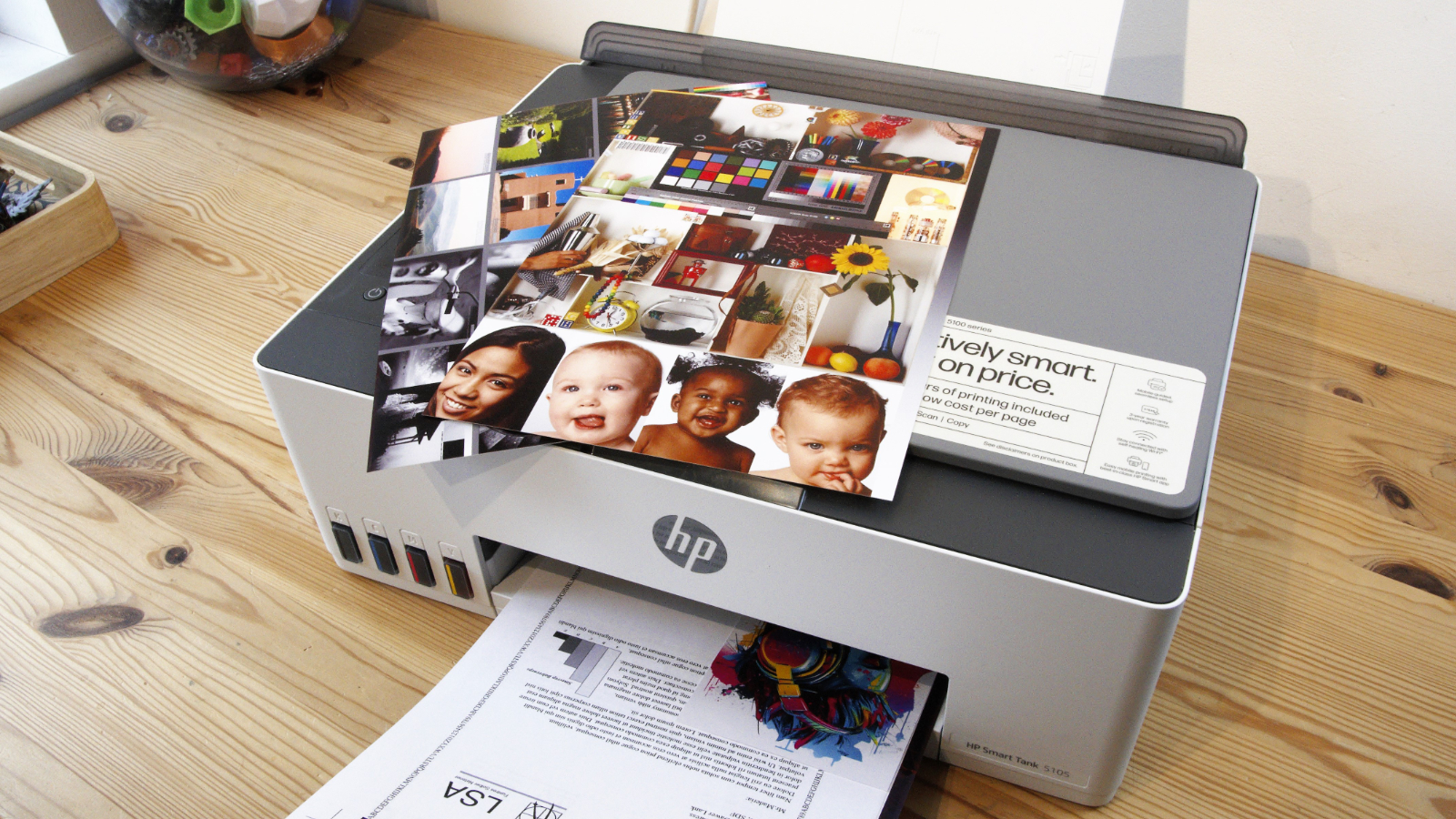
8. HP Smart Tank 5105 – Best Value Ink Tank Printer
Pros
- Cheap running costs
- Borderless on A4, A5
- Ink tank sensors
- Affordable printer
Cons
- Flimsy
- Awkward paper path
- Only 50ml coloured inks included
- No display
It’s great to see HP taking on Epson at ink tank printers and the 5105 is a practical solution for any home or small office customer that would like to worry less about the cost of printing.
Normally there’s a high initial price for the printer with an ink tank model but HP offers good value here, even if the supplied colour bottles are only 50ml and the build quality is on the flimsy end of the scale.
There’s also no display and this isn’t the fastest printer around either, but the quality is good for a range of tasks including surprisingly vibrant photos, and you can print borderless on A4 and A5 sheets.
It’s not all singing, all dancing but if a value for money ink tank printer is what you need then the 5105 is worth a look.
Read our full HP Smart Tank 5105 review
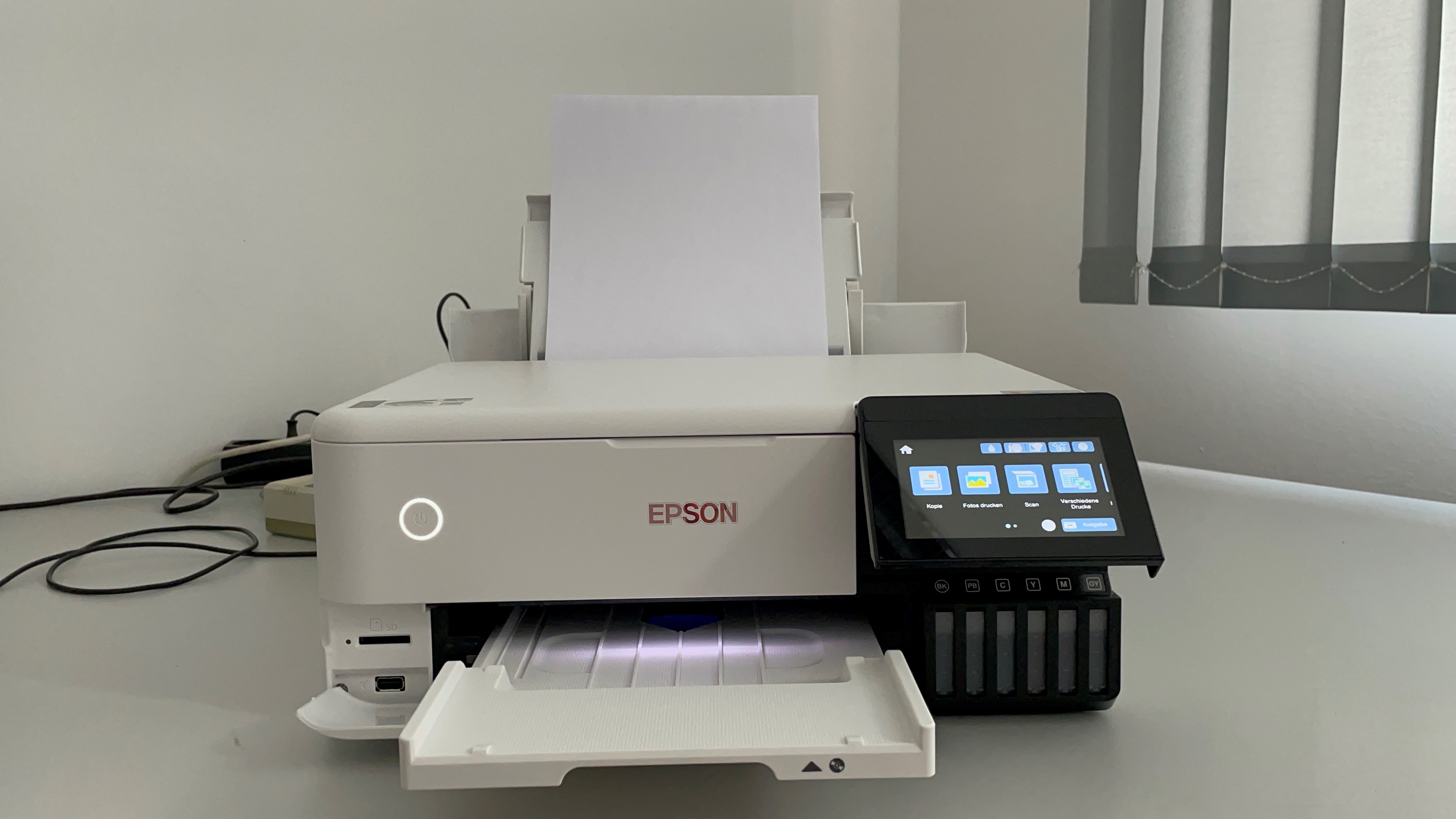
9. Epson Ecotank ET-8500 – Best Value Photo Printer
Pros
- Very high print quality
- Top for greyscale photos
- Processes many types of material
- Very low cost per page despite 6 colours
Cons
- No real off switch
- High purchase price
If printing photos is your thing, then the EcoTank 8500 is an excellent choice as this printer is designed for the task, although it can do regular printing and scanning as well.
It’s a fairly expensive printer at first but if you’re planning to print a lot of images then it should work out as a good investment in the long term with reliability and print costs.
Importantly, print quality is excellent and you can print on a variety of materials including fine art paper. It’s also got a large 10cm screen and no less than three different paper feeds.
Read our full Epson Ecotank ET-8500 review
10. Brother DCP-L3510cdw – Best Laser Printer

Pros
- 2-sided printing
- Decent performance
Cons
- Single-sheet scanning
- No colour screen
- Running costs
If you don’t need to print photos on photo paper but instead need a printer primarily for documents then a laser is a great choice.
The Brother DCP-L3510cdw uses LEDs instead of a laser, but it’s very similar and can reliably handle lots of printing with crisp quality at a decent speed.
You’ll need more room for it than a typical inkjet printer but running costs over the long term are more affordable and with Brother’s EcoPro subscription you get the printer for just £1.20!
This model has a basic LCD screen but still has useful features including 2-sided printing, a single-sheet scanner and Wi-Fi, complete with AirPrint support.
Read our full Brother DCP-L3510cdw review
How to choose a printer
There’s no single printer that will suit everyone, so while the list below is ordered it’s best not to worry too much about the number beside it. We’ve mixed together home and business printers, multifunction, colour and mono.
Inkjet vs laser
Printers come in two main forms: inkjet or laser, with colour and mono flavours of each. Lasers tend to be more expensive to buy, but provide better quality output, particularly where lots of text is involved. And they can be faster. Notice we said ‘tend’ – lasers aren’t always best.
As a basic rule, if you need to print only text, and a lot of it, a mono laser printer will offer the crispest text output and the best combination of fast page-per-minute output and low ink costs. If you need to print photos, choose an inkjet printer. A dedicated photo printer with individual cartridges for each colour will suit those who print only photos.
If you’re working from home and need to print a lot, a laser printer is likely going to be a better option.
You can also read our more in-depth comparison of the pros and cons of each type of printer .
What are printer running costs?
When buying a printer, remember that the price you pay in the store is just the beginning. Be sure to consider the cost of replenishing toner and other consumables over the lifetime of the printer. This is particularly important if you print a lot. A set of toner cartridges can easily approach the cost of a colour laser printer.
Most manufacturers quote a ‘page yield’ estimate for their ink cartridges, which is the typical number of pages you can expect to print before the cartridge runs out of ink. You can use the page yield to calculate the average cost per page and you’d be surprised to find how much this can vary from one printer to another.
Of course, if output quality matters more to you than cost, scoot over to the other end of the cost spectrum where there are more specialised printers that use five or even six inks for printing photographs. Those additional inks can produce excellent results for your photo prints, but they add to the cost, sometimes pushing the cost for photos up to 10p or more per page.
Some brands offer a cartridge subscription service, like HP’s Instant Ink , to keep costs to a minimum.
What is a multifunction printer?
Most modern printers are multifunction ‘all-in-one’ devices that include a scanner too. This allows you to scan photos and other documents and convert them into digital files that you can store on your computer or share with friends or colleagues. You can also print copies of your scanned documents, allowing the printer to stand in for a photocopier too.
Some models even include a fax machine. If you require a scanner and a photocopier as well as a printer, you’ll save money by buying in all-in-one – but if a standalone printer suits your needs, you may be able to spend less.
What about print speed and features?
Speeds quoted by manufacturers are almost never matched by real-world performance. If you often need to print in a hurry, look for independent reviews when choosing your printer.
Other useful features to look out for include additional USB ports and memory card slots that will allow you to print photos direct from a camera.
High-capacity paper trays capable of holding hundreds of sheets of paper, or an automatic document feeder that can handle scanning and copying work while you go and do something more important, might be worth looking out for.
Double-sided printing is handy for halving your paper usage.
It’s also worth thinking about the bundled software that comes with your printer. Some printers include software that provides basic editing features, such as red-eye removal or adjusting the colour balance – some even allow you to perform simple editing tasks using controls on the printer itself.
Author: Chris Martin, Managing Editor, Tech Advisor

Tech Advisor Managing Editor Chris got his break as a reporter at infamous site The Inquirer and has been with us for more than 12 years. With a BA degree in Music Technology, audio is his specialism, but over the years he has reviewed all kinds of gadgets, from smartwatches to mesh Wi-Fi to coffee machines.
Recent stories by Chris Martin:
- Canon Pixma G4510 review
Printers have seen something of a resurgence recently, with many people having to work from home due to the pandemic and needing a way to print off important documents or homework for the kids. Along with this returns the old problem of running out of ink at just the wrong time or having to spend a small fortune buying new cartridges because you’re printing so much.
The services send ink – or toner – by post to ensure you don’t run out, and they also spread the cost over months so you don’t have to pay a lot at any one time. And they can work out cheaper than buying the cartridges yourself. Here’s how they work and what they cost. Note that all prices are for ink/toner only and do not include paper.
How do printing subscription services work?
The idea is simple. You pay a monthly amount for your ink and can print up to a specified number of pages each month or across the whole year. Brother’s service even includes a printer as part of the package. Usually, your printer will be connected to the internet so the service can monitor its ink levels, then send you out a replacement cartridge so it arrives before the wells run dry. In other cases, the capacity of the printers will mean you will only have to order the replacements a few times during the subscription.
While having a limit on the pages you can print might seem restrictive, if you take a little time to work out your printing habits then you should find a plan that fits in with your requirements. Of course, as with any subscription, try to estimate how much your current usage levels would cost you across a year, then compare it to what you’d get from using one of these services.
While it is possible, in some cases, to use your existing printer, you may need to buy one that’s compatible with the service. The printers are usually heavily subsidised, to make the idea of the subscription service more appealing.
There are a few different subscription-based printing services around, but here are how the major competitors line-up.
Note that we have compared pricing only with genuine manufacturer cartridges. You can save money by buying third-party ‘compatible’ ink or toner. While it is fine to do so, bear in mind that print quality may be inferior, prints may fade faster and check that the seller will accept returns if you find that your printer detects a non-genuine cartridge and refuses to print (unlikely, but it can happen).
Brother EcoPro
Brother’s EcoPro service, which isn’t available in the USA, is split into three main categories: mono, colour and fast colour printing. Each requires a printer as part of the package, and the options break down as follows:
Simple Mono Printing
With this package you receive a monochrome laser printer for £20 (+VAT) or you can use an existing Brother printer if it’s compatible. Then for £9.98 per month (over a 24 month subscription) you can print up to a maximum of 6,000 A4 pages per year, which works out to 500 per month. Brother estimates this will save you around 70% of the costs you would have incurred if you bought the printer, ink and printed 12,000 pages across the two years.
Obviously, if you only print 50 pages per month usually, then this would be a waste of money, but for those who are regularly churning out pages, it’s well worth considering.
Should you prefer a 12-month subscription, then it costs £13 p/m, plus the £20 (+VAT) for the printer.
Using these prices we can calculate that the cost per printed page with the Eco-Pro service works out (if you remove the printer cost) at £0.02 on the 24-month tier and £0.03 on the 12-month contract.
At the time of writing, you could buy a TN1050 Toner cartridge for £41.99 , which would print 1,000 pages. This would make the price per page £0.04, which is actually more expensive, especially if you then factor in the price of a printer.
With all the Brother EcoPro tiers, you’ll need to order replacement cartridges or toner manually online on the Brother EcoPro website, and you can only do so every thirty days.

Flexible Colour Printing
This works out at 3p per page on both the 12 and 24-month contracts.
Again, checking the Brother site we find that LC3213 cartridges in Black/Cyan/Magenta/Yellow retail at £51.59 for 400 pages. This makes the price per page 13p, which is considerably more than the subscription offering.
Fast Colour Printing
The most expensive tier includes the same cost for the printer, which this time is a Brother colour laser model, and allows up to 6,000 A4 colour pages per year. A 12-month contract costs £29.99p/m while the 24-month variant is £25p/m.
This works out at 6p per page on the 12-month contract and 5p if you go for the 24-month plan.
Looking on Brother’s site, the black toner cartridge with the code TN-247BK costs £91.19, plus similar prices for the three colour toners. This makes the cost of replacing the entire range of cartridges around £400, which will give you 2,300 pages of colour printing. This works out at £0.17 per page, thus proving that the subscription rate is the way to go if you want to print regularly.
You can check out all the details about the services and its tiers at the Brother EcoPro website.
HP Instant Ink
HP was the first manufacturer to offer a subscription service. Instant Ink works with lots of HP printer models with Wi-Fi. This means that HP knows when your ink is going to run out, so it can post you the replacement to arrive in time to hopefully avoid any disruption to your output.

The range of options is quite expansive, all based on how much you print each month. Be sure to leave yourself a bit of wiggle room though, as it’s quite expensive to print over your allotted number of pages.
One good thing is that unused pages get added to your rollover pot, meaning you can make use of them at a later date. Each tier has a maximum amount of rollover pages allowed, so check the HP Instant Ink site carefully before signing up so you know your entitlement.
The tiers on HP Instant Ink are priced as follows and are all per month:
Ink
- 15 pages – £0.99/$0.99
- 50 pages – £1.99/$2.99
- 100 pages – £3.49/$4.99
- 300 pages – £9.99/$11.99
- 700 pages – £22.49/$24.99
Toner
- 50 pages – £1.99/$1.99
- 100 pages – £3.49/$3.99
- 400 pages – £12.99/$13.99
- 800 pages – £17.99/$19.99
- 1500 pages – £22.99/$25.99
Ink
- 15 pages – £0.08/$0.08
- 50 pages – £0.48/$0.72
- 100 pages – £0.42/$0.60
- 300 pages – £0.40/$0.48
- 700 pages – £0.39/$0.43
Toner
- 50 pages – £0.48/$0.48
- 100 pages – £0.42/$0.48
- 400 pages – £0.39/$0.42
- 800 pages – £0.27/$0.30
- 1500 pages – £0.18/$0.20
You can cancel your plan at any time and there are no minimum contract lengths or any other commitments.
- Find out more about HP Instant Ink
HP states that you can save up to 70% on the cost of running your printer by using the subscription model, and while we can’t provide the exact saving for ever HP printer here, if you print regularly, you’ll definitely be better off with an Instant Ink plan rather than buying the ink direct from HP.
The same is true for Epson printers too.
Epson ReadyPrint
Not to be left out, Epson also offers an ink subscription service which it calls ReadyPrint. There are two main variants of the service, which are Flex and Go. This might sound like a Yoga channel on YouTube, but the plans offer different approaches to how you use an ink subscription service. Note that these are UK-specific: there are alternative offerings available in the US (scroll down to see them).

Flex
This works with either Epson’s Expression Home or Workforce printers, so if you have one of the those then you’re good to go. The plan has range of tiers available, all of which have different allowances for the number of pages you can print each month. Here’s how they break down:
- 30 pages – £1.29
- 50 pages – £1.99
- 100 pages – £3.49
- 300 pages – £9.99
- 500 pages – £16.49
Used pages rollover to the next month and can be kept for a maximum of two months, but if you need to print additional pages each month you can either pay £0.10 per sheet or move to a higher Flex tier. Bear in mind that A3 prints count as two pages.
Basing the price on a one-year contract (you can cancel at any time on ReadyPrint) this is how much each page costs:
- 30 pages – £0.50
- 50 pages – £0.48
- 100 pages – £0.42
- 300 pages – £0.40
- 500 pages – £0.40
Both the Workforce and Expression Home variants of Epson’s printers will automatically monitor their ink levels, then notify Epson when they are running low, so the service can send you out replacements just before they are needed.
Go
This is a pay-as-you-go version of ReadyPrint, which is best suited to those who have a more erratic printing patterns. With this service, you register your compatible Epson printer (the site will allow you to check before signing up), then like the Flex plan it will monitor your ink levels then automatically order a new cartridge when your current one about to run out. No contract or minimum payments, just an automated service. You can choose to pause this at any time, so you’re not tied into ordering cartridges forever.
The costs are the same as buying regular sized cartridges directly from Epson, so check the site to see how much they are before signing up. To find out more, visit the Epson ReadyPrint site.
In the USA, there is another element to the service, in that you can choose to buy a printer as part of the package, as with the Brother EcoPro service, which is only in the UK.
There are three different packages available, each with a certain printer best suited to the requirements of that tier. Basically, the higher the tier, the fastest the printer, the more pages you can print, plus there are additional features, such as larger tray capacity, a fax and ethernet connectivity. Here’s the range:
Home
Unlimited ink, Epson ET-2750U printer, 1,250 pages per month, $14.99 per month.
Office
Unlimited ink, Epson ET-3750U printer, 2,100 pages per month, $19.99 per month.
Business
Unlimited ink, Epson ET-5850U printer, 8,300 pages per month, $34.99 per month.
Which is the best printing service for you?
If you don’t already have a printer, then Brother EcoPro might be quite tempting, as you get one as part of the deal, plus the price per page is still very reasonable.
If you have an HP or Epson printer that’s supported by their schemes, it obviously makes most sense to go with whichever brand you have, as the cartridges aren’t cross compatible with the other brand. Do take the time to calculate how much you could save even if it means buying a new printer though as switching brands could work out cheaper in the long run.
Ultimately if you print a lot of pages at home or just like the idea of never running out of ink, then it’s well worth considering a subscription service as they can certainly reduce the frustration of having your printer well run dry at that crucial moment.
- Best printer deals UK
- How to print from iPhone or iPad
- How to get a laser or inkjet printer for £1.20
- How to fix common printer problems
Author: Martyn Casserly, Contributor, Tech Advisor
Martyn has been involved with tech ever since the arrival of his ZX Spectrum back in the early 80s. He covers iOS, Android, Windows and macOS, writing tutorials, buying guides and reviews.
Recent stories by Martyn Casserly:
- What ink do I need for my printer?
- How to print in Windows 10
- Inkjet vs Laser printer: Which one is right for you?
Getting your documents, spreadsheets, posters, and other creations from PC to paper is a relatively straightforward affair. But, as with all things in life, it’s only easy when you know how. We show you the steps to take if you want to set up a printer and use it with Windows 10.
For users still on earlier versions of Windows, we’ve also included instructions on how to set up a printer in Windows 8 and 8.1.
If you need to buy a printer, check out our recommendations of the best printers.
Setting up a local printer in Windows 10
Before you can print, you’ll need to tell Windows that there’s a device that can receive your document. To set this up, first plug the printer into your PC with its supplied USB cable and turn it on. If all goes well, Windows should recognise it and install the appropriate driver.
If that doesn’t happen, open the Start Menu and select Settings . From the window that appears, click on Devices then make sure the Printers & scanners section is highlighted in the left hand column.

In the main pane, click on the Add a new printer or scanner button.

Hopefully Windows will now detect your device. If this is the case then click on its name and follow the instructions that appear to complete the setup.
If the printer name doesn’t appear, then it could be that you need specific drivers or software. To find these, visit the manufacturer’s website and search for your model of printer. This should give you a link to the download you require.
Install it and follow the instructions on screen. Typically you leave the USB cable disconnected until instructed to plug it in.
Setting up a wireless printer
USB cables are pretty old fashioned when it comes to printers and most modern models have Wi-Fi. You’ll need to follow any instructions that come with the printer, as they vary too much to give anything specific here. Generally, this involves using the display on the printer itself to identify your home Wi-Fi network, then entering the password.
With this done, you can then follow the steps listed above in the Setting up a local printer section, as Windows should find the new device and add it. Again, you may still need to download software specific to the printer model from the manufacturer’s website.
Printing from Windows 10 applications
With your printer ready to roll, you can start sending it things to print. Again, this can vary from app to app, but the normal process is to go up to the menu bar at the top and select File>Print , choosing your printer, how many copies and so forth, then clicking on the Print option.

A shortcut that also works is holding down CTRL+P , which should take you to the Print options page.
Now, if all has gone to plan then you should be able to printout your documents and other paper-based creations to your heart’s content.
If you’re looking to print photographs, then read How print photos at a larger size , while for other related issues there’s also How to print from iPhone or iPad , and How to fix common printer problems .
Print in Windows 8 and 8.1 from desktop software
Each program can set its own method via which you can print, but most follow some common themes. In most cases, go to File>Print , and you can print. A similar number of desktop programs support CTRL+P as a shortcut – just hold down those two keys together.
One final, less usual, option is to look for a print icon or button. Some software makers simplify the print process by putting in place a print button. You’ll tend to find that the File, Print and Ctrl+P options also work, but a print icon can be a simpler way of doing things.
Print in Windows 8 and 8.1 from Windows apps
Things work a little different from within Windows apps. In this case you must first open the item you want to print. Then either mouse to the top- or bottom-right hand corner of the screen, or swipe in from the right edge of the screen if you are using a touchscreen device. Tap the Devices charm, and then tap Print .
Installing a printer in Windows 8 and 8.1
Using either method you should now be at a printer settings page. You’ll need to choose a printer from the list. In most home setups this will just be your one and only printer. If you can’t see the printer you want, or any printer, you may need to install your printer.
In most cases, all you have to do to set up a printer is to connect it to your PC. Simply plug the USB cable from your printer into an available USB port on your PC, and turn the printer on.
If you have a wireless printer that hasn’t been added to your home network, it’s a little more complicated and you’ll need to read the instructions that came with the printer to learn how to add it.
If you are unsure about any of this you can check by going to the Settings charm, and selecting Change PC settings . Select PC and devices , and then Devices . Your printer should appear under Printers. If it isn’t there you need to follow the steps outlined above in order to install it.
Assuming you have a printer installed and ready to go, at this stage you’ll see a preview of what you’re printing, along with the number of copies and the page orientation on the preview pane.
Choose the paper type, page layout, print orientation, and other output settings. Once you are happy, click Print .
Author: Martyn Casserly, Contributor, Tech Advisor
Martyn has been involved with tech ever since the arrival of his ZX Spectrum back in the early 80s. He covers iOS, Android, Windows and macOS, writing tutorials, buying guides and reviews.
Recent stories by Martyn Casserly:
- What is Google Gemini?
- How to back up your data for free
- You can now buy Microsoft Office 2024 on Amazon without a 365 subscription
Smartphones and tablets may have removed the need for physical documents in many cases, but we’re still a long way from being a paperless society. That’s why printers remain a useful device to have around the house.
As we tend to buy them infrequently, it can be a bit puzzling to know which type to choose: Should you go for a HP laser model or is an Epson inkjet better? So, here’s a quick guide on the main differences between inkjet and laser printers.
How do printers work?
While either type will perform general printing duties, inside they’re not the same. Inkjets, as the name suggests, have a large array of nozzles that shoot ink onto the paper. They also use ink cartridges or (in models like the Epson EcoTank ET-3750 ) reservoirs. These usually need to be replaced or refilled more often than the toner in a laser printer.

Laser printers, aside from sounding space-age and potentially lethal, don’t use ink at all. Instead they have toner cartridges which contain a powdery substance that is fused onto the paper by heat. It’s the laser that creates the image.
What do you intend to print?
The most important question, as with so many buying decisions in technology, comes down to what you actually intend to do with the device. The rule of thumb in this area is that if you want to print lots of photographs then an inkjet is the way to go as they produce better quality results.
On the other hand, documents tend to look sharper on laser models and usually print at a faster rate. This is why it’s more common to find laser printers in small offices.
If you’re going to be using the printer for everyday duties that include reports, school homework, a few photos, the occasional A4 poster, and things along these lines, then either will fit the bill. At this point, the main differentiator will become price.
How much do they cost to buy and run?
Inspecting our other ruling thumb reveals that Inkjets tend to be cheaper to buy upfront, but incur higher printing costs across their lifespan. This is due to the fact that ink is more expensive per page than toner and comes in cartridges with lower capacities.

You can shop around for third-party ink, which is usually cheaper than the name-brand cartridges, but in our testing over the years this has proven to be a false economy as the high-priced ones behave better and produce more consistent results. However, things aren’t as clear cut for laser printers: we have got by just fine with significantly cheaper third-party toner cartridges.
As an example of how cheap inkjets are to buy, we found this HP Envy 4527 available at Currys/PCWorld for only £35 . This deal includes a 4-month trial of HP Instant Ink which charges a low monthly fee to keep your ink supplies automatically replenished.
By contrast the cheapest colour laser printer we could find on the same site was the Brother HL3150CDW which was on offer at a reduced price of £129.99.
Don’t let the ticket price be the sole deciding factor though. Before clicking the buy button, do a little research to see how many pages each one prints before you need to replace the cartridge, and how much those replacements cost, as this will give you a clearer picture of the real cost of owning the device.
Also, take into consideration whether you can use it via Wi-Fi, Apple AirPrint or Google CloudPrint because it’s likely you’ll want the convenience of printing wirelessly from your phone, tablet and laptop.
Finally, check the dimensions of the printer, as some can be quite large and bulky, which isn’t always easy to accommodate in a home.
For our money, we’d go with an Inkjet as it offers flexibility and a low entry cost. But, if you want to produce lots of documents quickly for work purposes then the laser route might be best for you.
To see the latest offers from around the web, check out our Best printer deals page, as well as looking at the devices that currently make up our Best Printers 2018 chart.
Author: Martyn Casserly, Contributor, Tech Advisor
Martyn has been involved with tech ever since the arrival of his ZX Spectrum back in the early 80s. He covers iOS, Android, Windows and macOS, writing tutorials, buying guides and reviews.
Recent stories by Martyn Casserly:
- Best printing subscription services
- What ink do I need for my printer?
- How to print in Windows 10
