The introduction of Windows 11 saw Microsoft redesign many of its stock apps, with Settings among the most significant. It’s a streamlined version of the Windows 10 app, aiming to provide all the options that users might want to change on their devices.
But Windows 11 still has a separate Control Panel, which offers many settings you won’t find in the main menu. Rather than diving into the confusing menus to find what you’re looking for, why not have them all available at the click of a button? That’s where ‘God Mode’ comes in.
What is God Mode on Windows 11?
God Mode is the informal name for a folder on the desktop which acts as a shortcut to all the Control Panel settings. This is displayed as a vertical list within File Explorer, meaning you can find what you’re looking for at a glance.
Many of these are options that aren’t available in the regular Settings menu, hence the name.
How to turn on Windows 11 God Mode
Microsoft doesn’t officially support the feature, but it’s easy to enable and completely safe. Unlike some of our Windows tutorials , it doesn’t involve making any changes to the Registry.
Create a new folder
Anyron Copeman / Foundry
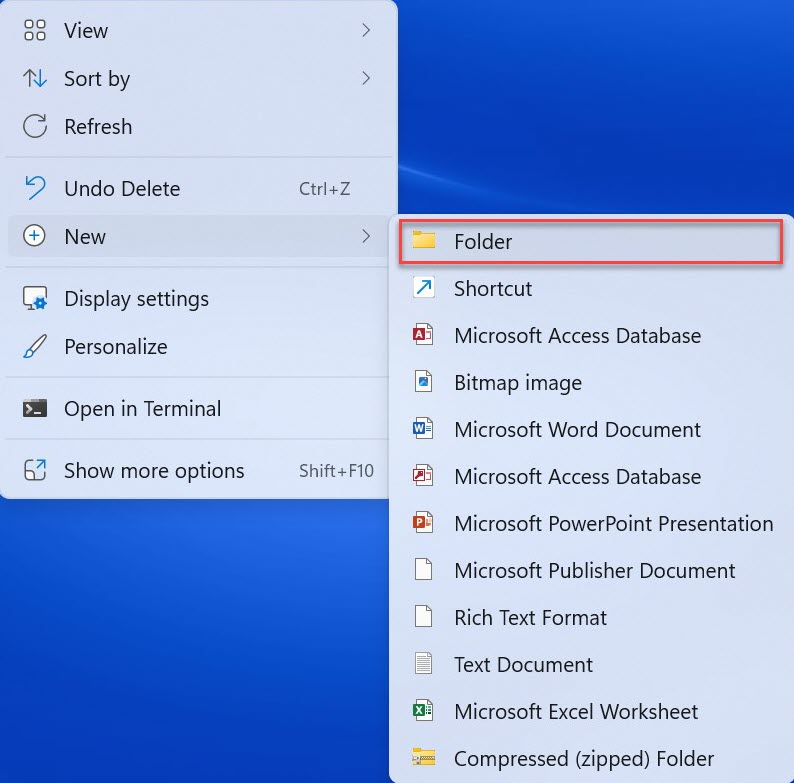
Right-click any empty space on your desktop. Hover over the ‘New’ option, then choose ‘Folder’
Give it a very specific name
Anyron Copeman / Foundry
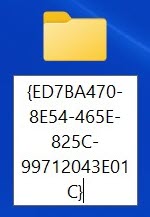
Delete the default text and replace it with ‘ GodMode.{ED7BA470-8E54-465E-825C-99712043E01C} ’. If it’s already been given a different name, right-click and choose ‘Rename’.
Save changes and wait for Control Panel icon

Anyron Copeman / Foundry
Hit enter to save your changes. The folder icon will now change to one which resembles the Control panel, and the name should disappear.
Open the file, then find the Control Panel setting
Anyron Copeman / Foundry
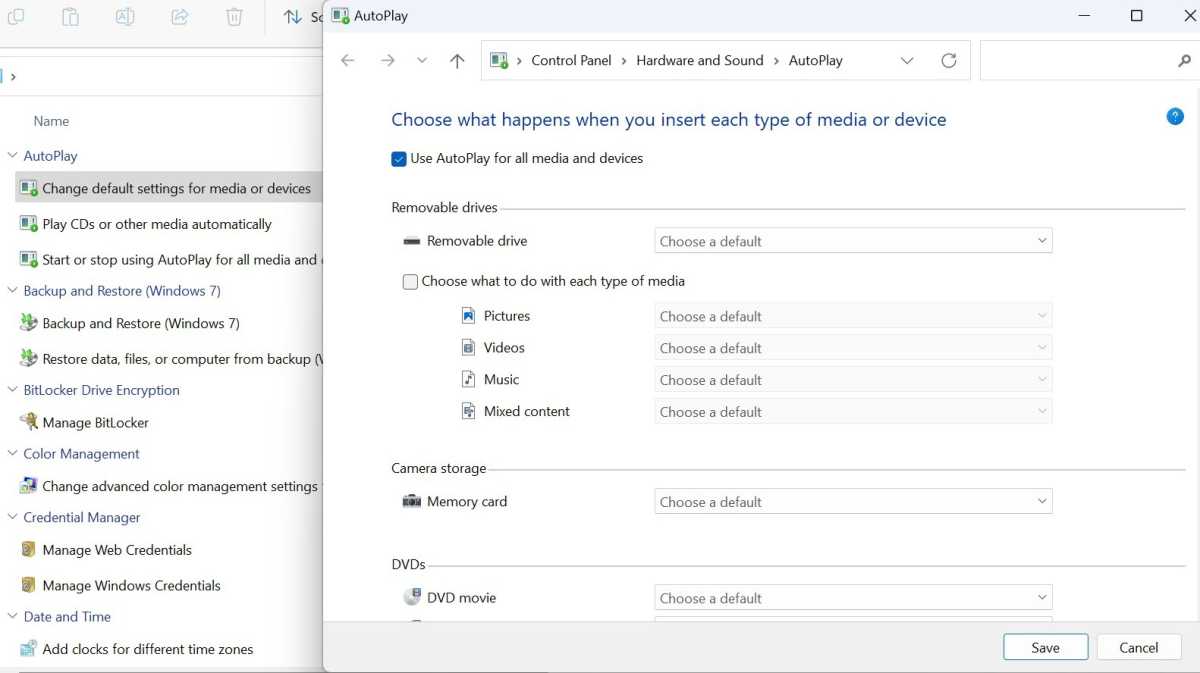
Double-click the icon just like you would any app or folder. It will open in File Explorer. Double-click any of the options, and you’ll be taken to the relevant page within the Control Panel.
- How to force quit a Windows 11 app
- How to fix missing taskbar and Start menu in Windows 11
- How to remove login password in Windows
Author: Anyron Copeman, Mobile Editor, Tech Advisor

Anyron is Mobile Editor at Tech Advisor, where he’s been a mainstay of the editorial team since 2019. In his current role, Anyron is responsible for all smartphone, tablet and mobile network coverage on the site. A BA Journalism graduate, he has experience with a wide range of consumer tech products and services, including smartphones, tablets, foldables, wearables and more.
Recent stories by Anyron Copeman:
- Windows 11 23H2 update: Everything you need to know
- Windows 12: Everything we know so far
- How to get the Google Play Store on Windows 11
