If you’re out somewhere and suddenly notice that SOS has appeared at the top left of your iPhone display, it doesn’t mean that your device is sending out a cry for help. Instead, it’s a simple problem that’s nothing to panic over. Here’s what to do when your iPhone is in SOS mode.
Why is my iPhone on SOS only?
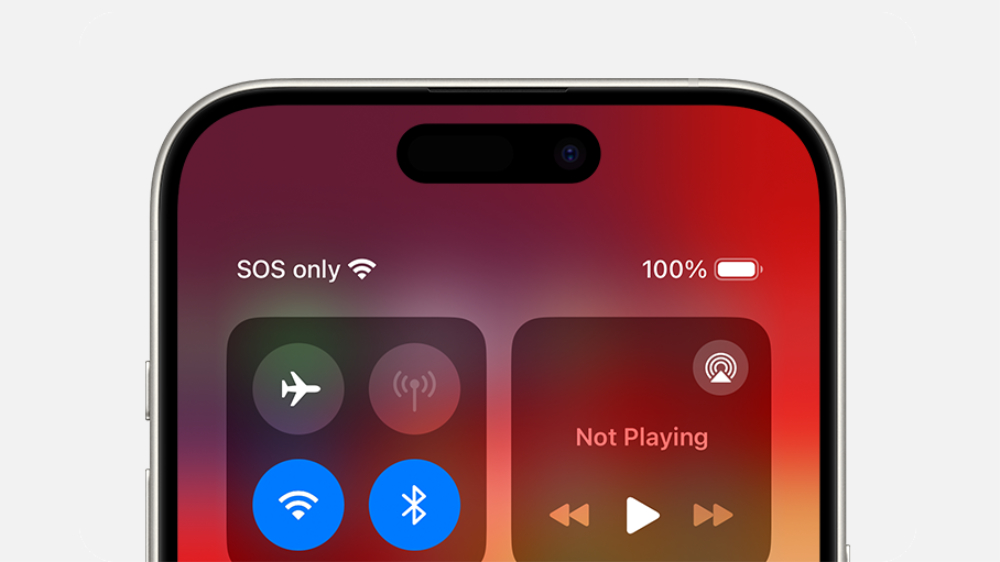
SOS or SOS only will appear on your iPhone if you’re in an area that has no cellular network connection, but your device is still able to make emergency calls. It should be noted that this feature is only available in Australia, Canada, and the United States.
Apple
What does SOS mean on an iPhone?
As explained above, when you see the SOS or SOS only message on your iPhone, it means you’re in a location where the network connection is so weak that your device can’t make any calls. The emergency services presumably have some priority on the networks which makes it possible still to contact them when the SOS message appears.
How to fix ‘SOS only’ on iPhone
There are a few different ways to address SOS mode, most of which are quite simple.
Move to a different place
The most obvious is to head to a new location where the signal should improve. If you’re in a forest, by a beach or in another area that isn’t built up, then it could be that the cell towers are too far away to give you coverage.
Try resetting your connection
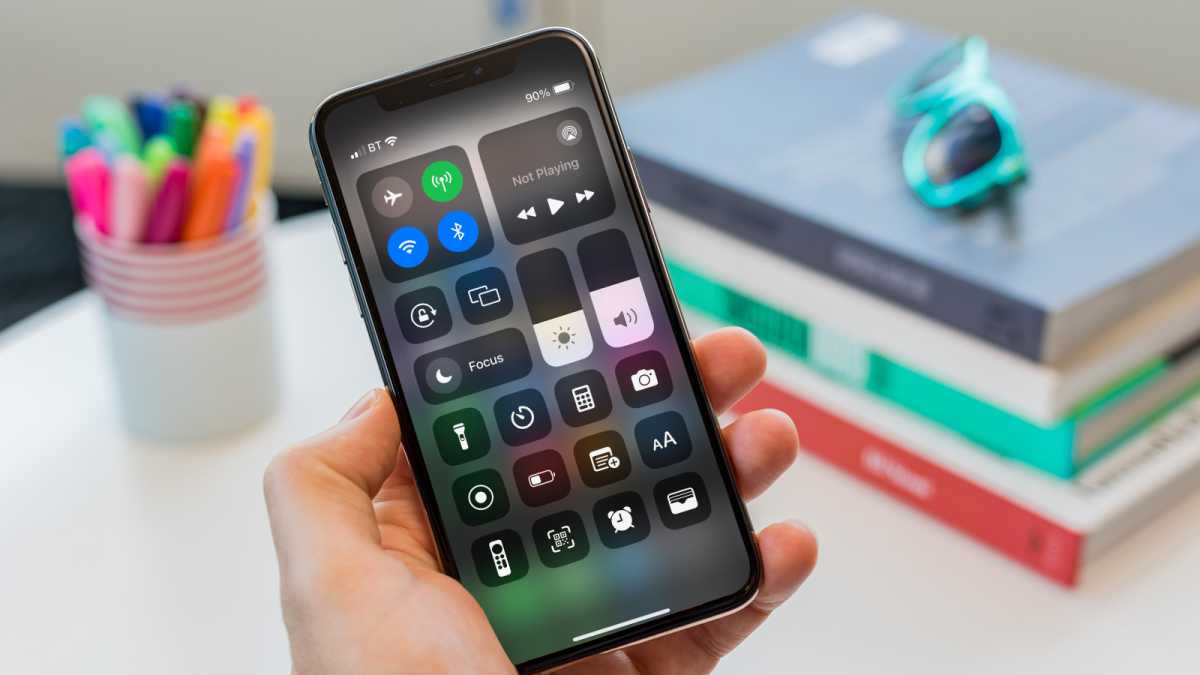
It’s possible that you passed through an area of poor reception, but that your iPhone didn’t manage to reconnect afterwards. To reset the connection, turn on Flight Mode (the little airplane icon in the quick settings menu) for about 10-15 seconds, then turn it off again and your iPhone will immediately search for a network signal.
Martyn Casserly
Try restarting your iPhone
Another simple fix is to simply power down your iPhone for a few seconds, then restart it to see if that clears the issue.
Update to the latest version of iOS
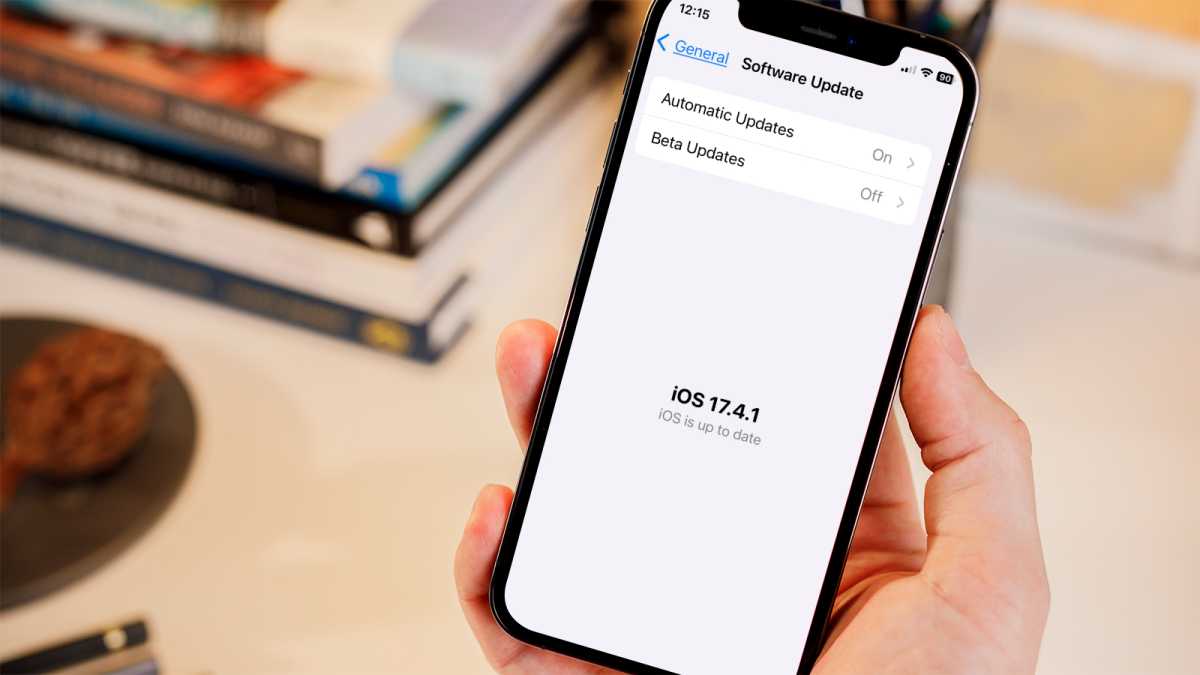
If you still have a Wi-Fi signal, you can try checking to see if there’s an iOS update available, as this could solve any existing problems. To see how this is done, read how to update iOS on an iPhone on Macworld.
Martyn Casserly
Enable Data Roaming if you’re abroad
Should you be travelling abroad, it could be that data roaming hasn’t been enabled on your iPhone, which would restrict its ability to connect to a network. To check this, go to Settings > Cellular (or Cellular Data) , then enable Cellular Data . After this, select Cellular Data Options and turn on Data Roaming .

Martyn Casserly
If you have a dual SIM setup, then select the relevant number and enable Data Roaming for that one.
(Note: In the UK, Apple uses Mobile Services rather than Cellular, although the SOS mode isn’t currently available in this region.)
Contact your network provider
Should none of the above work, then it’s worth borrowing a friend’s phone and calling your network provider to see if there’s any kind of issue with your account or its service.
Visit the Apple Store
If you’ve had no luck with any of the solutions, it could be that your iPhone is encountering a technical problem. In this case, we’d recommend Macworld’s article on booking an appointment at the Genius bar of your local Apple store . Hopefully they’ll get you back up and running in no time.
- How to factory reset an iPhone
- How to move from iPhone to Android
- Do you need antivirus for iPhone?
Author: Martyn Casserly, Contributor, Tech Advisor

Martyn has been involved with tech ever since the arrival of his ZX Spectrum back in the early 80s. He covers iOS, Android, Windows and macOS, writing tutorials, buying guides and reviews.
Recent stories by Martyn Casserly:
- How to factory reset an iPhone or iPad
- iPhone 11 vs Samsung Galaxy S10
- iPhone 7 vs iPhone 8
