Windows 11’s security patches are prone to causing issues of their own, and that’s no different this month. After installing version KB5015814, users have complained of frequent problems with the Start menu, a crucial component of the user experience. For most people, it’s simply not worth updating right now.
As BetaNews reports , opening and closing programs seems to break the Start menu for many users. Considering it’s still the main way most people find and launch apps, this can have a significant impact on your workflow.
But it’s not the only issue related to the KB5015814 update . Plenty of people have reported being unable to install it in the first place, with 0x8000ffff, 0x8007007e and 0x80073701 the most common error codes. You may even get stuck in an endless boot loop, which usually requires a manual reset.
However, provided it doesn’t cause long-term damage, not being able to update your device may be a blessing in disguise until Microsoft issues an official fix.
The company is yet to acknowledge these bugs, but there’s no doubt it’ll eventually be worth installing. Alongside plenty of small security updates, it fixes a common issue with Windows PowerShell. Keeping your device up to date is usually a good policy, but there’ll have been too many bugs in recent months for Microsoft’s liking.
It’s worth noting that automatic updates are enabled on Windows 11 by default. The KB5015814 update may be downloaded in the background, so take care not to install any updates when you turn off your device.
But what if you’ve already installed it and are suffering as a result? Fortunately, there is a workaround.
How to uninstall the Windows 11 KB5015814 update
On Windows 11, Microsoft makes it easy to uninstall an update and go back to the previous version:
Open Settings and click ‘Windows Update’ from the left pane
Under ‘More options’, choose ‘Update history’
Anyron Copeman / Foundry
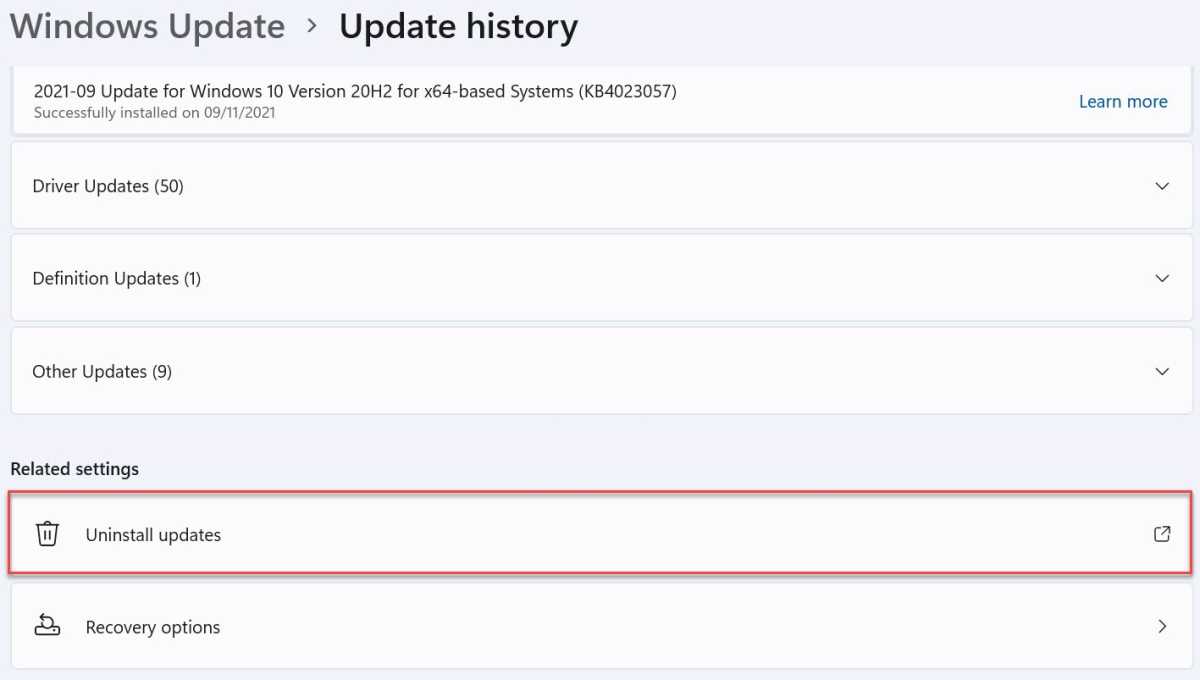
Scroll all the way to the bottom and click ‘Uninstall updates’
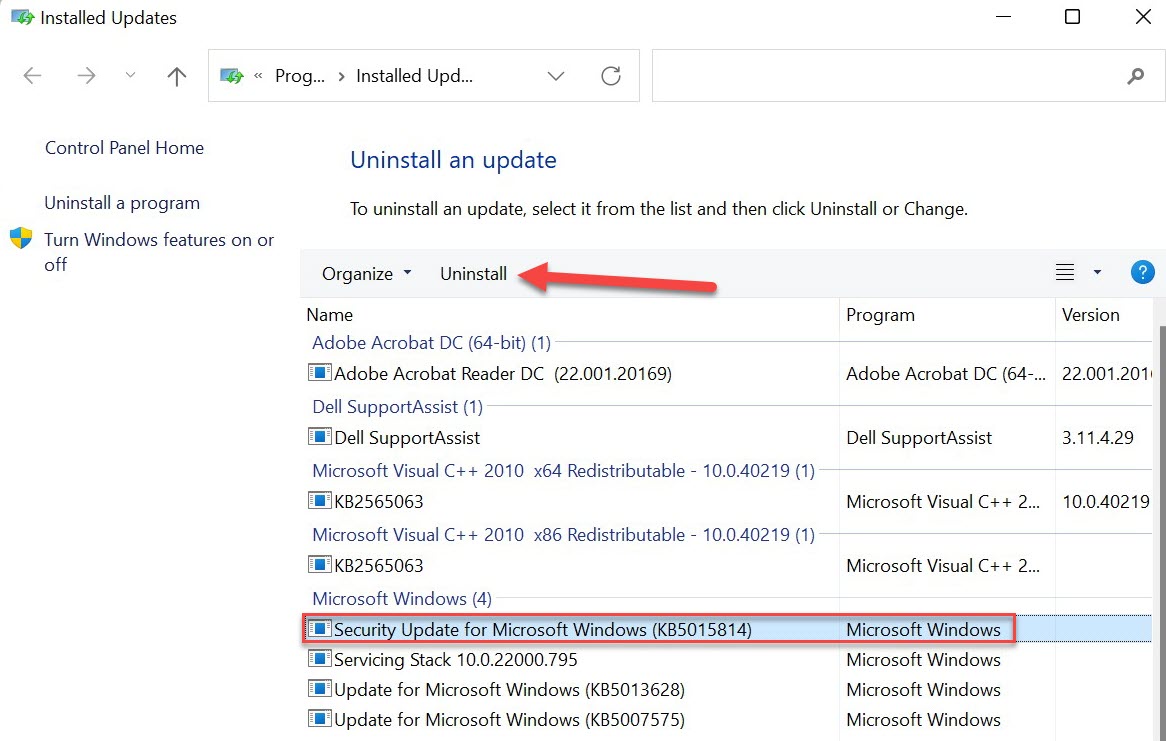
After a few seconds, select the KB5015814 update and click ‘Uninstall’
Anyron Copeman / Foundry
- Click ‘Yes’ to confirm, then update your device to apply changes
- Windows 11 22H2 update news
- Windows 11 superguide
- Everything we know about Windows 12 so far
Author: Anyron Copeman, Mobile Editor, Tech Advisor

Anyron is Mobile Editor at Tech Advisor, where he’s been a mainstay of the editorial team since 2019. In his current role, Anyron is responsible for all smartphone, tablet and mobile network coverage on the site. A BA Journalism graduate, he has experience with a wide range of consumer tech products and services, including smartphones, tablets, foldables, wearables and more.
Recent stories by Anyron Copeman:
- Windows 11 23H2 update: Everything you need to know
- Windows 12: Everything we know so far
- How to get the Google Play Store on Windows 11
