The Fire TV Stick (and other Fire TV models) has native support for VPNs, which makes it easy to overcome regional blocks and watch the videos you want, wherever you are in the world.
It works both ways: you can take your Firestick on holiday with you and watch shows just as if you were at home. But, as you may know, most people use a VPN to watch shows that aren’t available in their country.
And like those apps, it’s just as easy to install a VPN app, but below we’ll show you step by step how to do it.
Which VPN is best for Fire TV Stick?
So, which VPN app should you download? We’ve rounded up the best VPN services for the Fire TV , but to save you time, we recommend NordVPN .
Although there are free VPNs, none are much good for unblocking video. Either they won’t let you connect to a server in the country you need, or they severely restrict the amount of data per day. Some simply don’t give free users access to servers that unblock video services.
All you need is a 2nd-generation Fire TV Stick or newer: the first generation models don’t support VPN apps.
How to install a VPN app on a Fire TV Stick
NordVPN
If you don’t already have an account with the VPN service you’re going to use, then create one on your laptop, PC or even a phone. It’s much easier than using the on-screen keyboard with the Fire TV remote.
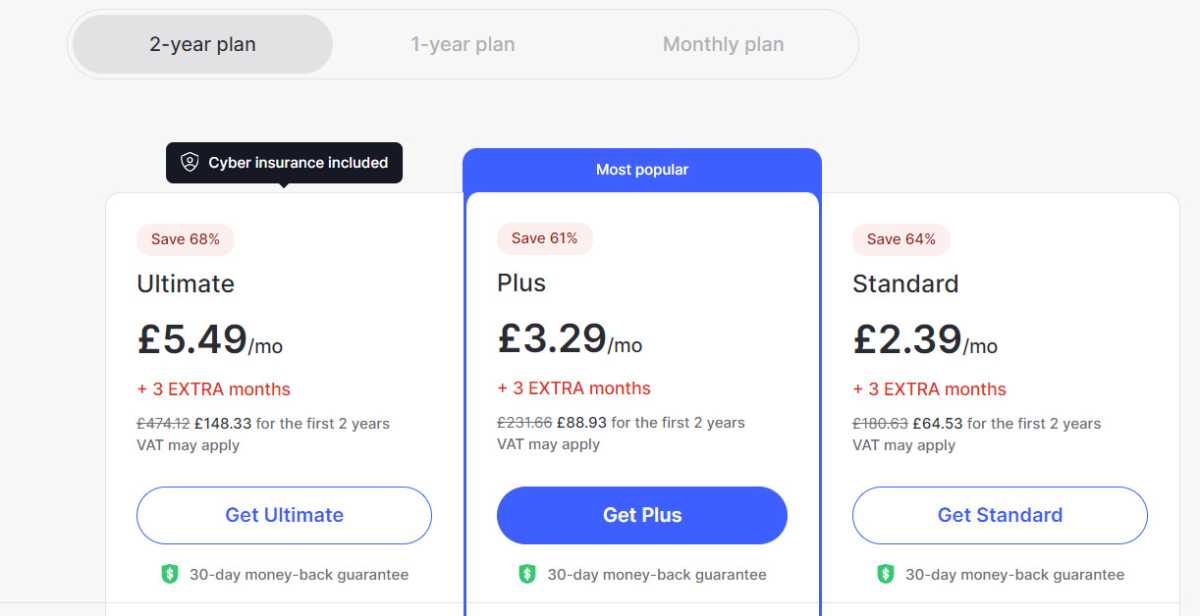
TIP: Subscribing to the two-year plan is the cheapest option, even though the up-front cost is higher. Also, NordVPN offers different tiers such as Plus and Ultimate which include more than just the VPN. If you just want the VPN, opt for Standard.
Go to the app store
Jim Martin / Foundry
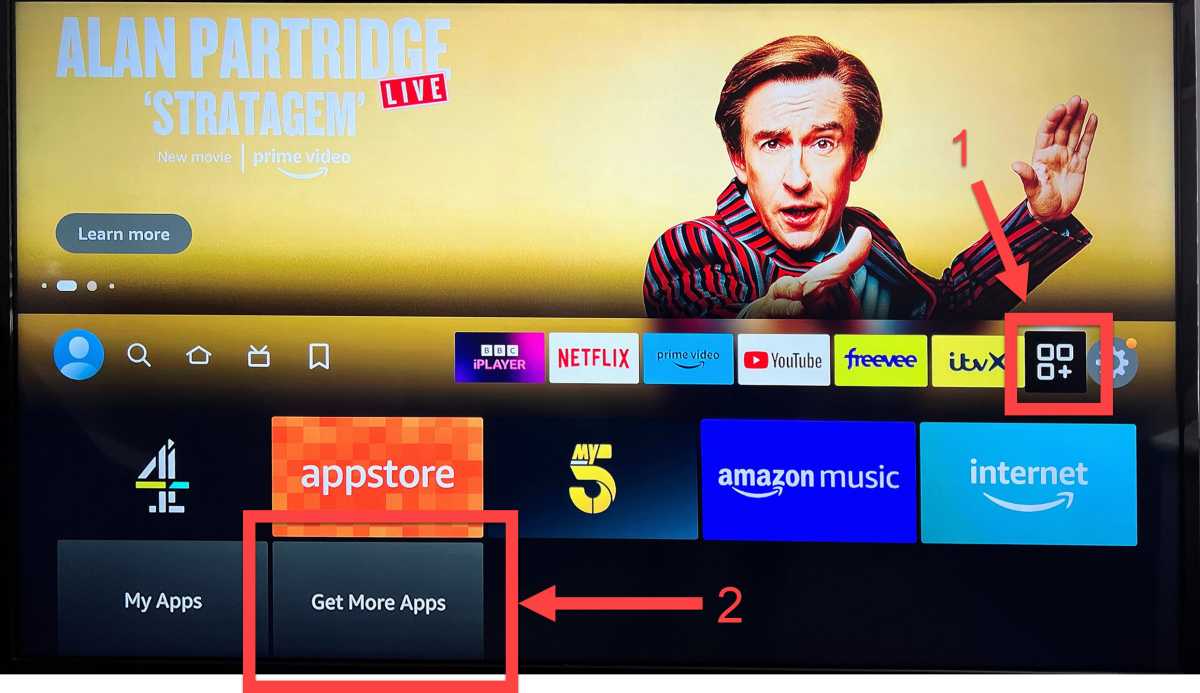
Once your account is set up, go to your Fire TV and select the apps icon (marked 1) and then on Get More Apps.
Search for NordVPN
Jim Martin / Foundry
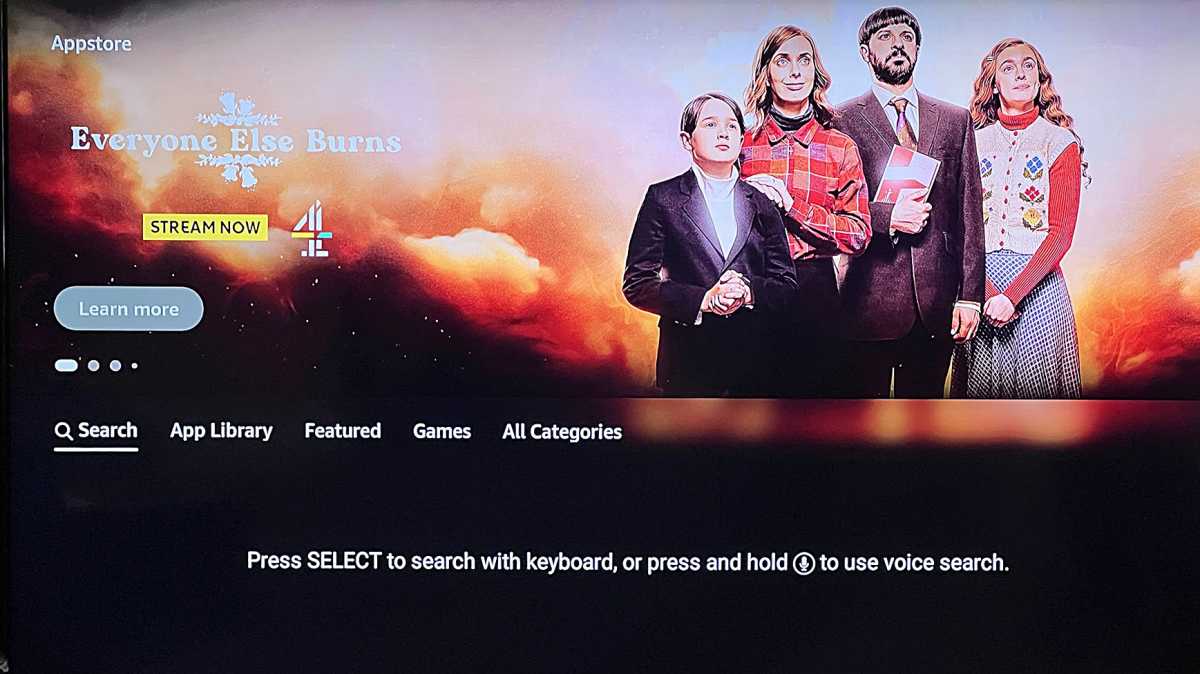
Select Search with the remote control and press the select button.
Type or speak
Jim Martin / Foundry
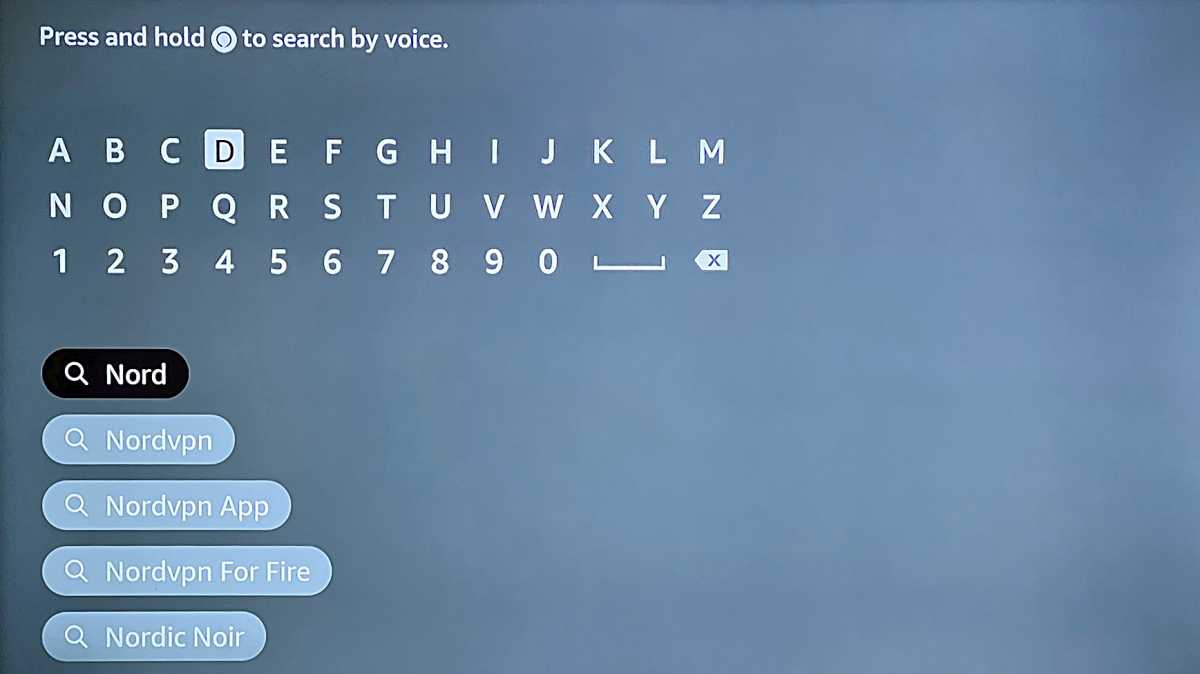
Either use the on-screen keyboard to search for Nord, or press your remote’s microphone button and say “NordVPN”. Then select Nordvpn from the list of results with the remote control.
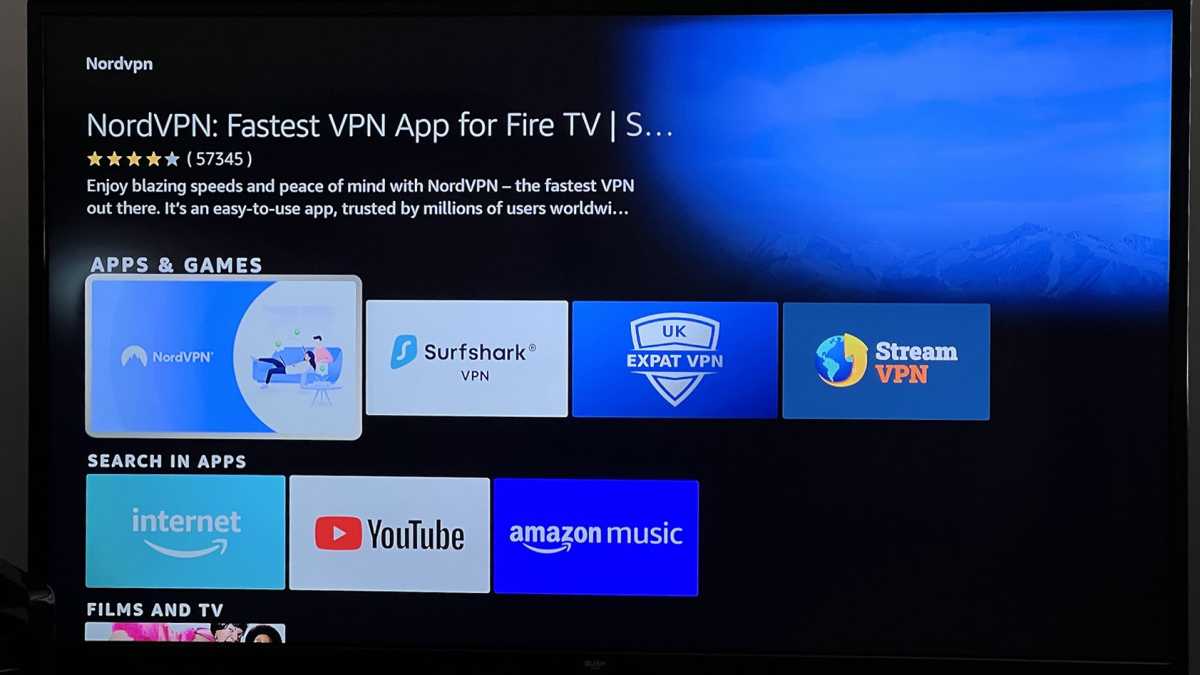
Select NordVPN
Jim Martin / Foundry
When the list of apps matching your search appear, use the select button on your remote to click on NordVPN – highlighted above. Installing the app is as simple as clicking the ‘Get’ button and waiting for it to change to Open. Press the select button on your remote to open NordVPN.
Log in
Jim Martin / Foundry
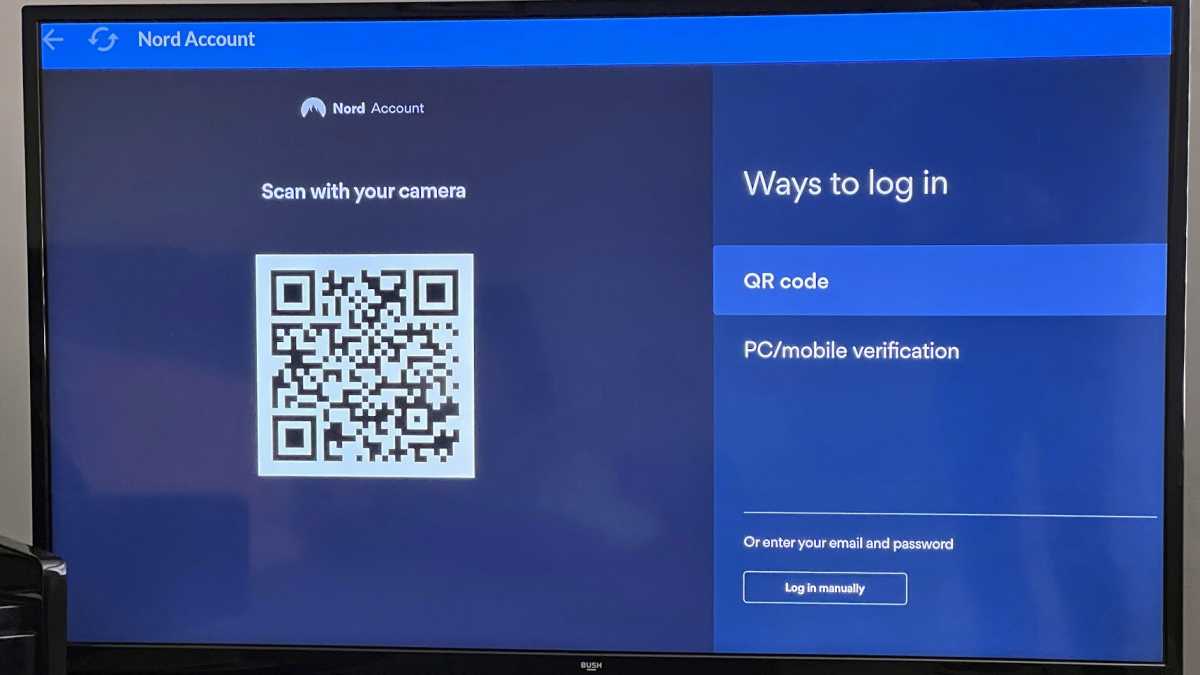
Choose a way to log in. It’s easiest to point your phone’s camera at the QR code (using the normal camera app) and it should bring up a link to tap on which will open the NordVPN website on the login screen. But you can also use the Log in manually button if you don’t mind using your remote and an on-screen keyboard.
Choose a location
NordVPN
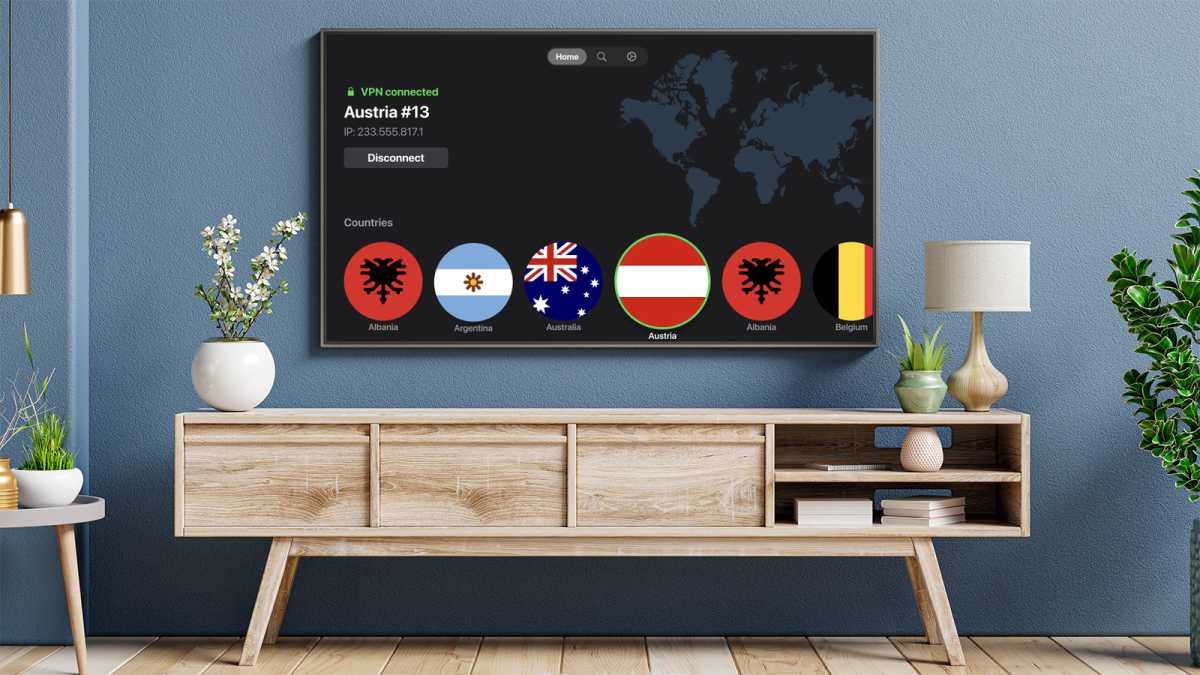
Once logged in you can select a country. Pick the one where the video or streaming service is available. For example, if you’re trying to watch BBC iPlayer you will need to select UK. For Netflix US, choose the US. Scroll to the server you want and press the select button on the remote. Once connected, you will see VPN connected, with a green padlock.
TIP: When you see a prompt to set up a VPN connection, click OK to all NordVPN to set this up on your Fire TV.
Now you can press the home button on the remote to go back to the Fire TV’s main menu.
Then launch iPlayer, Netflix or whichever app you want to stream from and you should find that you can now watch videos which were previously blocked. As far as that service is concerned, you’re now located in whichever country you chose in the VPN app.
How can I use a VPN service that doesn’t have an app?
If you’re willing to do some extra legwork, it’s possible to use other VPN services with the Fire TV even if they don’t offer an app in the store.
One way is to find the Android .apk file for the app you want and side-load it onto the Fire TV Stick. Often you’ll find this made available direct from the VPN provider’s website, which is the safest place to get it.
The snag is that you might have to create a short link to save having to type in the full URL of the .apk file using the Fire TV’s remote control. You can use tinyurl.com for this, or the even better one that the creator of the Downloader app made as a companion – it turns URLs into a short numeric code that’s even simpler. You’ll need to do this on a PC or laptop first.
On your Fire TV, use the search function and search for ‘Downloader’. You can install the Downloader app which is necessary to download the .apk file.
Run Downloader and enter the shortened you created earlier. The file will download and you should see a prompt to install it. After that, it’s the same process as before: launch the app, sign in with your details (create an account with the VPN service on your PC or laptop if you haven’t already done so).
Just bear in mind that the app is likely to have been designed for a phone screen, not your TV, so may appear sideways, which is why it’s always better to use a dedicated smart TV app from the Appstore.
However, if you can get it working, then pick a country in which you want to stream video, and connect to it.
With any VPN running, your IP address will show you as being located in the country you’ve selected. Just remember that there is no guarantee that any VPN will unblock all video streaming services: some are better than others. Which, again, is why we recommend you try NordVPN .
- What is a VPN and how does it work?
- How to use a VPN
- Best VPN services (plus free options )
- Best VPN for streaming
- Best VPN deals
Author: Jim Martin, Executive Editor, Tech Advisor

Jim has been testing and reviewing products for over 20 years. His main beats include VPN services and antivirus. He also covers smart home tech, mesh Wi-Fi and electric bikes.
Recent stories by Jim Martin:
- The best VPN services 2026: Stay protected with our expert top picks
- How to watch BBC iPlayer abroad
- Is Amazon Alexa down? It’s probably not just you
